Business App Social Notifications
What are Notifications?
Notifications in the Business App let you control how you are alerted about activity on your social and blog posts. You can choose to receive in-app notifications, email notifications, or both.
Notifications keep you informed whenever a social or blog post is automatically saved as a draft or scheduled. You manage all of these preferences from one place in the Business App.
Why are Notifications important?
- Stay informed: Know as soon as a new social or blog post is drafted or scheduled, without checking manually.
- Choose your channel: Receive alerts in-app, by email, or both, based on how you prefer to work.
- Reduce noise: Limit alerts to only your own events, or turn notifications off entirely.
- Manage everything in one place: Set your preferences directly in the Business App.
What's included with Notifications?
- In-app notifications: Alerts that appear under the bell icon in the Business App.
- Email notifications: Emails for New Calendar – Drafted Posts and New Calendar – Scheduled Posts.
- Event toggles: Enable or disable notifications for New Calendar Draft Post and New Calendar Scheduled Post.
- Event scope: Choose to be notified about all events or only your own events.
- Recent Activity: A running list of drafted and scheduled posts on your Business App home page.
- Administration controls: Turn the related email notifications on or off from your notification settings.
How to set up your notifications
Step 1: Open the Business App
Sign in to your Business App.
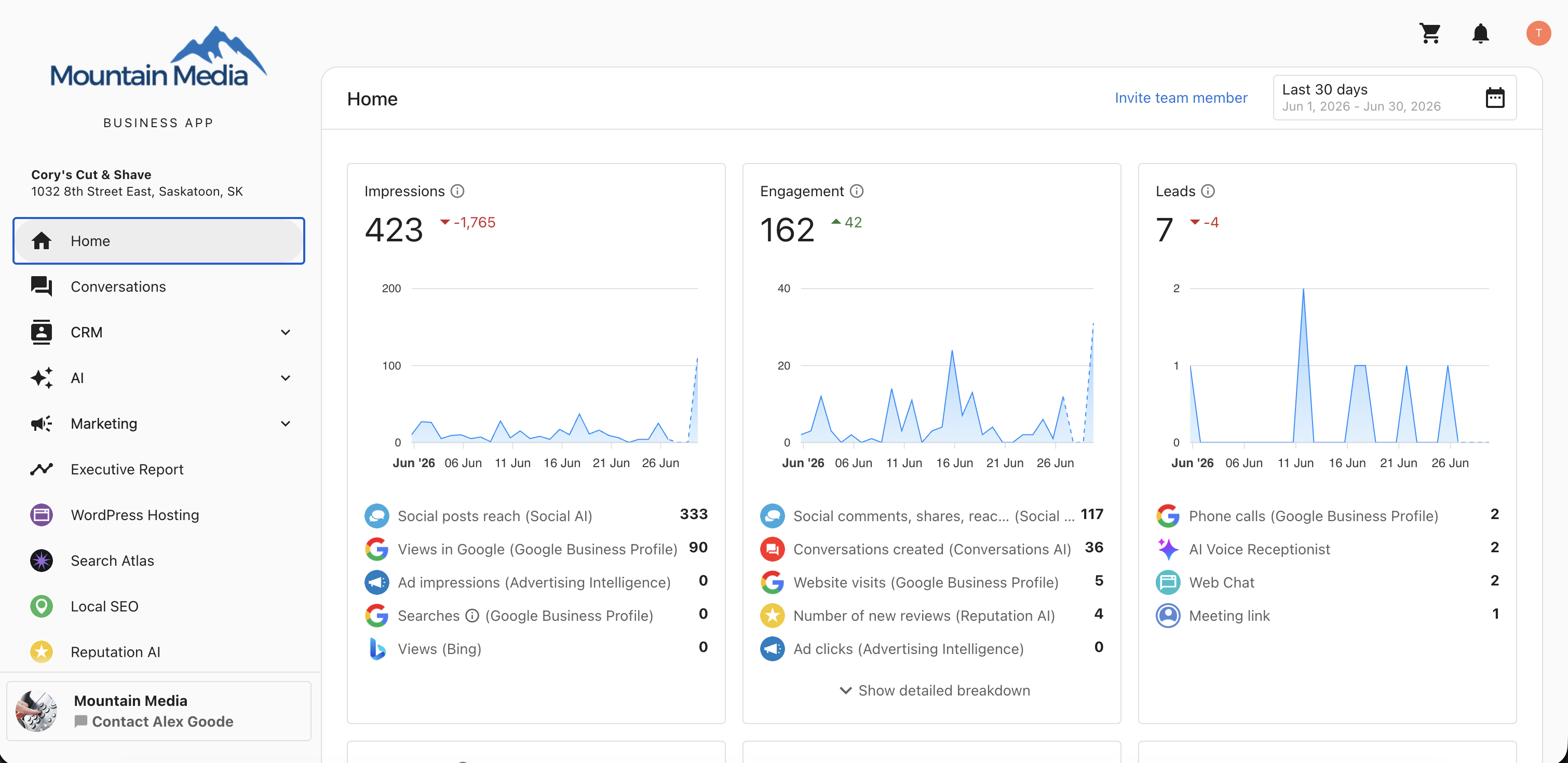
Step 2: Open your notifications
Click the bell icon in the top-right corner to open the notifications screen.
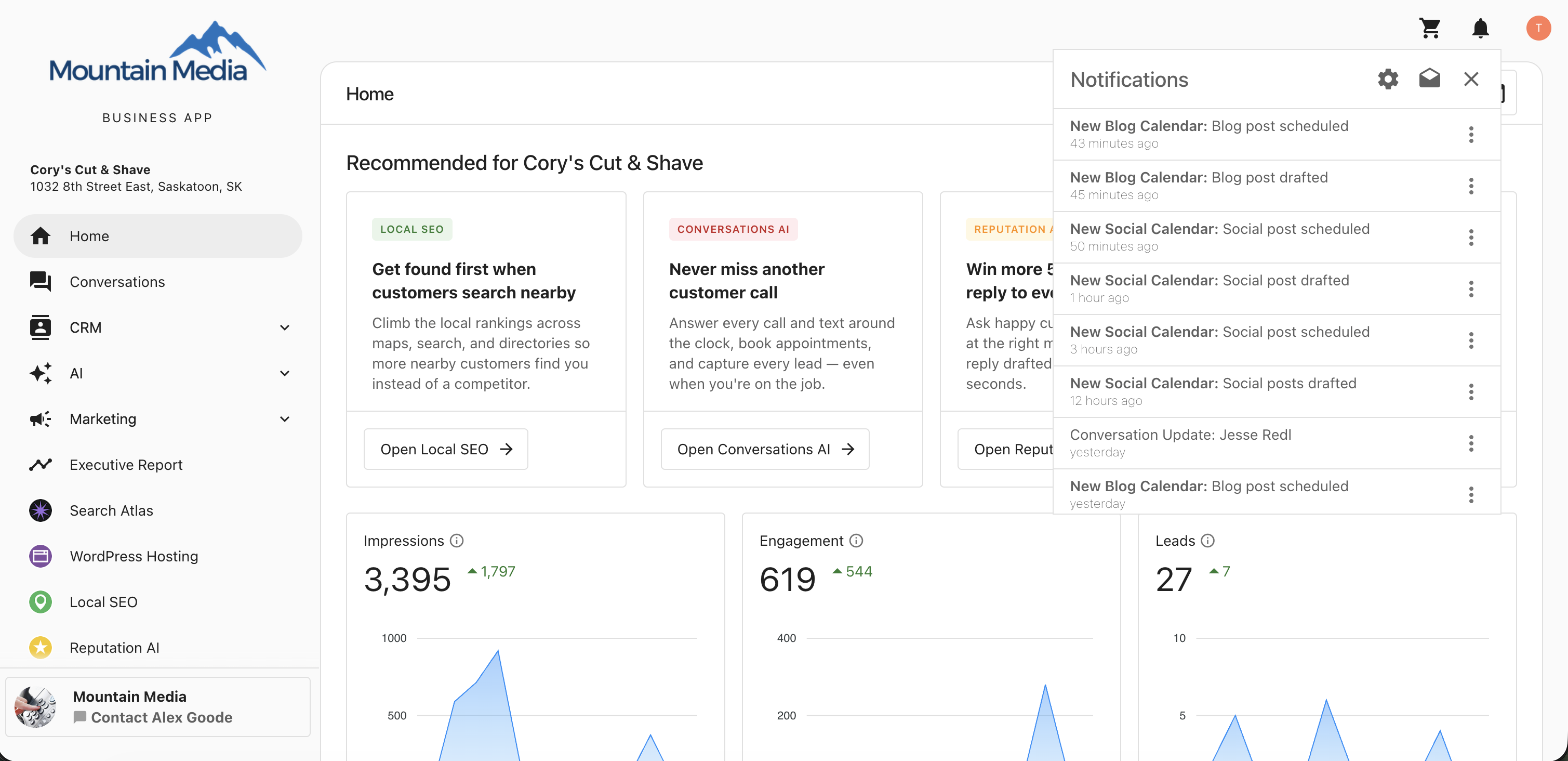
Step 3: Open notification settings
In the notifications screen, click the settings icon to open the notification settings pop-up.
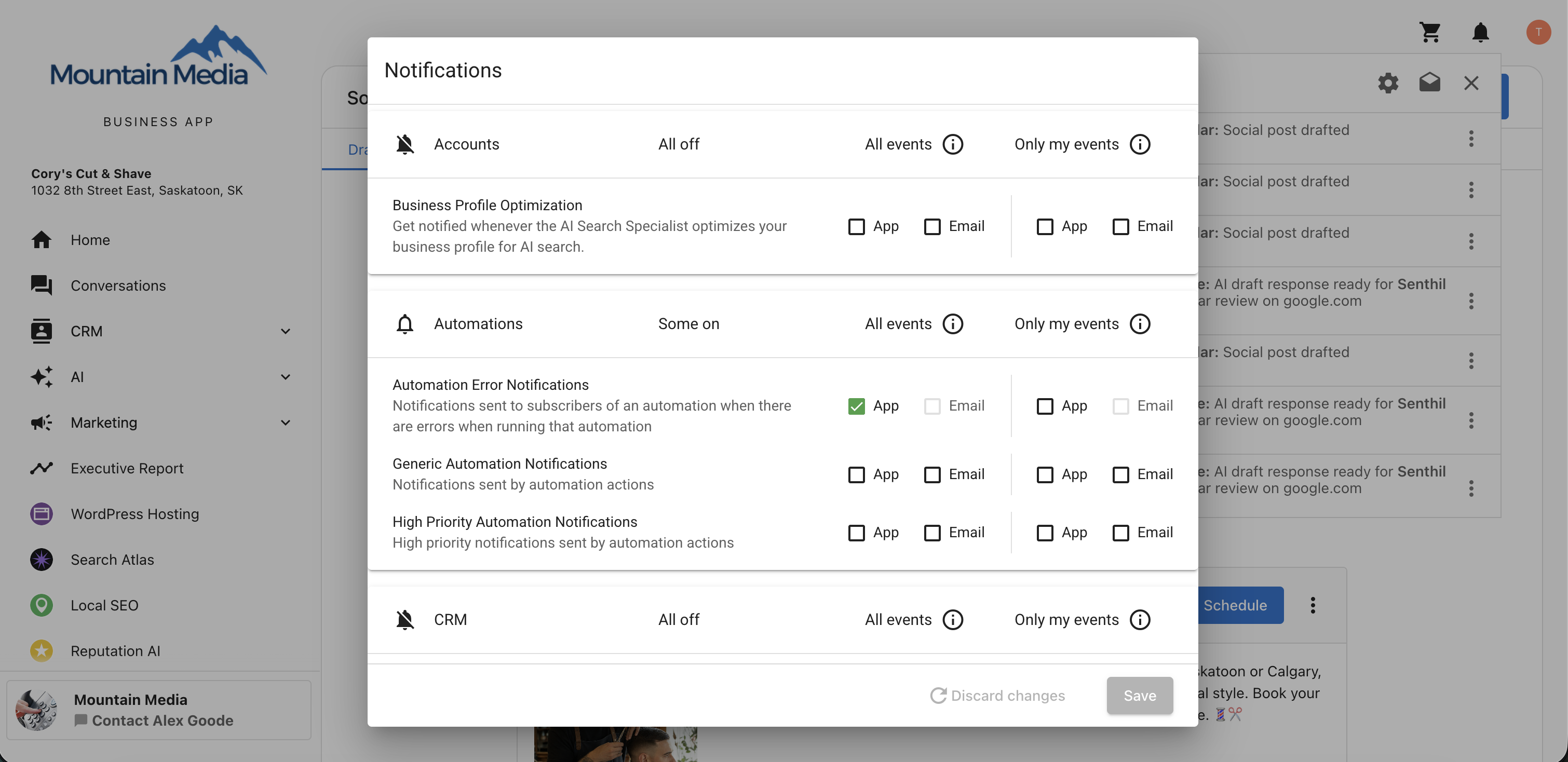
Step 4: Go to Social Notifications
Select Social Notifications.
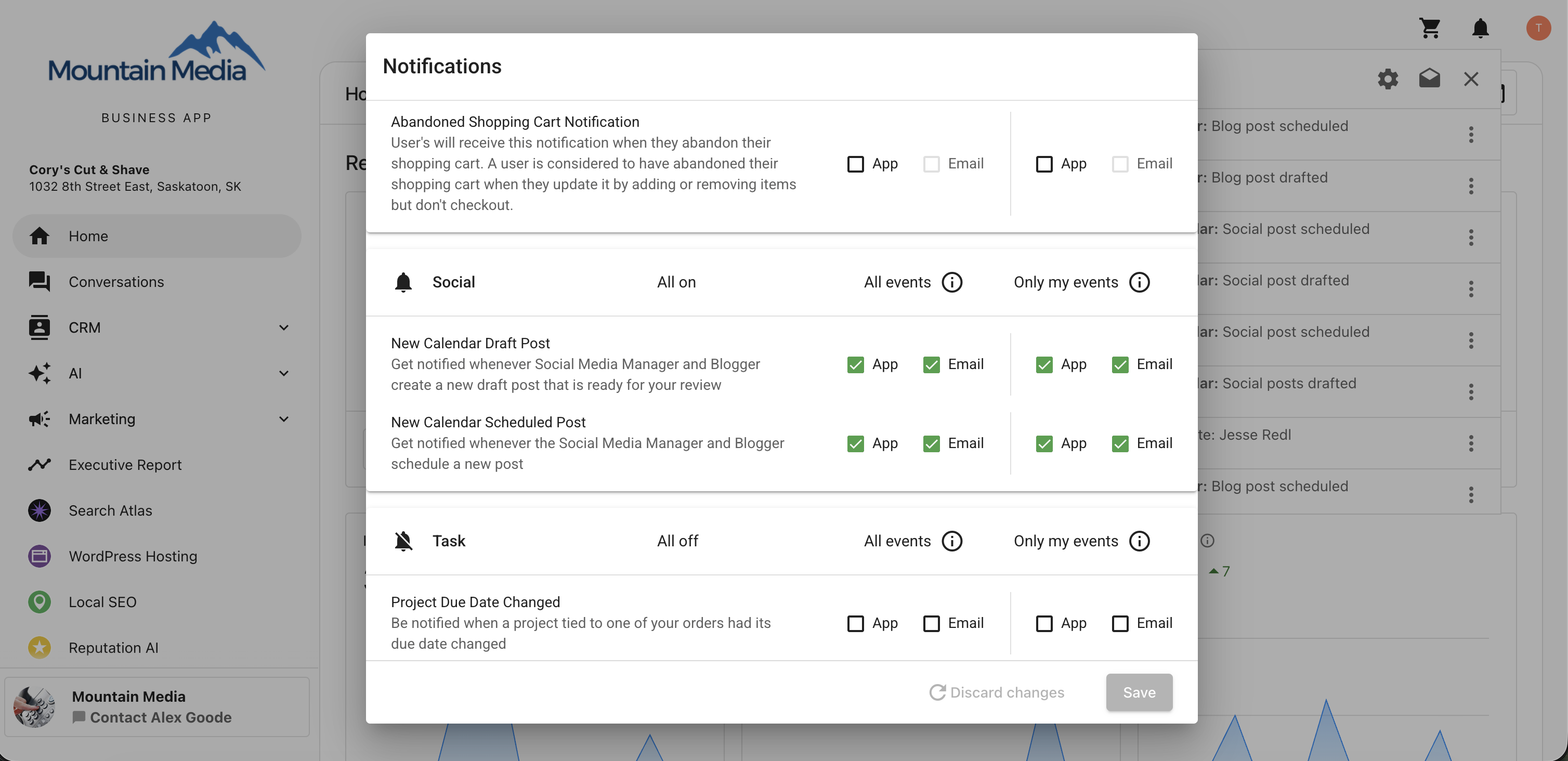
Step 5: Enable or disable post notifications
Click the bell icon next to Social to enable or disable all notifications related to New Calendar Draft Post and New Calendar Scheduled Post.
Step 6: Choose your preferences
Choose your preferred notification options:
- In-app notifications: Show alerts under the bell icon.
- Email notifications: Send alerts to your email.
- All events: Get notified about every draft and scheduled post.
- Only your own events: Get notified only about posts related to you.
Once your settings are configured, notifications are triggered automatically whenever a post is saved as a draft or scheduled.
Email notifications
When email notifications are turned on, you receive an email for the following events:
- New Calendar – Drafted Posts
- New Calendar – Scheduled Posts
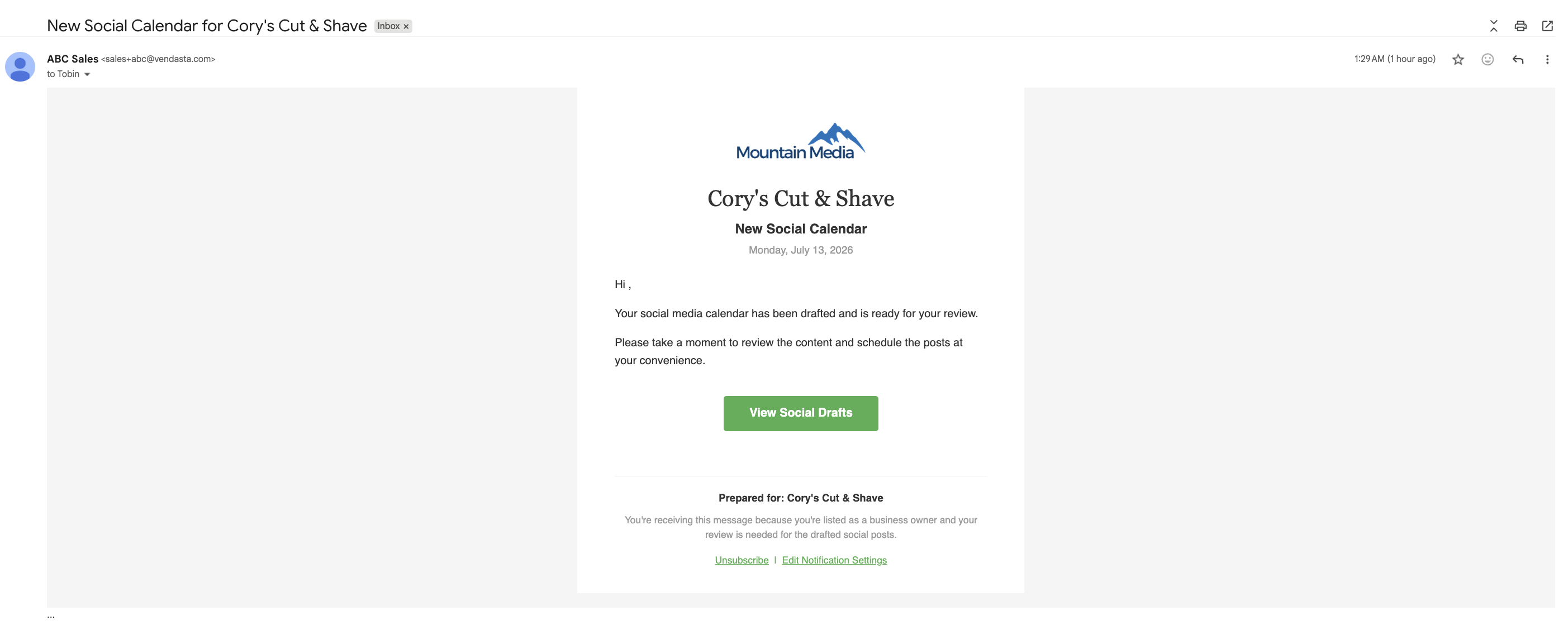
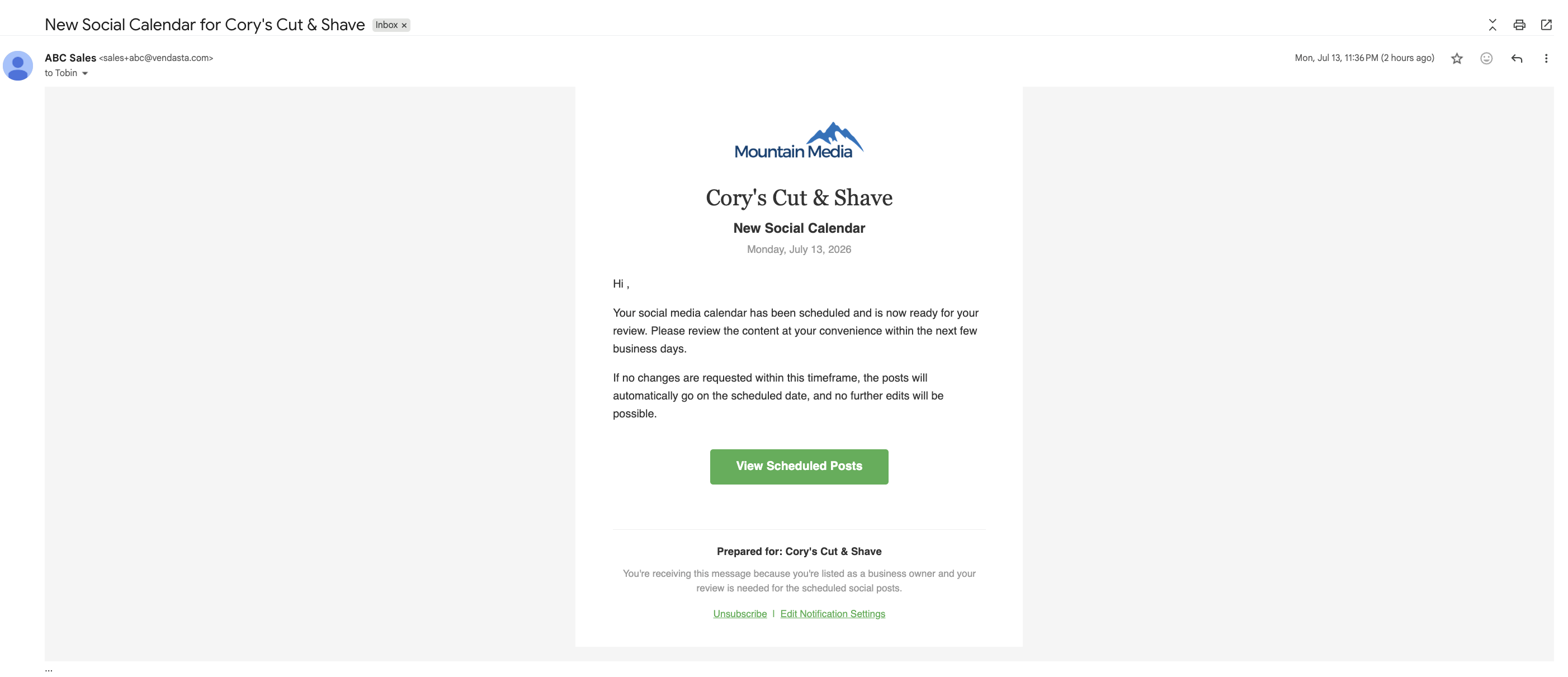
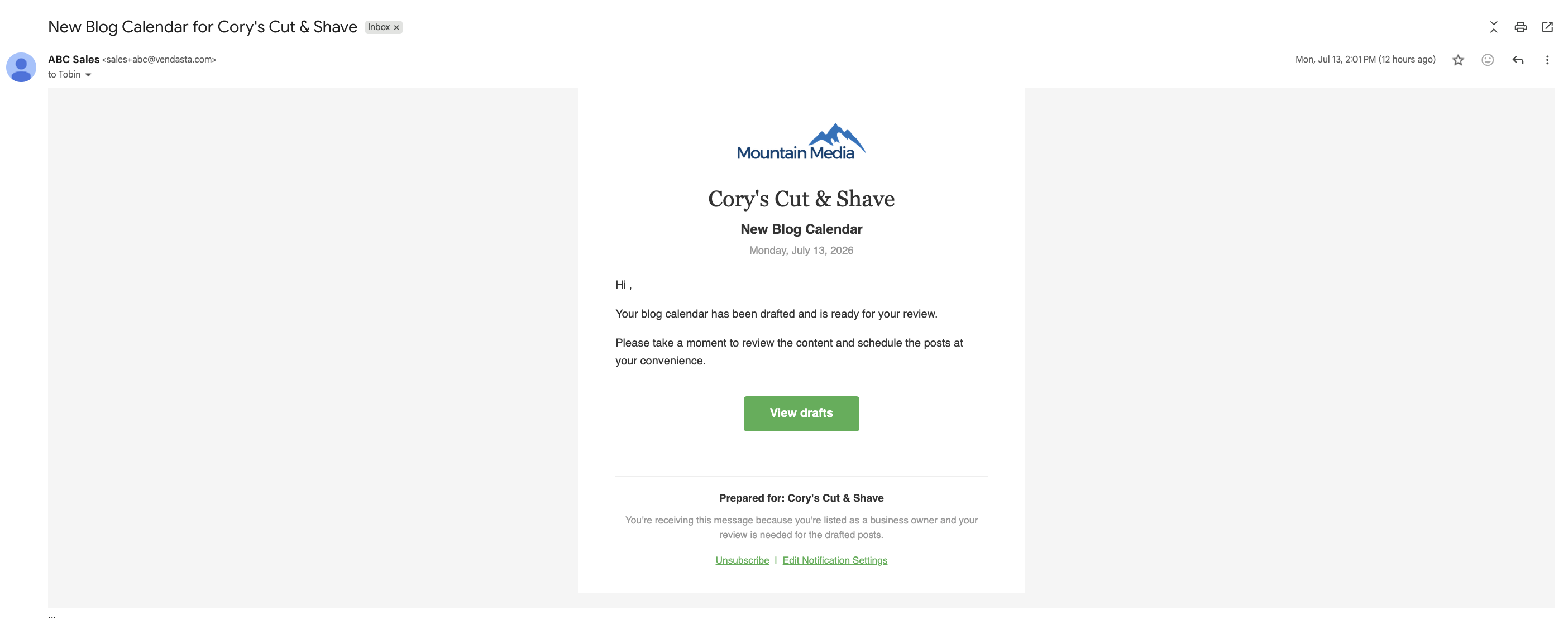
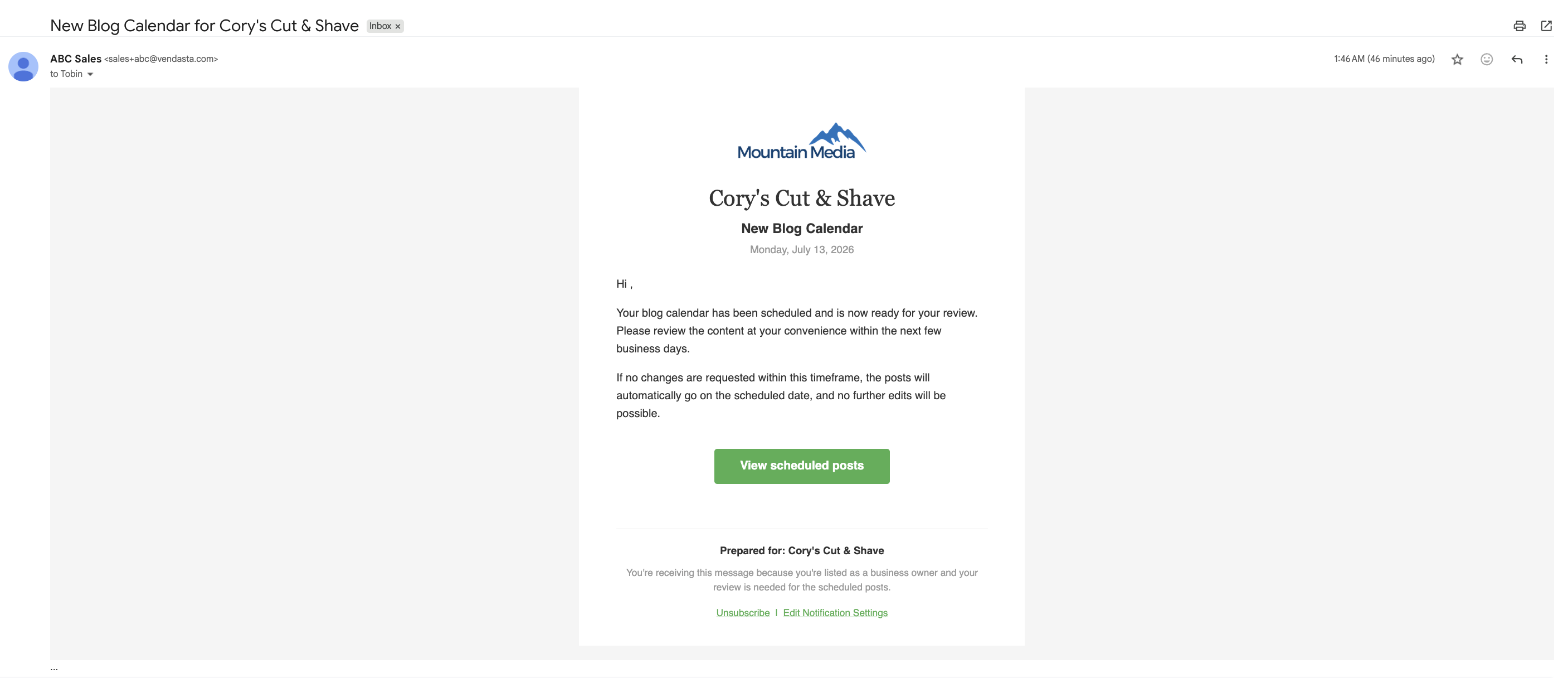
From these emails, you can:
- Click View Drafts or View Scheduled Posts to open the Drafts and Scheduled section in the Business App.
- Click Unsubscribe to stop receiving emails about drafted and scheduled social posts.
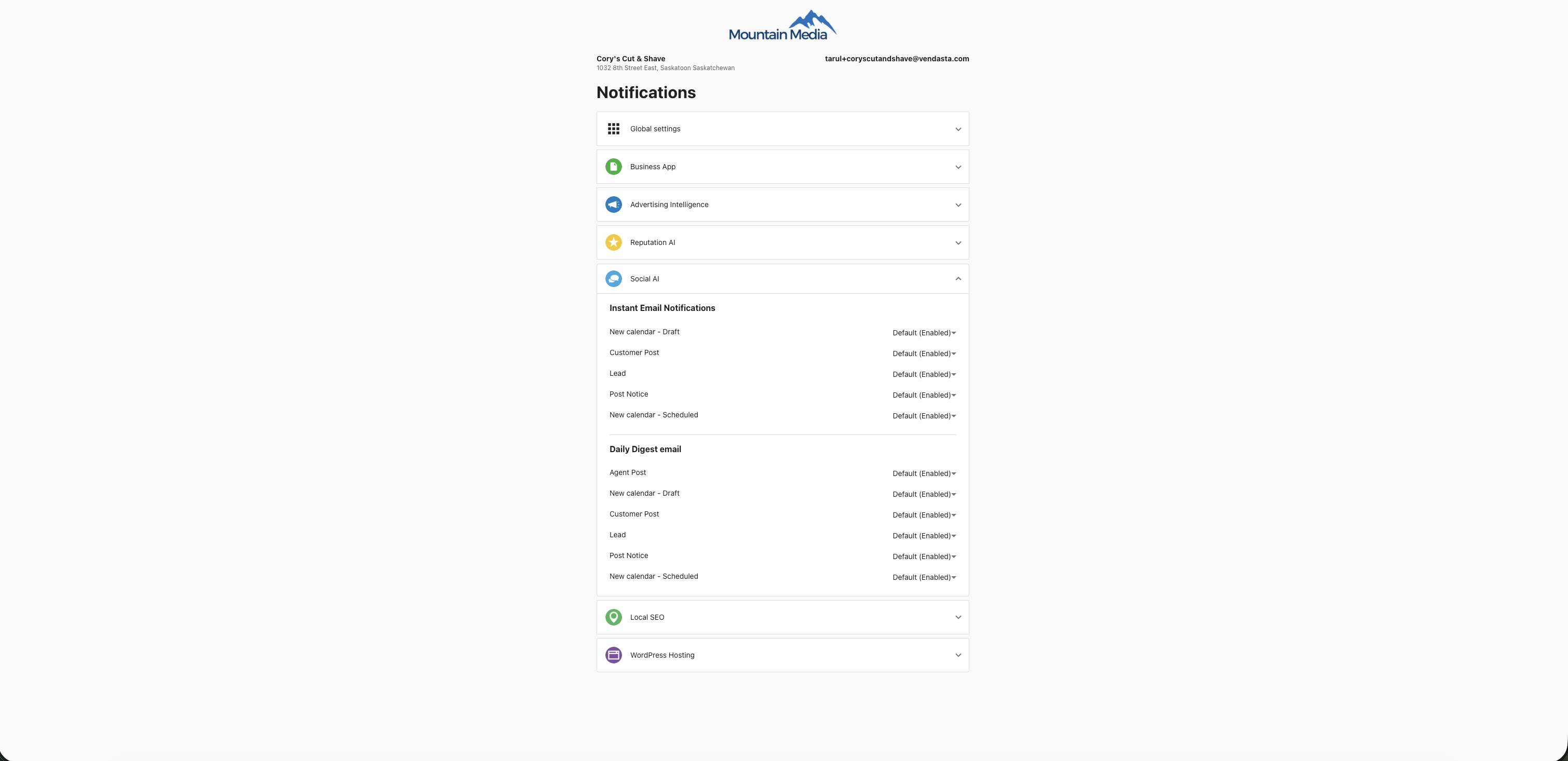
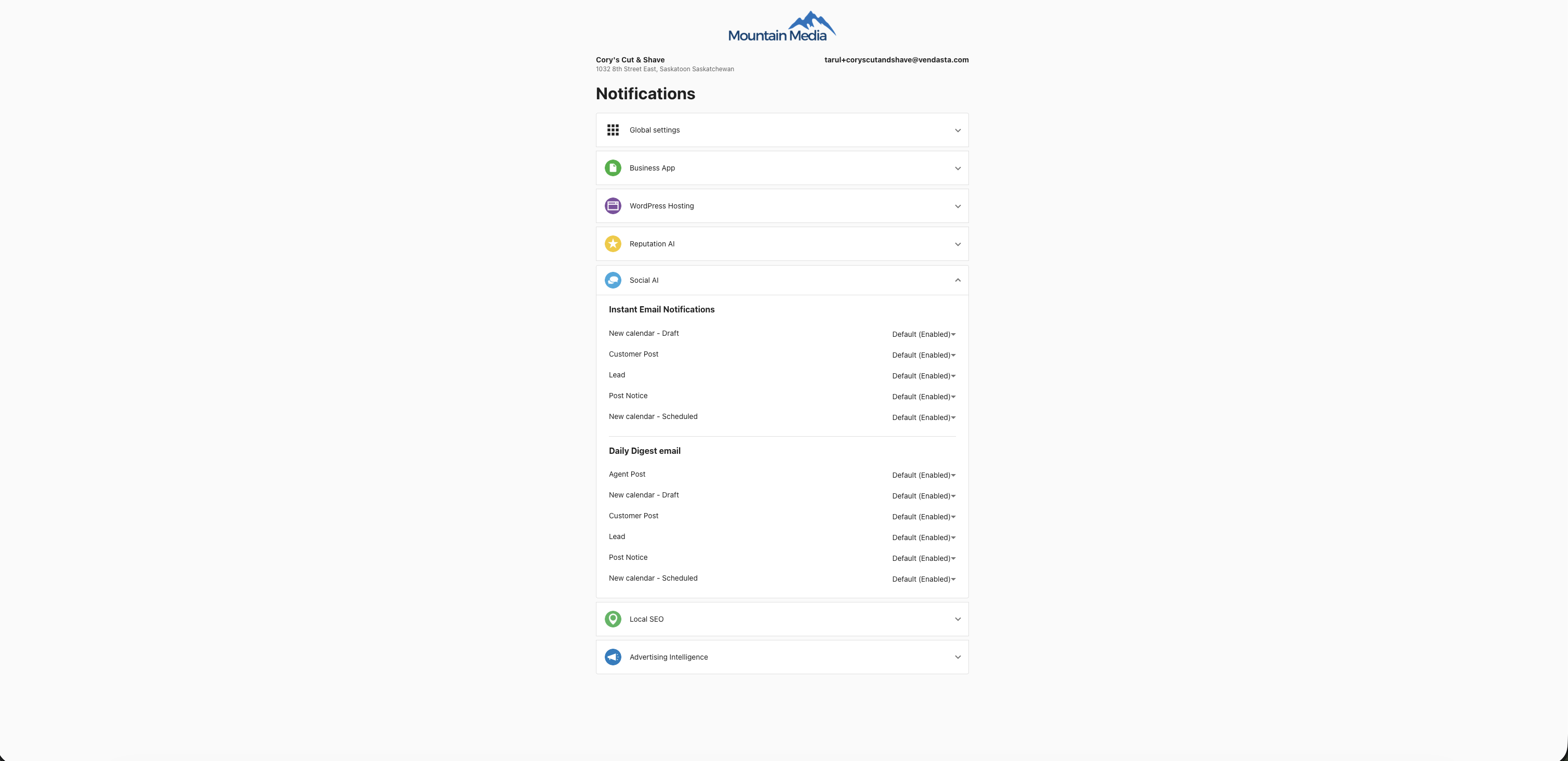
- Click Edit Notification Settings to open your notification settings and adjust your preferences.
In-app notifications
When in-app notifications are turned on, alerts appear under the bell icon, including:
- New Social Calendar: Social Post Drafted
- New Social Calendar: Social Post Scheduled
- New Blog Calendar: Blog Post Drafted
- New Blog Calendar: Blog Post Scheduled
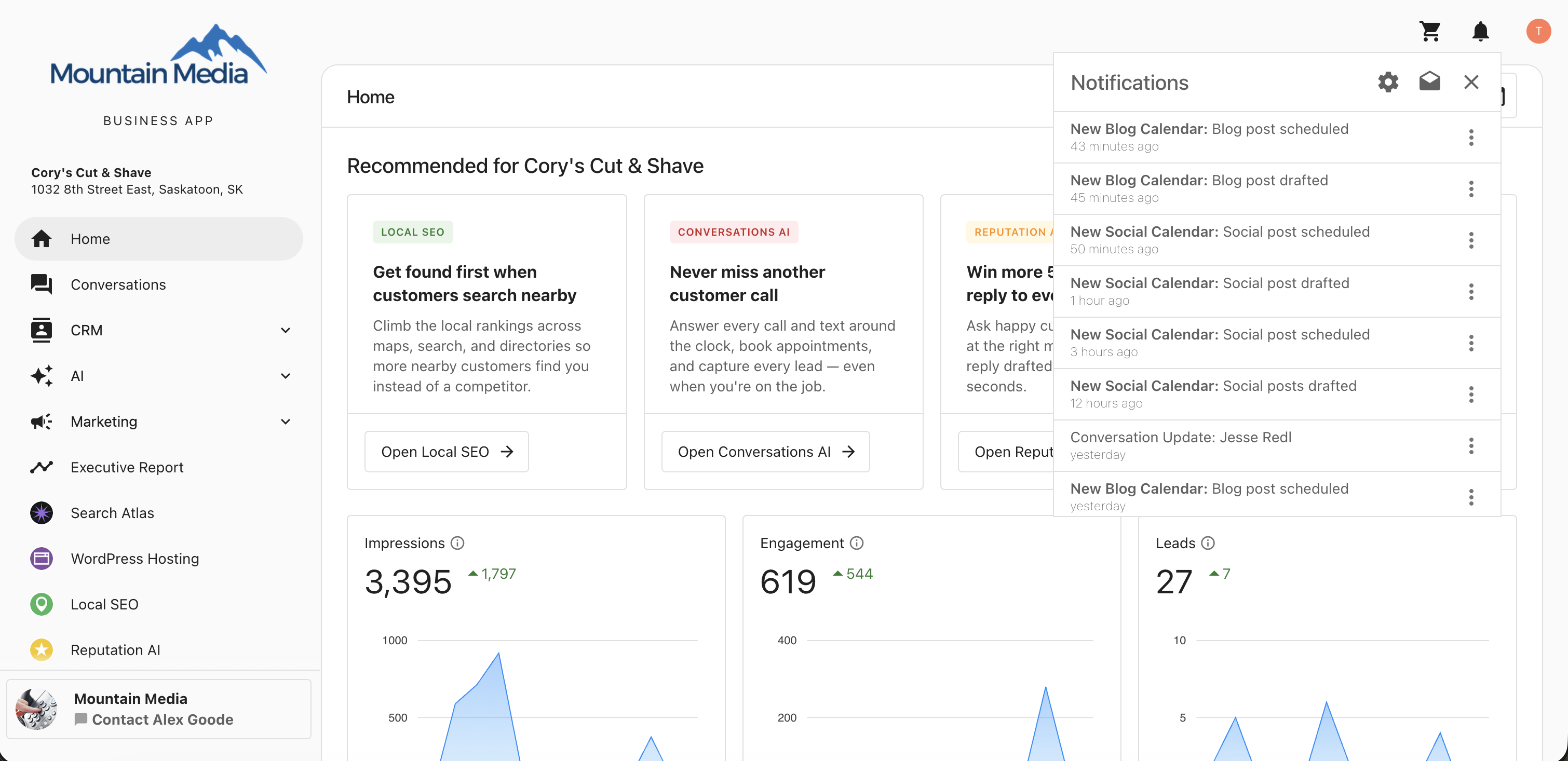
Clicking any of these notifications takes you to Social > Drafts and Scheduled in the Business App.
Recent Activity
Whenever a post is saved as a draft or scheduled, it also appears under Home > Recent Activity in the Business App.
- Click View All Activity to see the full list of drafted and scheduled posts.
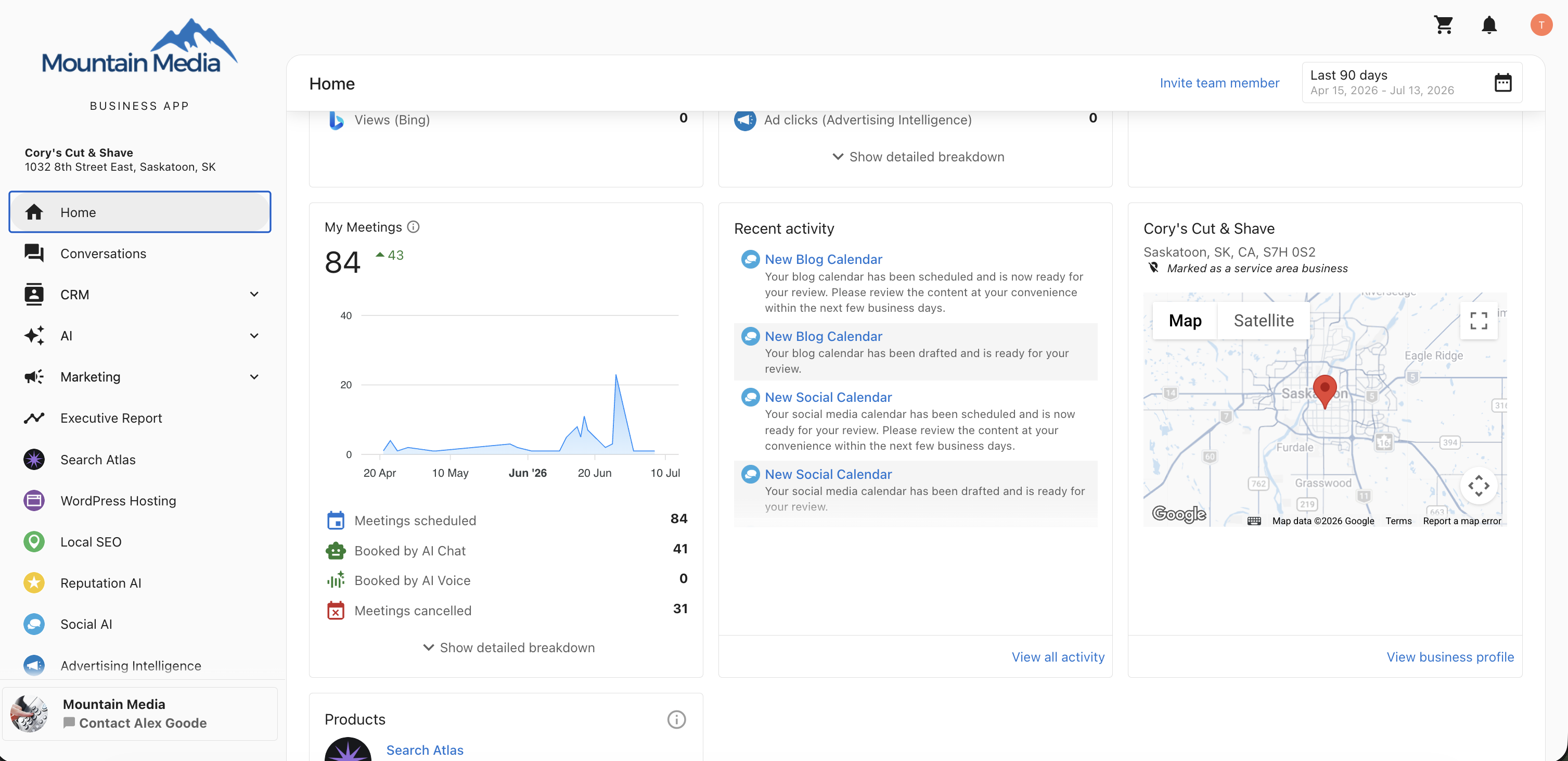
- Click View on any item to open the
Social>DraftsandScheduledsection.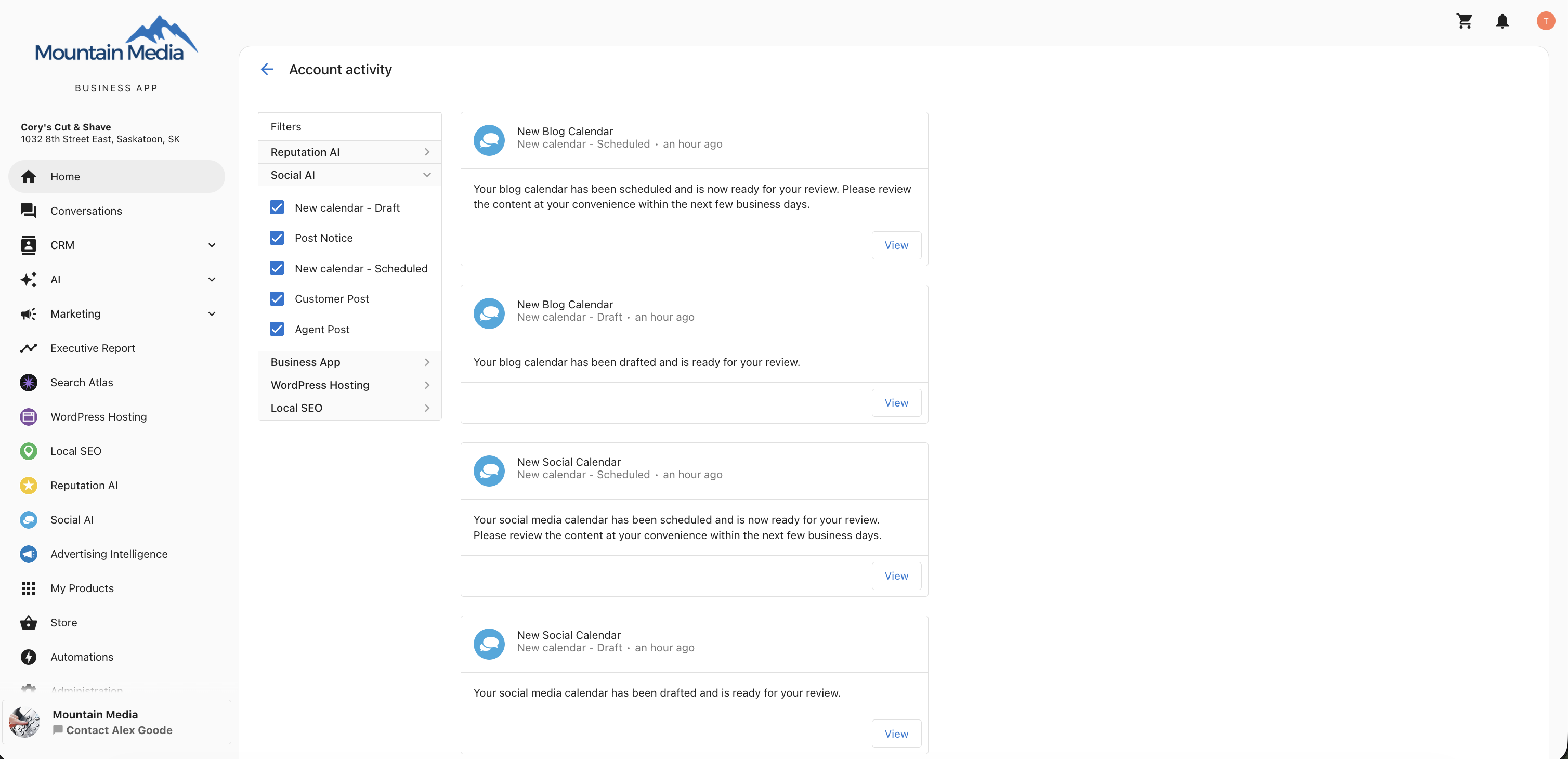
- Filter Recent Activity using the Social AI filters: New Calendar – Draft and New Calendar – Scheduled.
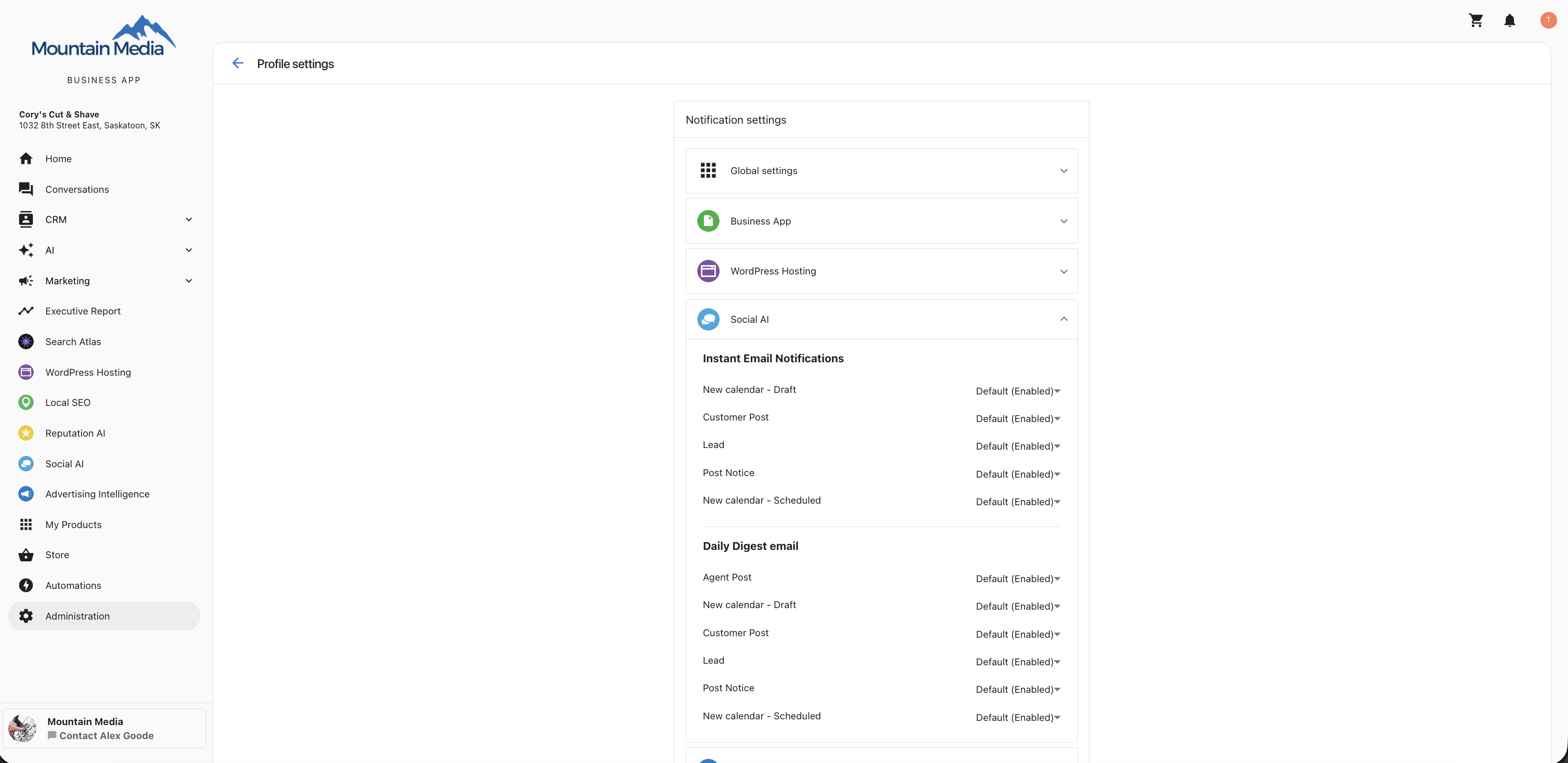
Manage email notifications in Administration
You can also enable or disable the related email notifications from your Administration settings:
Administration > Notification Settings > Social AI > Instant Email Notifications > New calendar - Draft and New calendar - Scheduled.
For a full overview of how notifications work across every product, see Notification settings.
Frequently Asked Questions (FAQs)
What triggers a notification?
A notification is triggered whenever a social or blog post is saved as a draft or scheduled.
Where do I manage notifications?
Click the bell icon in the top-right corner of the Business App, open the settings, and go to Social Notifications.
Can I get emails instead of in-app notifications?
Yes. In your Social Notifications settings, you can choose in-app notifications, email notifications, or both.
What is the difference between "all events" and "only your own events"?
All events notifies you every time a post is drafted or scheduled. Only your own events limits notifications to posts related to you.
How do I turn off notifications?
Click the bell icon next to Social in your Social Notifications settings to disable them, or turn off the related email notifications in Administration > Notification Settings > Social AI.
Where do notifications take me when I click them?
Both in-app notifications and email links open the Social > Drafts and Scheduled section in the Business App.
Which email notifications are available?
New Calendar – Drafted Posts and New Calendar – Scheduled Posts.
Can I unsubscribe from the emails?
Yes. Click Unsubscribe in the email, or disable the notifications in Administration > Notification Settings > Social AI.
Where can I see a history of drafted and scheduled posts?
Go to Home > Recent Activity in the Business App, then click View All Activity to see the full list.
Can I filter Recent Activity for these posts?
Yes. Use the Social AI filters New Calendar – Draft and New Calendar – Scheduled.
Do these settings affect published post notifications?
No. These settings apply only to draft and scheduled post events.