Add Google Tag/AdSense Code to WordPress
Adding a Google Tag or AdSense code to your WordPress site is a straightforward process. Follow these steps to ensure the code is correctly integrated into your website.
Step 1: Sign in to your WordPress backend
- Go to your WordPress login page.
- Enter your credentials and sign in to access the WordPress dashboard.
Step 2: Access the theme file editor
- In the menu on the left, click
Appearance. - From the dropdown menu, select
Theme File Editor.
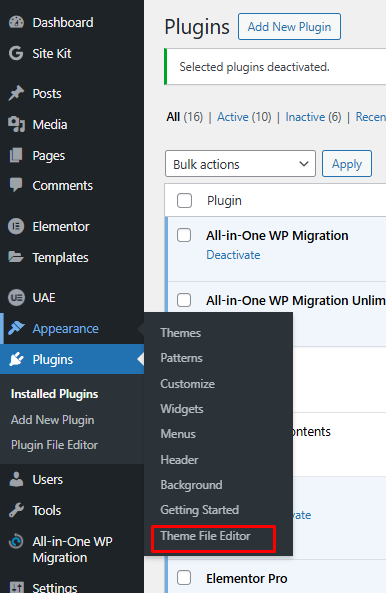
Step 3: Locate the header file
- In the right-hand panel of the Theme File Editor, look for the Theme Header (
header.php) file. - Note: The file name can differ depending on your theme. For example, if you're using the "WordPress Twenty Twenty-One" theme, the header file is named
header.php. - Open the header file and confirm that it contains a
<head>tag.
Step 4: Add the Google Tag/AdSense code
- Copy the Google Tag/AdSense code snippet from your Google account.
- Paste the code snippet within the
<head>tag in the header file. - Click
Update Fileto save your changes.
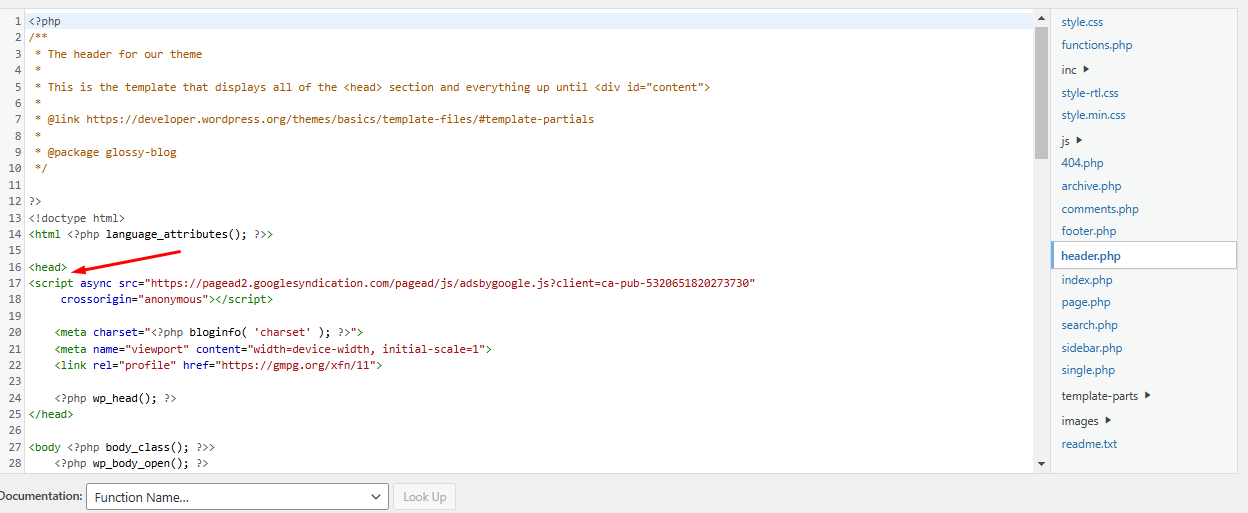
important
Theme Changes: If you change your WordPress theme, the header.php file might be overwritten. In such cases, you'll need to repeat the above process to re-add the code to the new theme's header file.
Backup: Before making changes to your theme files, it's a good idea to back up your website to prevent accidental data loss.
By following these steps, you can successfully integrate Google Tag or AdSense code into your WordPress site.