Get Started with Elementor AI
What is Elementor AI?
Elementor AI is an artificial intelligence tool integrated directly into the Elementor page builder. It helps you create content and code more efficiently by generating text, HTML, CSS, and JavaScript based on your prompts. Instead of writing everything from scratch, you can describe what you need, and Elementor AI will generate it for you.
Key features:
- Text generation: Create product descriptions, blog content, headlines, and more
- Content editing: Improve grammar, rewrite in different tones, or translate text
- Code generation: Generate HTML, CSS, and JavaScript code for custom functionality
- Direct integration: Works directly within Elementor's visual editor
Elementor AI is designed to save you time while maintaining quality, making it easier to build professional websites without extensive coding knowledge.
Getting started with Elementor AI
Step 1: Ensure you have Elementor installed
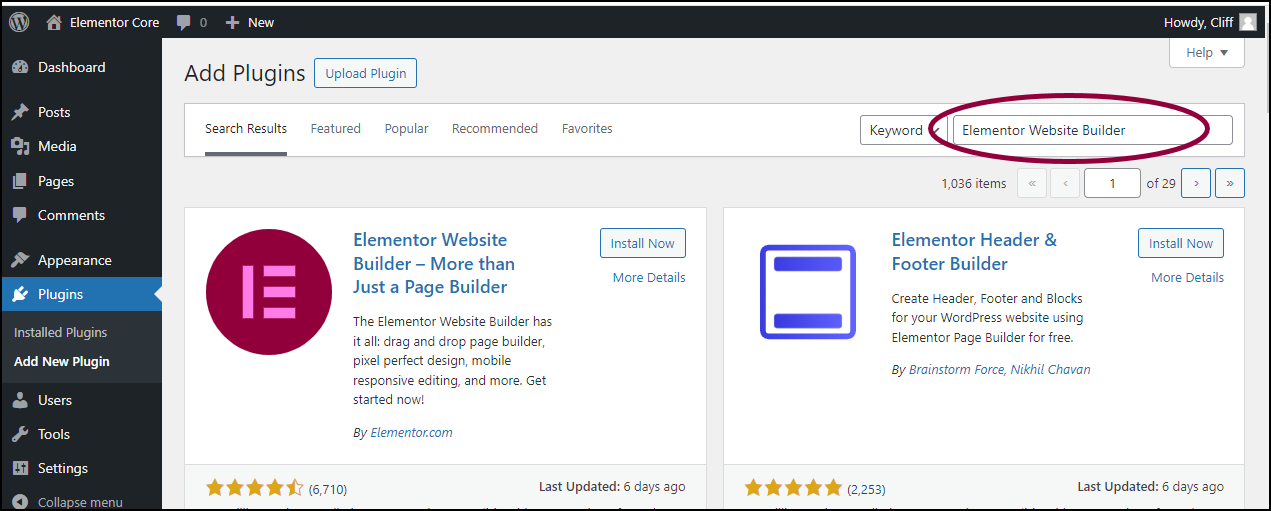
Before using Elementor AI, make sure that Elementor is installed and activated on your WordPress site. If you haven't installed it yet:
-
Navigate to
Plugins→Add Newin your WordPress dashboard. -
Search for
Elementor. -
Click
Install Nowand thenActivate.
Step 2: Enable Elementor AI
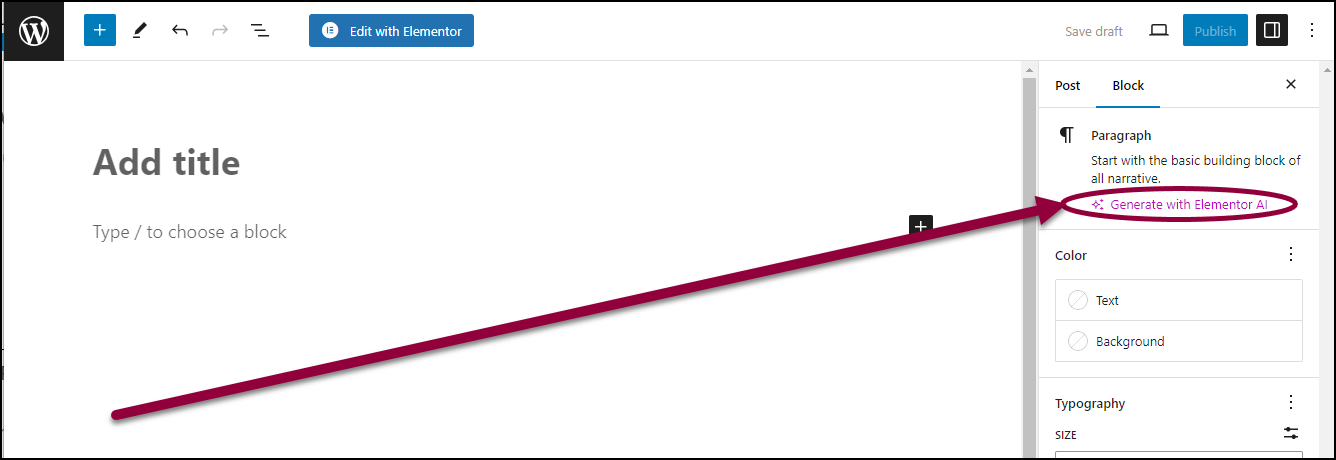
Elementor AI is available within the Elementor editor. To enable it:
-
Open any page or post using Elementor.
-
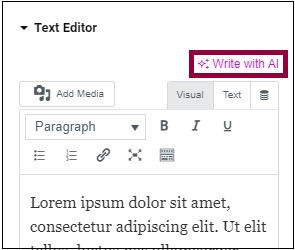
Click on any
Text Editorwidget. -
In the text editing panel, locate the
Write with AIbutton. -
If prompted, activate Elementor AI by following the on-screen instructions.
Step 3: Generate AI-powered content
Once Elementor AI is enabled, you can start using it to create content effortlessly:
Generating Text Content
-
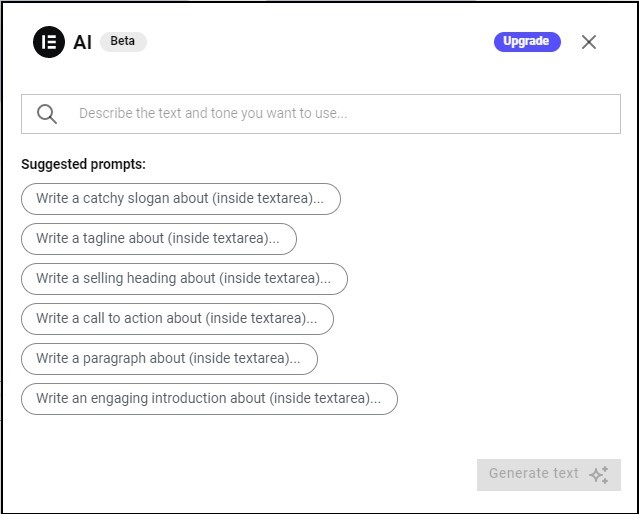
Click
Write with AIin the text editor. -
Enter a prompt, such as "Generate a product description for a fitness tracker."
-
Elementor AI will provide a text output based on your input.
-
Click
Insertto add the content to your page.
Editing and Refining Content
Elementor AI allows you to refine generated content by providing suggestions. You can:
-
Improve grammar and readability.
-
Rewrite content in a different tone.
-
Translate text into multiple languages.
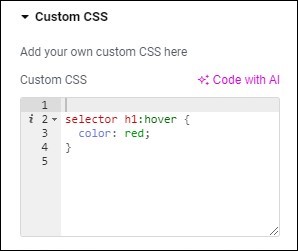
Step 4: Using AI for code generation
Elementor AI can also generate HTML, CSS, and JavaScript code. To use this feature:
-
Open the
Custom HTML or CSS editorin an Elementor widget. -
Click
Code with AI. -
Describe the code you need (e.g., "Create a CSS animation for a button hover effect.")
-
Insert and tweak the generated code as needed.
Step 5: Save and publish your work
Once you’re satisfied with the content:
-
Click
Updateto save changes. -
Click
Previewto see how it looks on your site. -
If everything looks good, click
Publish.