Install NitroPack on WordPress
Here is the step-by-step guide on how to install NitroPack on WordPress:
- Log in to your WordPress admin dashboard and go to
Plugins→Add New.
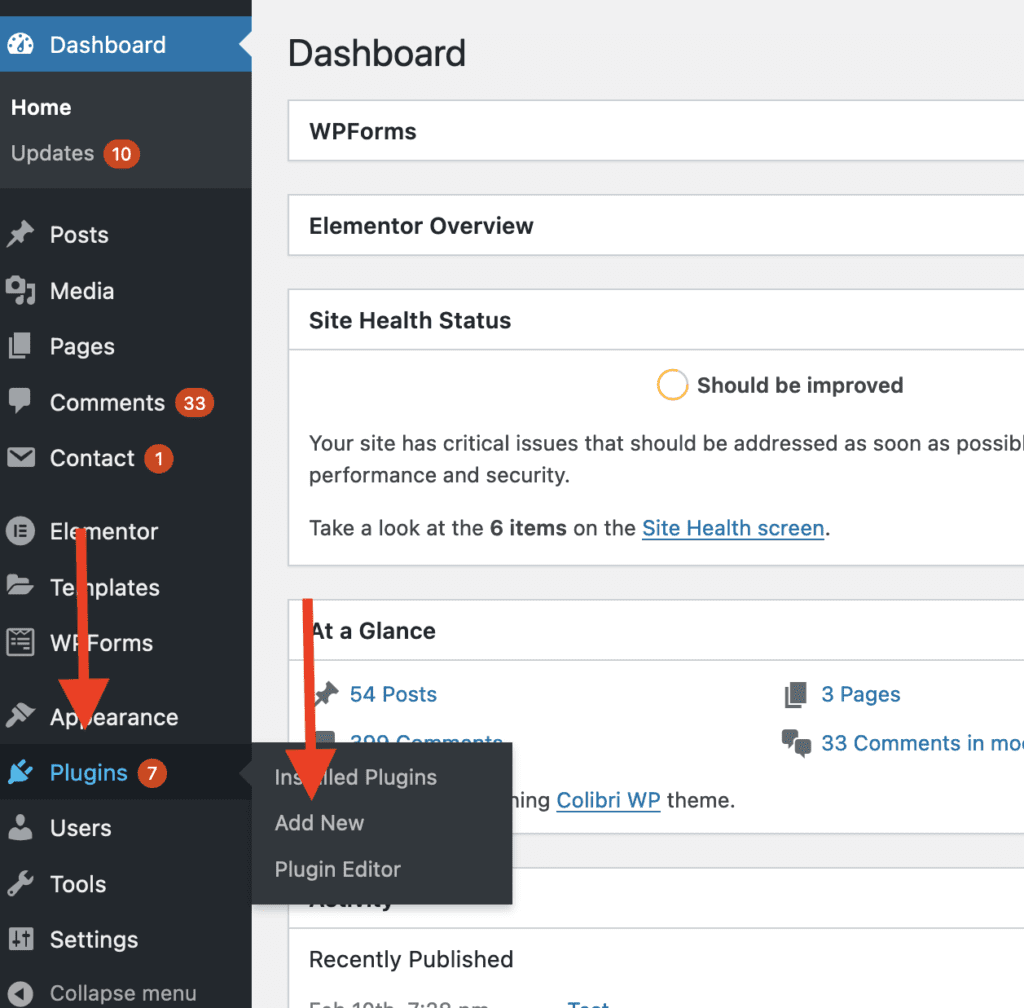 2. Search for
 NitroPack by NitroPack LLC, then click Install Now.
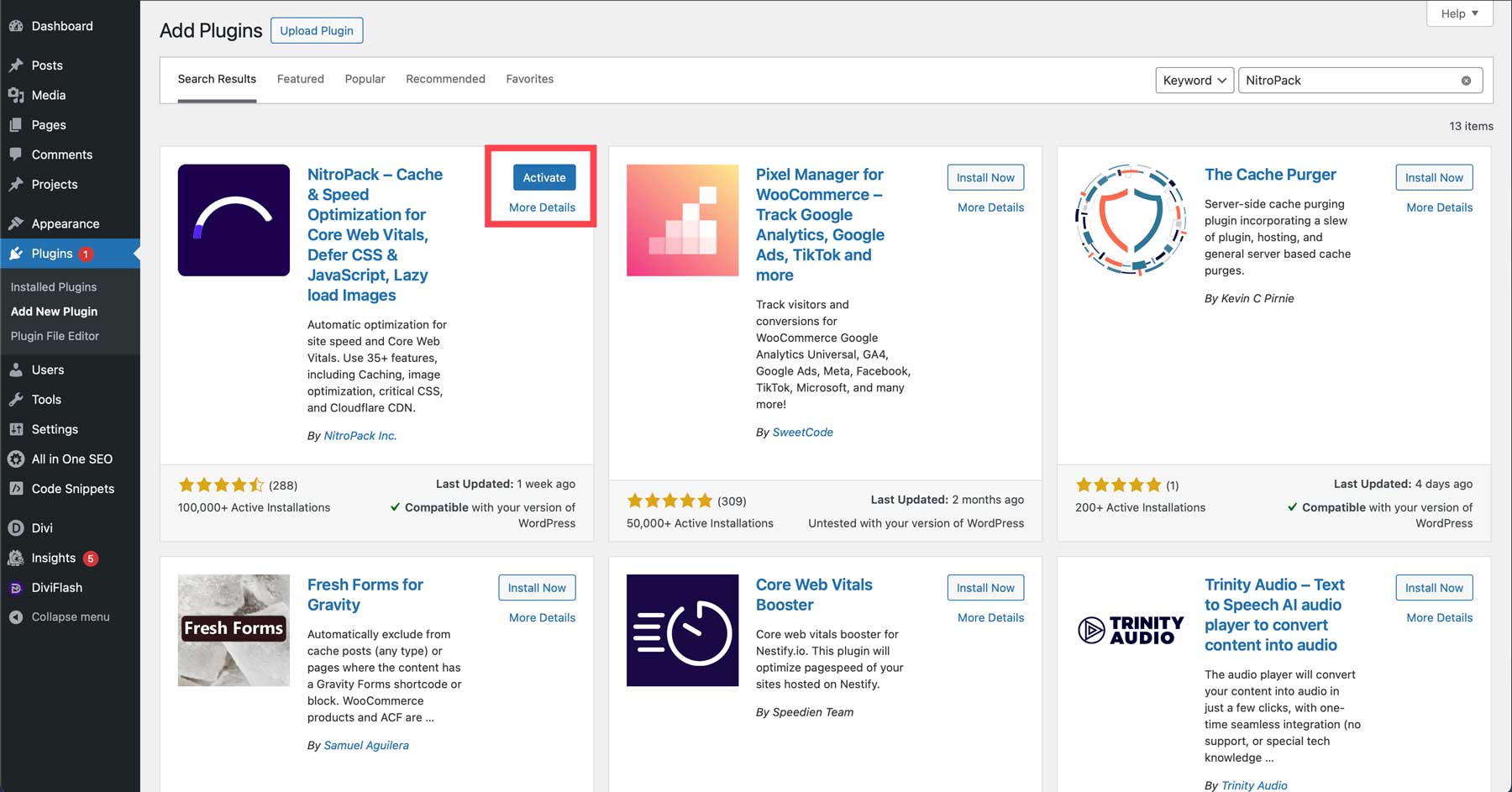
- Go to
Plugins→Installed Plugins. - Click
Activateon NitroPack. - Your NitroPack installation is complete!
How to connect NitroPack to your WordPress
After successfully installing NitroPack, you need to connect it to your WordPress. Follow these steps:
- Create an account at NitroPack if you don’t have one yet.
- Log in to your account and go to the
Connect Your Websitemenu on the left. - Open your WordPress admin dashboard and go to
Plugins→Installed Plugins→NitroPack→Settings. - Click
Connect to NitroPack. - Now, you have connected your WordPress to NitroPack!
NitroPack setup guide
After your WordPress is connected with NitroPack, you can start configuring which features to use in the NitroPack plugin. Follow these steps:
Go to the settings tab of NitroPack so you can see the NitroPack dashboard.
NitroPack dashboard
There are 4 tabs in the NitroPack dashboard:
Optimized Pages
The tab on the top left shows Optimized Pages, where you can see how many pages have been optimized by NitroPack and which pages they are.
Plan
The tab on the top right shows your NitroPack Plan details.
Settings
The tab on the bottom left is Settings, where you can enable features like cache warmup and HTML compression. You can also disconnect the NitroPack plugin from your WordPress site.
Configuration
The tab on the bottom right is Configuration, where you can choose between 5 optimization options:
Standard: Basic optimization without much regard for a high score.Medium: Well-balanced optimization suitable for most cases.Strong: Includes advanced features like automatic image lazy loading and font definition modification.Ludicrous: Enables all optimizations to achieve the highest possible score.Custom: Customize your own optimization settings. When activated, you'll seeAdvanced settingsfor custom configuration.
Related articles
For additional performance optimization tips, see Understanding WebP Images to optimize your images for faster loading.