Notify-Only Colleagues
Meeting Scheduler lets you add a colleague to a meeting type as a Notify-Only attendee. A Notify-Only colleague is invited to booked meetings as an optional attendee, but their calendar is not used when Meeting Scheduler works out the times a booker can choose. This keeps someone in the loop on a meeting without their availability shrinking the bookable time slots.
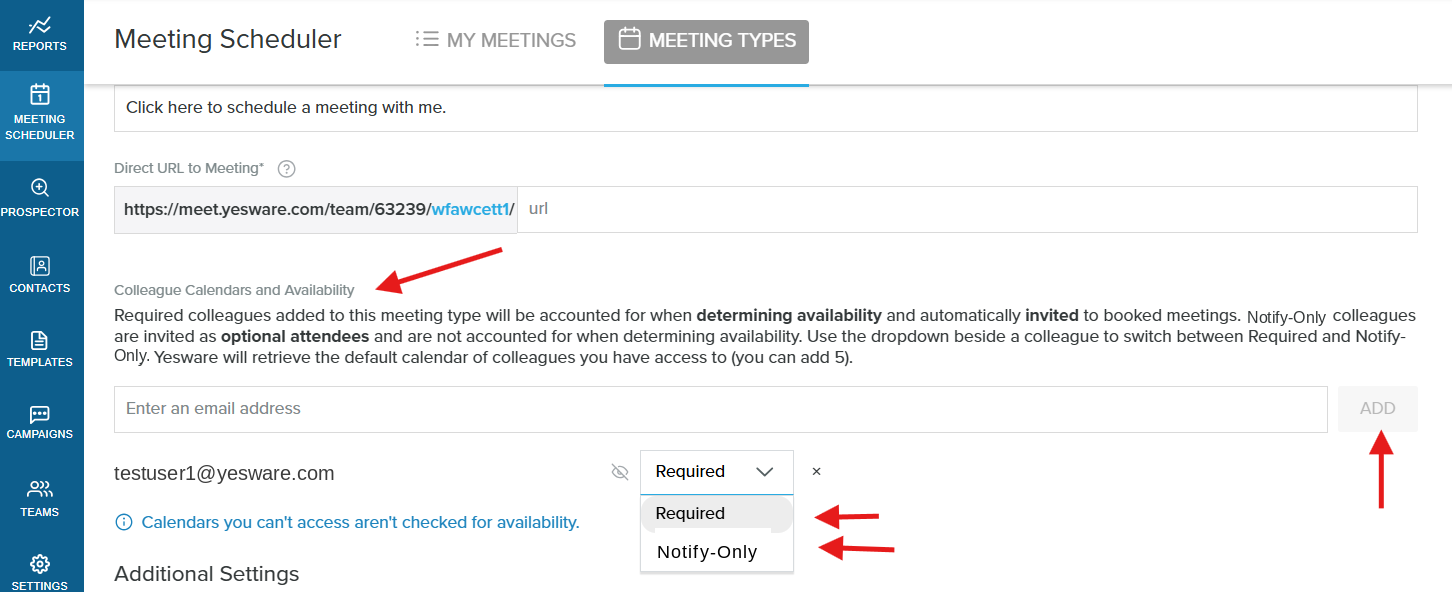
You set this per colleague when adding or managing colleagues on a meeting type. Each colleague row has a Required / Notify-Only dropdown: leave it on Required for the standard availability checking, or switch it to Notify-Only for an optional attendee invite.
What Notify-Only does
When a colleague is set to Notify-Only:
- Their calendar is skipped when Meeting Scheduler calculates available times, so it does not narrow the bookable slots.
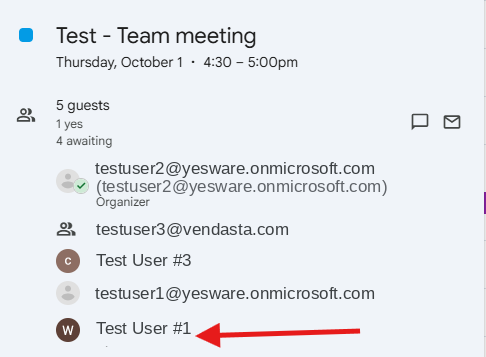
- They are added to the booked calendar event as an optional attendee, so they still receive the invite and can choose which meetings to attend.
- The calendar-access warning is not shown for that colleague, since their calendar is not needed for availability.
- Rescheduling preserves the setting, so a Notify-Only colleague stays optional on the updated invite.
Colleagues left as Required behave as they always have: their calendar is checked for availability and they are added as required attendees. Notify-Only works on both personal and team Round Robin meeting types, and applies to invites on both Google Calendar and Outlook.
How to set a colleague to Notify-Only
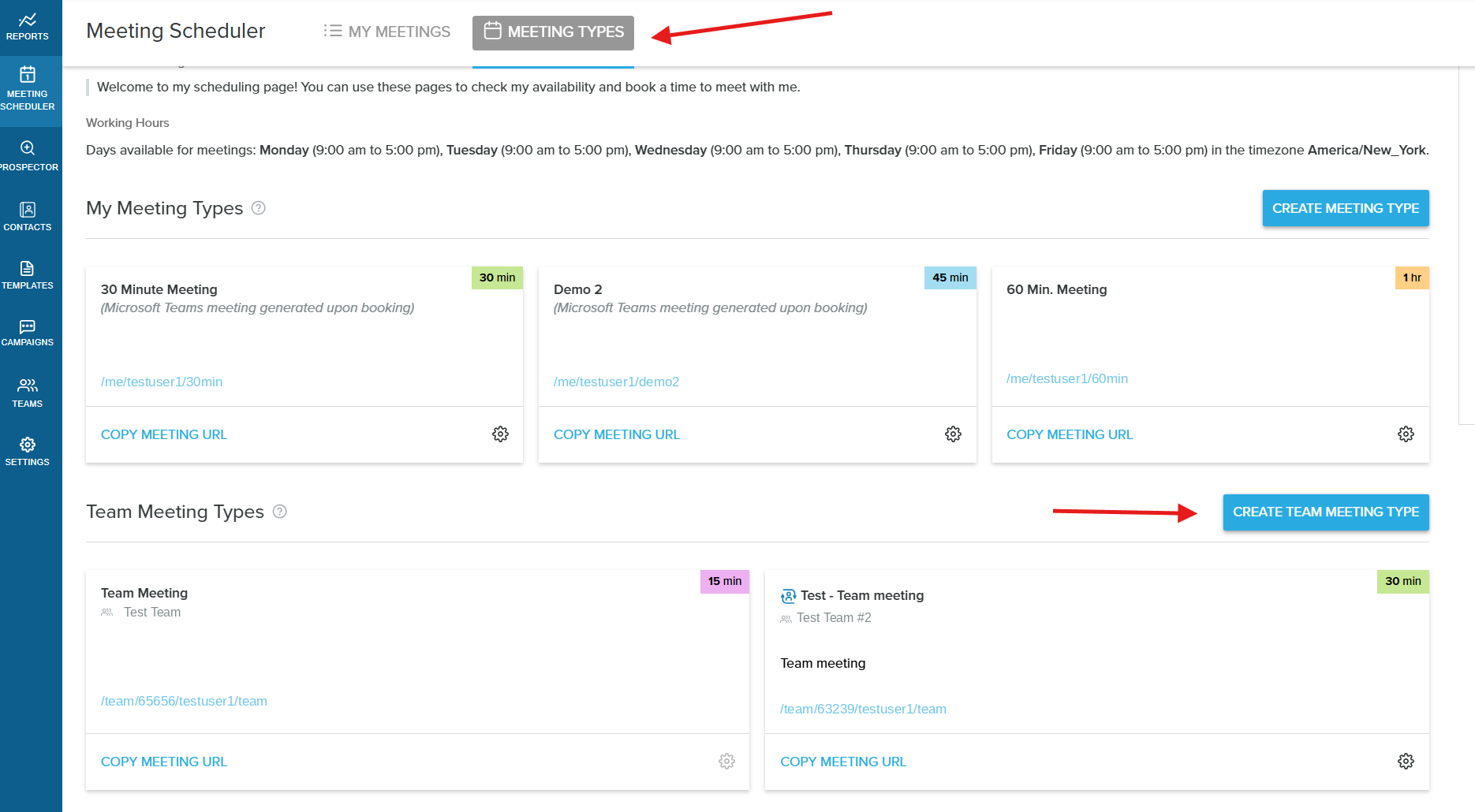
- Open Meeting Scheduler and select the Meeting Types tab, then choose the meeting type you want to edit.
- In the Colleague Calendars and Availability section, add the colleague, or open an existing colleague row.
- In that colleague's Required / Notify-Only dropdown, choose Notify-Only.
- Save the meeting type.
When a booker picks a time, the available slots are calculated without the Notify-Only colleague's calendar, and the colleague receives the meeting invite as an optional attendee once the meeting is booked.
Frequently asked questions
Who can use Notify-Only colleagues?
Notify-Only relies on the Meeting Scheduler colleagues feature, which is available on all Yesware subscription plans. Note that the Pro plan is limited to two of each meeting type, and only Enterprise plans include the Round Robin feature.
Does a Notify-Only colleague's calendar affect the times a booker can choose?
No. A Notify-Only colleague's calendar is skipped entirely during availability calculation, so it does not narrow the bookable meeting slots.
Will a Notify-Only colleague still get the invite?
Yes. They are added to the booked calendar event as an optional attendee, so they receive the invite and can choose which meetings to attend.
Does this work with both Google Calendar and Outlook?
Yes. Notify-Only colleagues are added as optional attendees on invites for both Google Calendar and Outlook.
What happens to a meeting when it is rescheduled?
The current attendees are preserved, so a Notify-Only colleague stays optional on the updated invite.
Do my existing colleagues change?
No. Existing colleagues default to Required and continue to gate calendar availability and appear as required attendees. Notify-Only is opt-in, set per colleague.
On a team meeting type, can other team leaders see colleagues I have added?
Yes. Every team leader on a team meeting type sees the same shared colleague list, including colleagues another leader added.