Build and publish a form
Step 1: Navigate to CRM > Forms
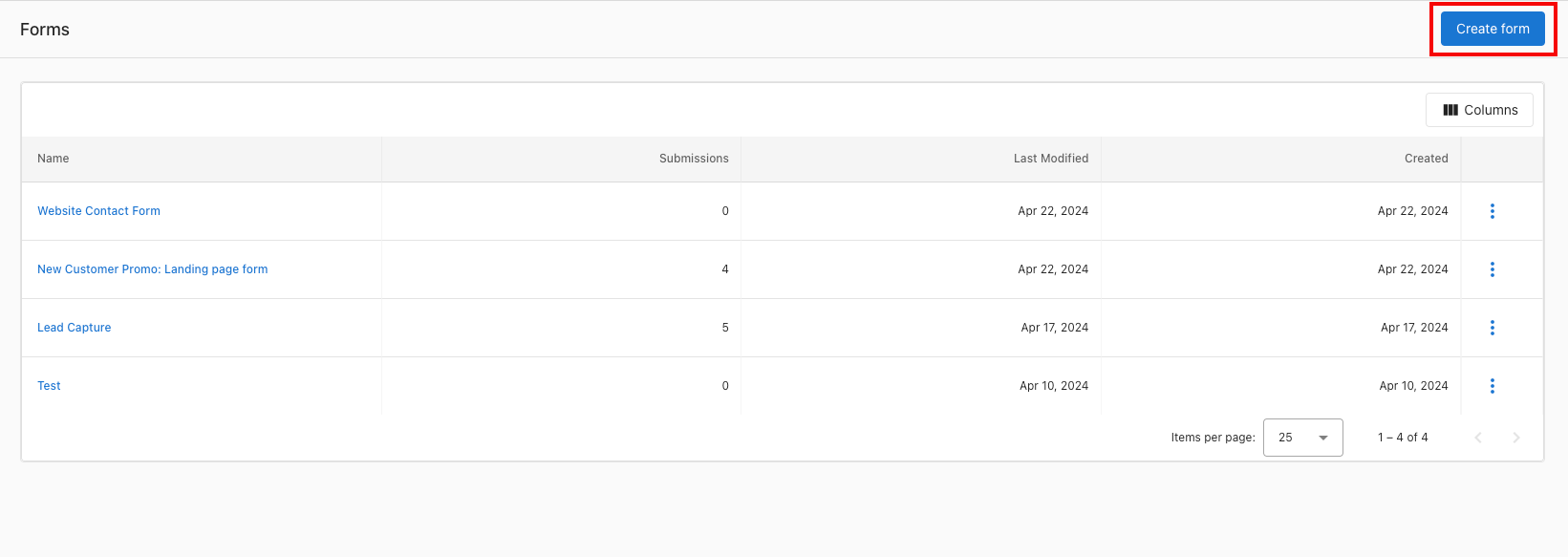
Add the key fields you'd like to capture. Keep forms short—conversion rates drop as fields increase (e.g. forms with 5 fields or fewer tend to convert better than those with 10+).
Field settings
For all field types:
- You can set a default value, which will be submitted when the user submits an empty field.
- You can mark the field as required, and the user can't submit the form without filling in the required field.
- You can make the field hidden, so users won't see the field and can't edit it when they fill out the form.
- You can populate the specific form field dynamically using a query parameter from the URL.
- Example: form at
https://www.example.com/form?campaign=spring-promotionwith "campaign" set in the field → the field pre-fills with "spring-promotion" when the user submits.
- Example: form at
For the string field: you can switch it to an open text field, drop-down, or radio button options.
Short forms convert better. Consider deferring lower-priority questions to a follow-up email or meeting.
Adding a file upload field
You can add a File upload field so visitors can attach a document or image when they submit. Files are attached to the Contact or Company record the form creates and receive an AI-generated summary for easier review.
- In the form builder, choose Add field and select File upload.
- Configure the field label and whether the file is required.
- Optionally set accepted file types (e.g. PDF, PNG, JPEG, DOCX) and a maximum file size.
- Save the form and test a submission to confirm the file attaches to the created record.
Files submitted through Forms are processed the same as files uploaded in CRM: a single file per submission is supported and an AI-generated summary appears after processing.
Setting a default country code
Phone number fields default to +1. If most of your visitors are outside North America, set a different default:
- In the form builder, select the
Phone numberfield, orAdditional phone numberif you're using it. - Open the field settings and set
Default country codeto the code you want. - Save the form.
This setting applies per phone field. If your form includes both Phone number and Additional phone number, set the default for each one.
Adding multiple checkbox options
There's no dedicated multi-select field type. To let visitors choose more than one option, add the Checkbox field once for each option you want to offer:
- In the form builder, choose
Add fieldand selectCheckbox. - Set the field label to the option you want to offer, for example "Interested in: SEO".
- Repeat for each additional option.
- Save the form.
Step 2: Customize the styling
Set the form width (e.g. 100%) and manage the width in your page builder. In the Design tab, style the container, font, and button.
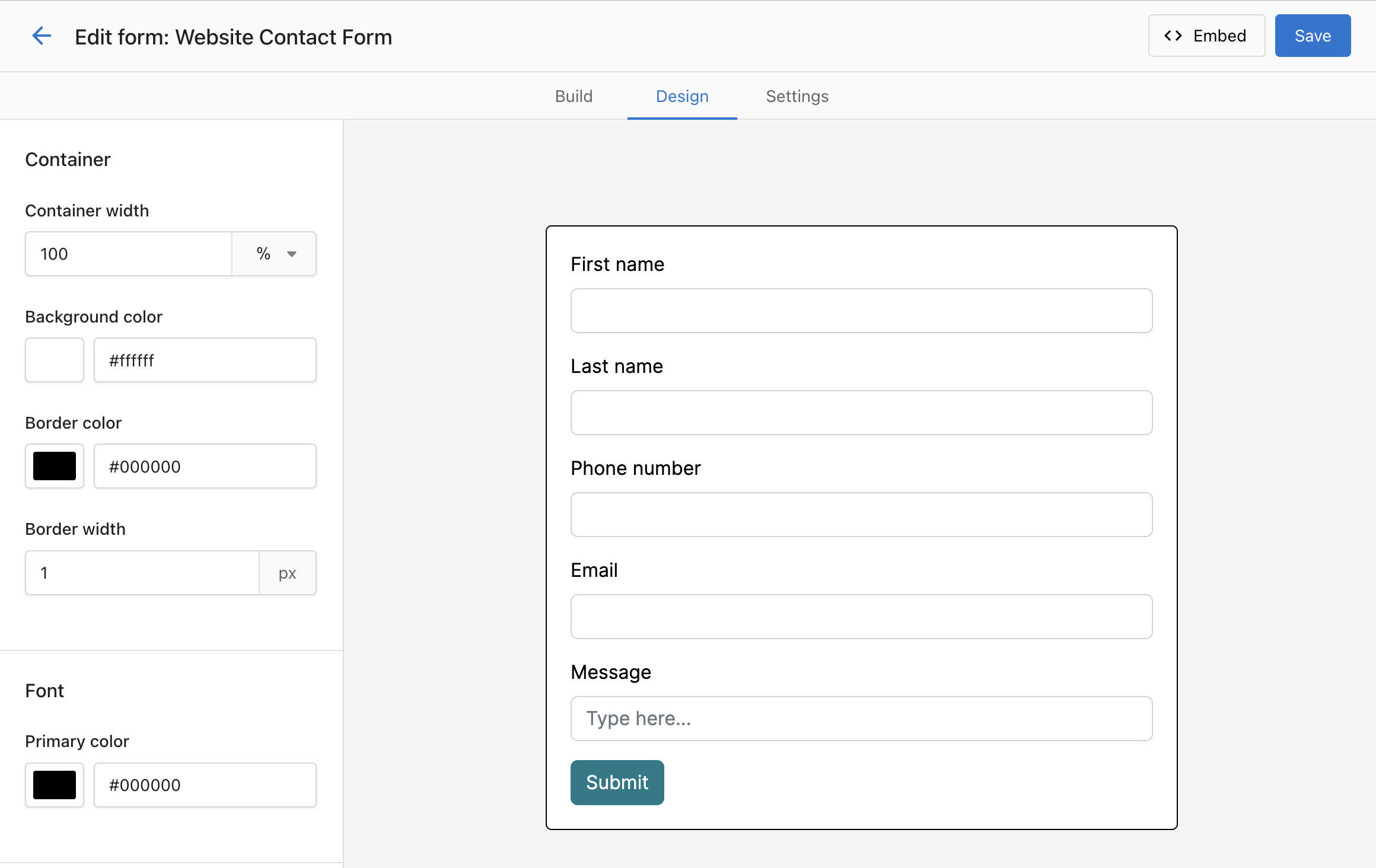
Advanced Styling with Custom CSS
- In the form builder, go to the Design tab.
- Scroll down to the Custom CSS section.
- Add your CSS rules to customize colors, fonts, spacing, and layout.
- Preview changes in real-time.
Example custom CSS:
/* Customize form background */
.form-container {
    background: linear-gradient(135deg, #667eea 0%, #764ba2 100%);
    border-radius: 10px;
    padding: 20px;
}

/* Style input fields */
input[type="text"], input[type="email"] {
    border: 2px solid #4CAF50;
    border-radius: 5px;
    padding: 10px;
}

/* Customize submit button */
.submit-button {
    background-color: #4CAF50;
    color: white;
    border-radius: 25px;
    padding: 12px 30px;
    font-weight: bold;
}
Test your custom CSS on different devices to ensure your form looks great on desktop, tablet, and mobile.
Step 3: Set up reCAPTCHA
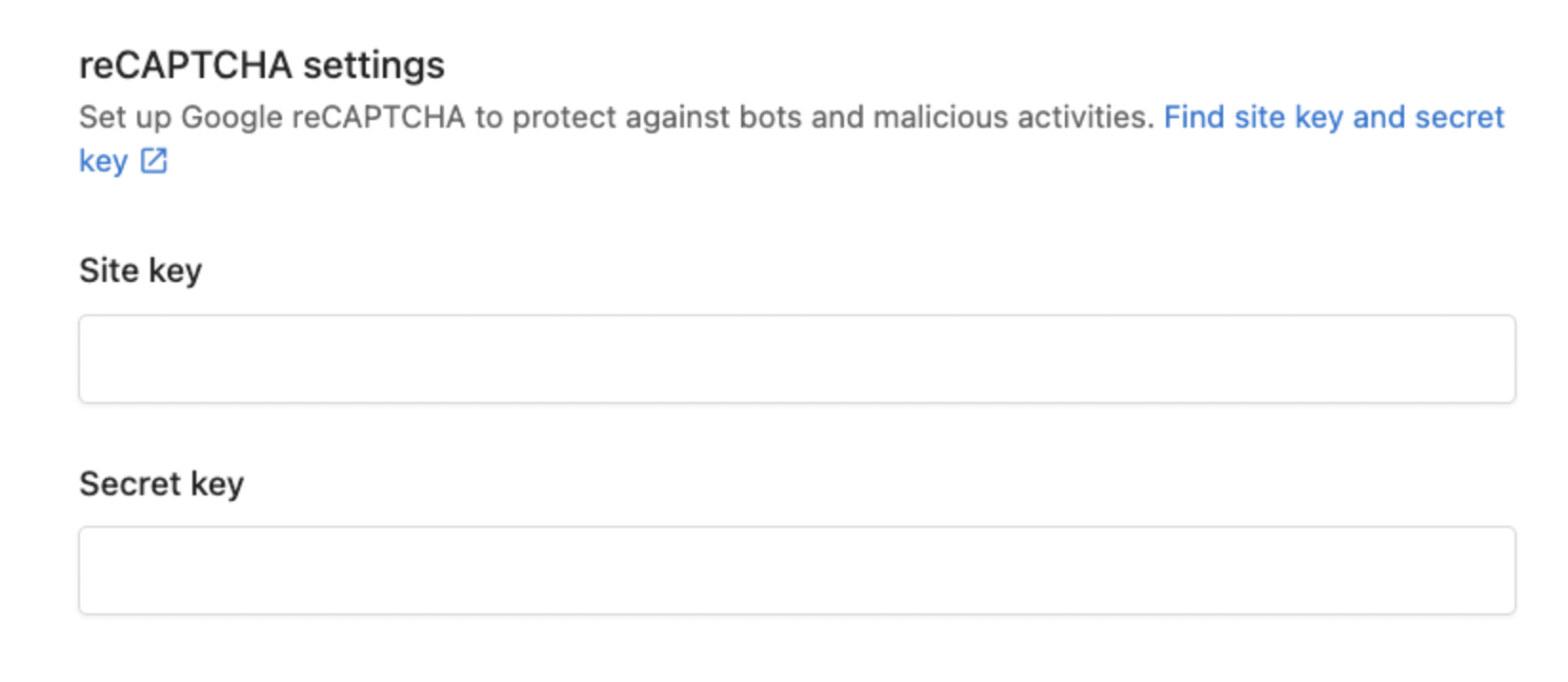
In the form builder, under Settings, use the reCAPTCHA section. After generating the site key and secret key, setup completes automatically (this can take a few minutes).
Step 4: Copy the embed code
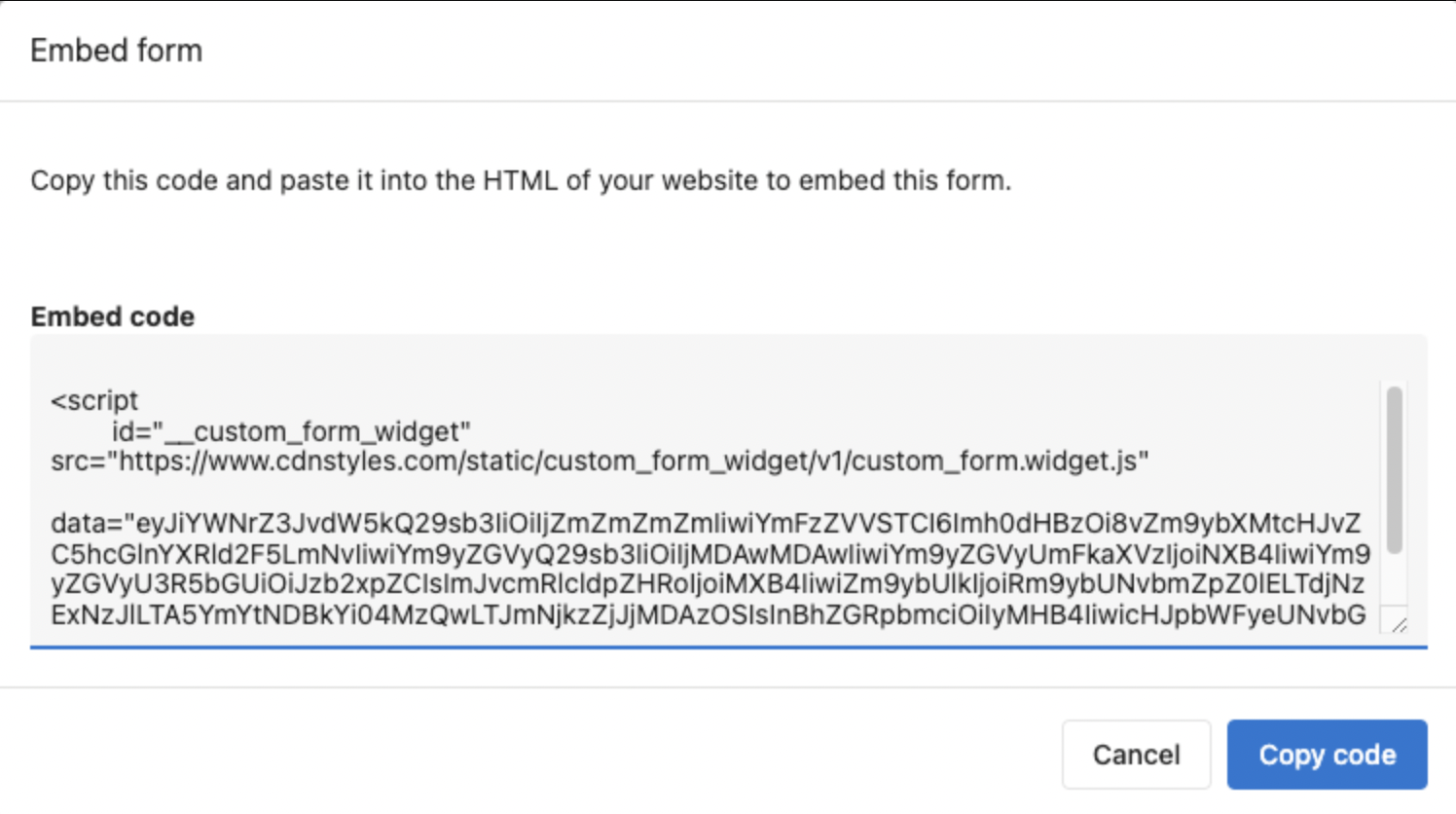
Copy the embed code and place it on your website landing page or contact page. If using WordPress (e.g., Divi), add a "Code" block and paste the embed code.
Embed multiple forms on the same page
You can place more than one form on a single page. Each form has its own embed code — duplicate the <script> tag for each form and change only the data= attribute:
<!-- First form -->
<script
  async
  data-crm-form-widget
  src="https://www.cdnlinks.vendasta.com/.../custom_form.widget.js"
  data="YOUR_BASE64_DATA_FORM_1"
></script>

<!-- Second form -->
<script
  async
  data-crm-form-widget
  src="https://www.cdnlinks.vendasta.com/.../custom_form.widget.js"
  data="YOUR_BASE64_DATA_FORM_2"
></script>
Copy the embed code from each form's Embed tab — the data= value is the only thing that differs between forms.
Step 5: Test your form
Submit a test response to confirm that a contact is captured in the CRM and any automations run as expected.
Style a form from your website's stylesheet
The Custom CSS editor inside the Design tab styles the form from within — standard CSS selectors like input or .submit-button work there. If you want to apply styles from your website's own stylesheet instead, you need a different approach.
Each form renders in an isolated container that blocks outside CSS from reaching its internal elements. To style across that boundary, use the CSS ::part() pseudo-element:
/* Target all inputs across every embedded form */
.crm-form-host::part(input) {
  border: 2px solid #3b82f6;
  border-radius: 6px;
}

/* Target labels */
.crm-form-host::part(label) {
  font-weight: 600;
}

/* Target the submit button */
.crm-form-host::part(submit-button) {
  background-color: #2563eb;
  color: white;
  border-radius: 999px;
}
Available part names
| Part name | What it targets |
|---|---|
form | The form container |
input | All input, textarea, and select elements |
label | All field labels |
submit-button | The submit button |
section-button | Next/back buttons on multi-section forms |
{type}-input | Input by field type, e.g. email-input, text-input |
{type}-label | Label by field type, e.g. email-label |
consent-input | Consent checkbox inputs |
promo-card | Promo section cards |
success-icon | Checkmark icon on the success page |
success-heading | Heading on the success page |
success-body | Body text on the success page |
Scope styles to one specific form
When you have multiple forms on the same page, add the form ID to your ::part() selector to target only that form. The form ID is the FormConfigID-... value in your embed code.
/* Only affect the contact form */
.crm-form-host::part(FormConfigID-abc123 input) {
  border-color: #7c3aed;
}

/* Only affect the newsletter form */
.crm-form-host::part(FormConfigID-xyz456 submit-button) {
  background-color: #059669;
}
You can find your form ID by inspecting the embedded form in your browser's developer tools. Look for the element <div class="crm-form-host" data-form-id="FormConfigID-...">.