Create, edit, and close opportunities
Pipeline and list view
You can manage opportunities in two views:
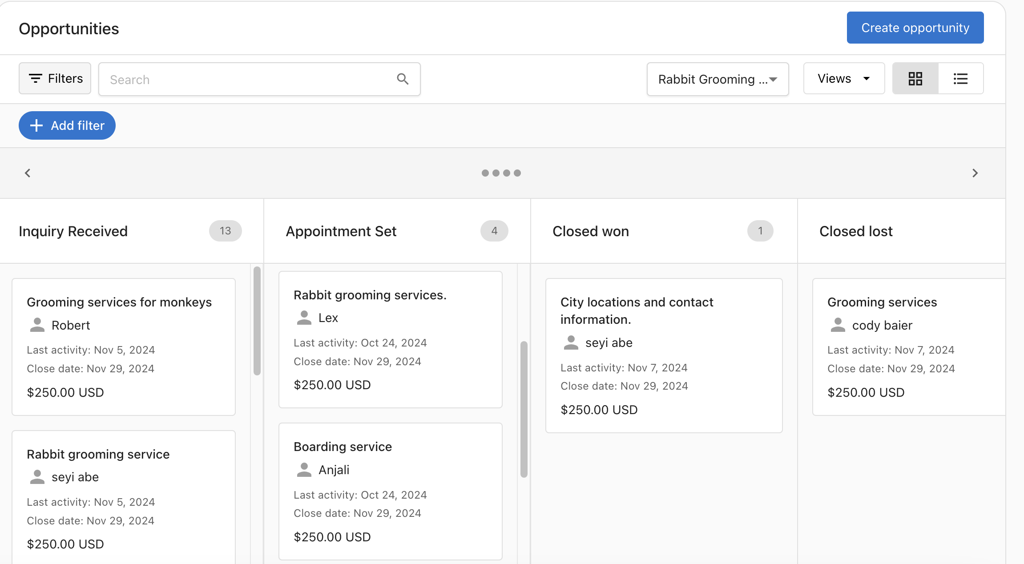
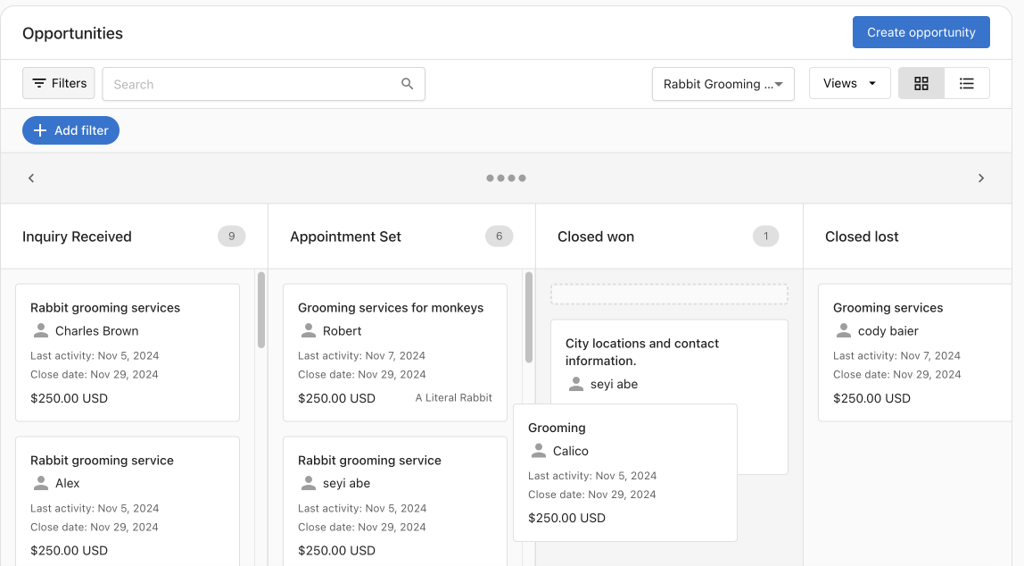
Pipeline View – Manage opportunities visually by stage. Click Set up a pipeline if none exists. Drag and drop opportunities to update their stage. Use filters and search to find records.
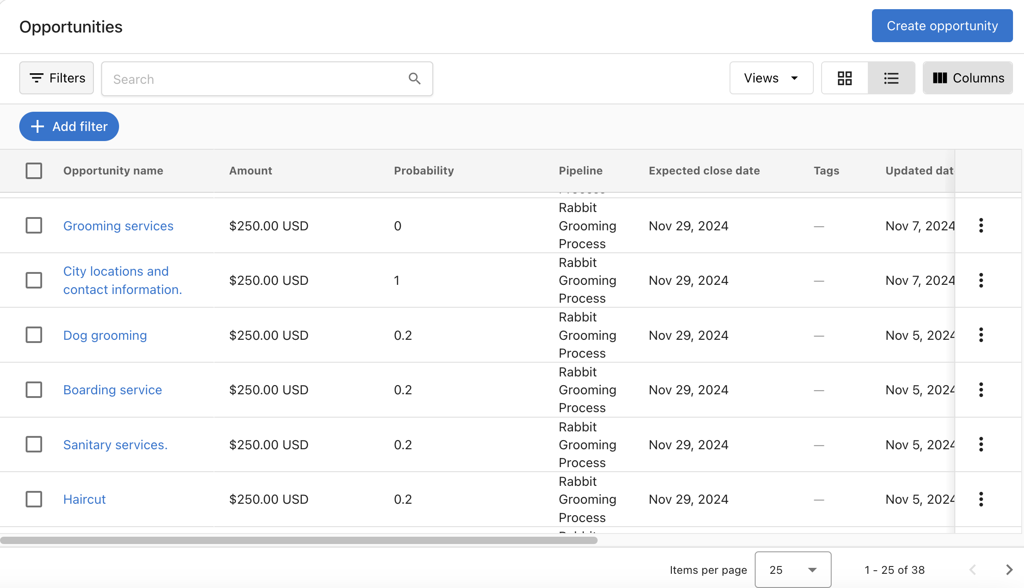
List View – Click the List icon to switch. Configure columns, sort by fields such as expected close date, and use bulk actions.
How to create an opportunity
From the opportunity page
- Navigate to
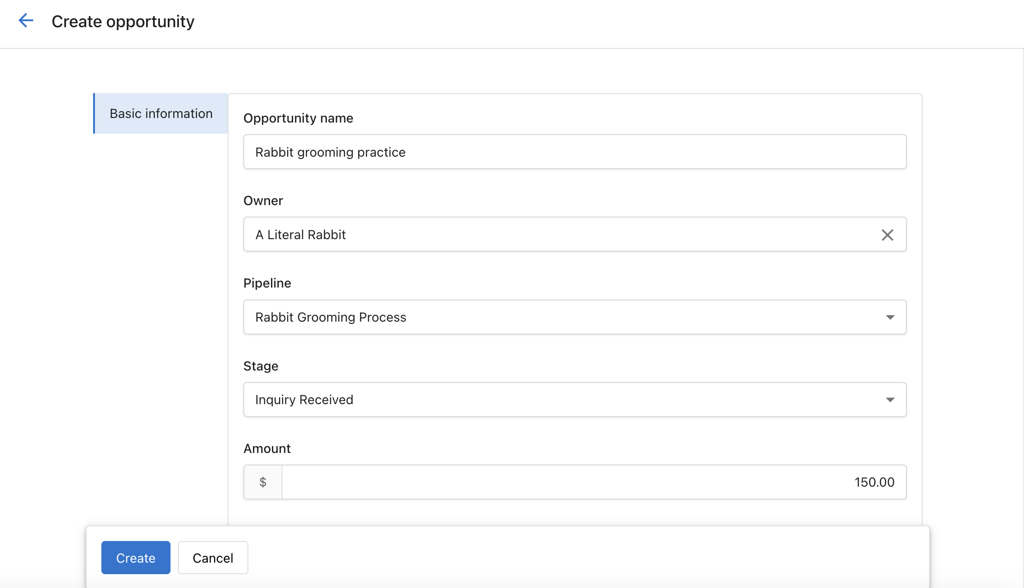
CRM→Opportunities. - Click
Create Opportunity. - Enter the opportunity details.
- Click
Create.
Import opportunities (CSV)
- In
CRM→Opportunities, clickImport. - Upload a CSV and map columns to opportunity fields.
- Optionally map associations to existing contacts or companies.
- Review choices, then finish the import.
Updating existing opportunities during import overwrites mapped fields on matching records (by ID or external ID). Export a backup first if you're unsure.
How to edit an opportunity
From the profile page
- Go to
CRM→Opportunities. - Click on the opportunity.
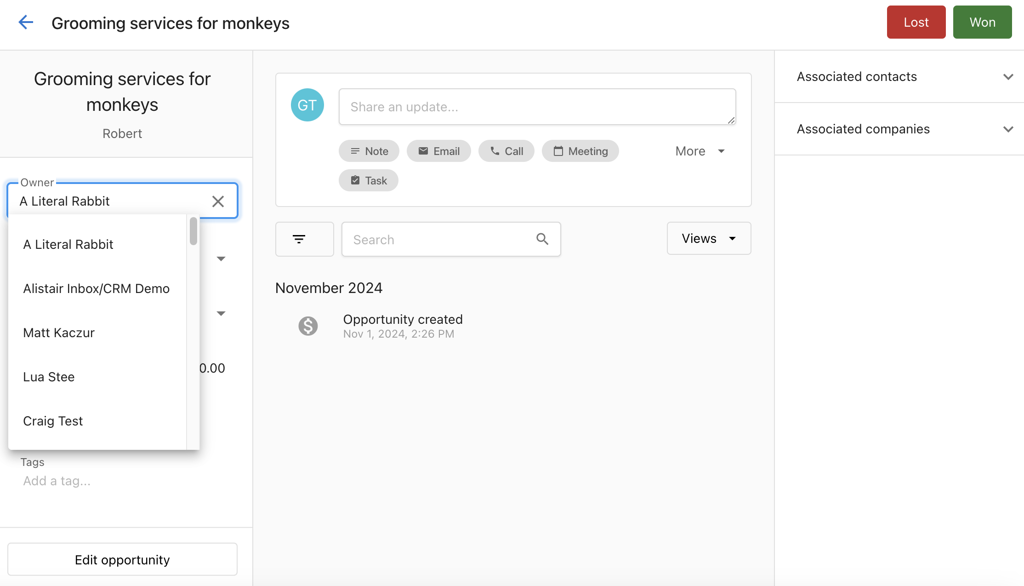
- Click any editable field in the left panel.
- Make changes and click away to save.
From the table view
- Go to
CRM→Opportunities. - Switch to the list view.
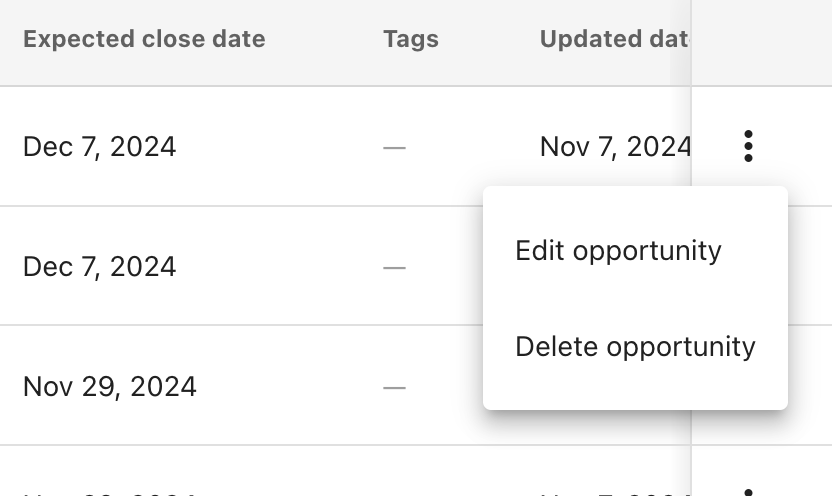
- Click the action menu for the opportunity.
- Select
Edit opportunity. - Update fields and click
Save.
How to close an opportunity
In pipeline view
Drag the opportunity to the Closed Won or Closed Lost column.
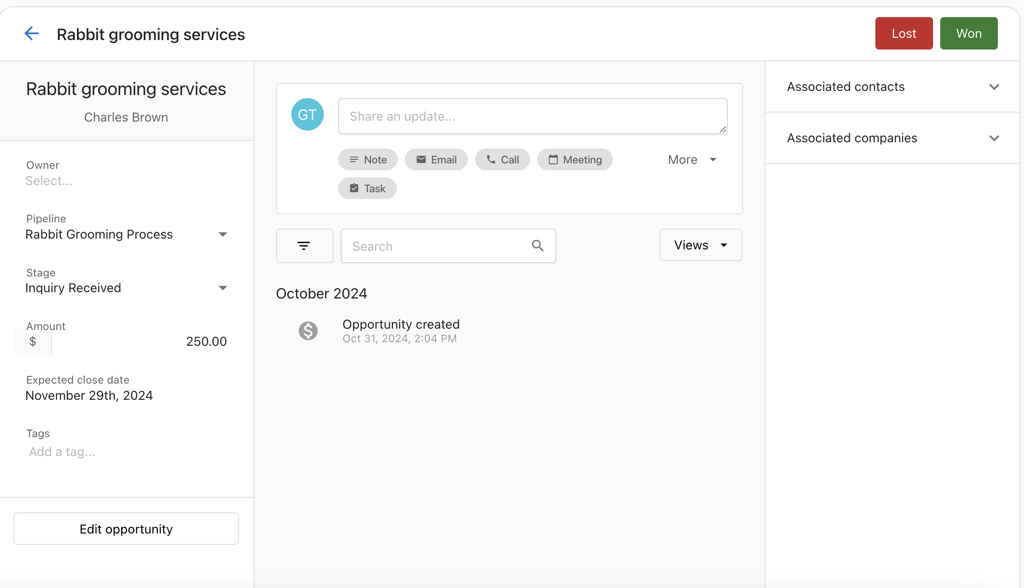
From the profile page
Open the opportunity and click Closed Won or Closed Lost at the top.
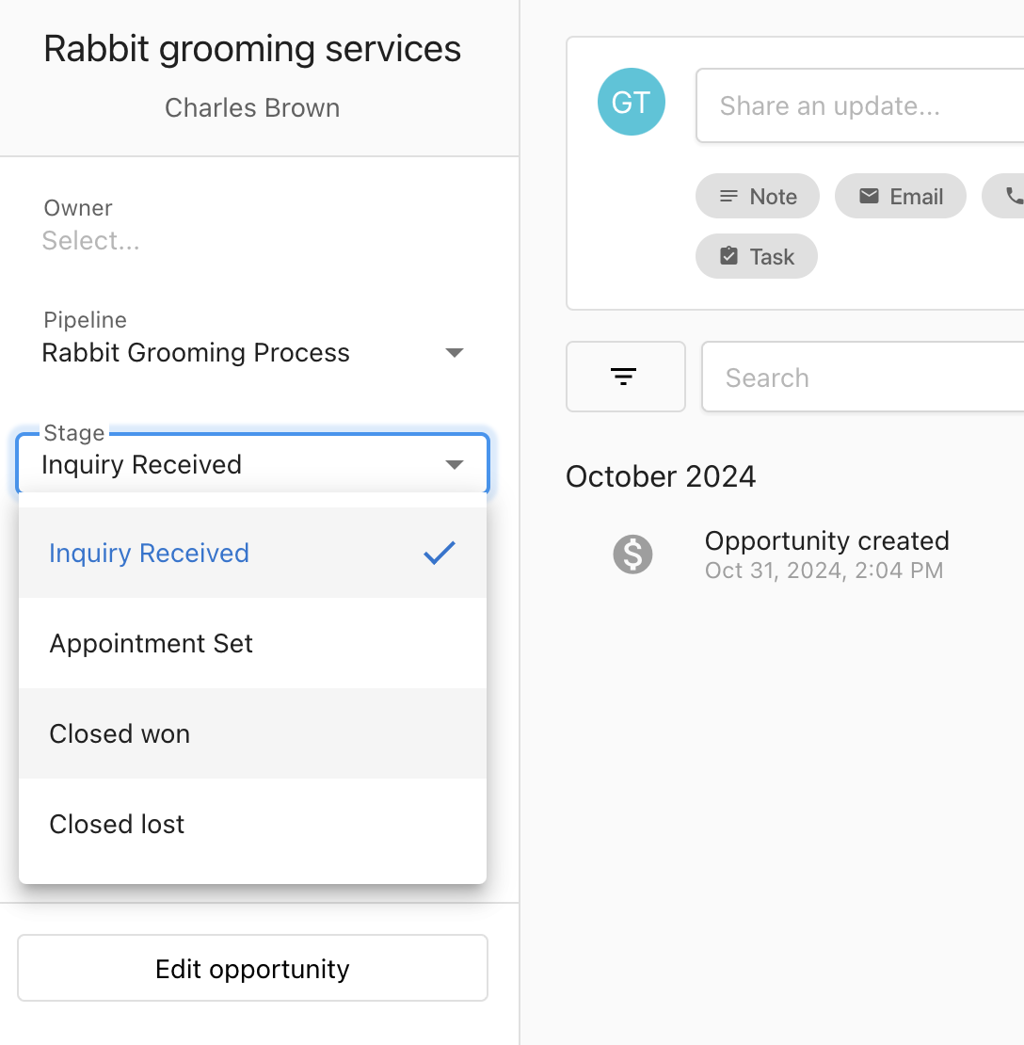
By updating the stage field
Open the opportunity and change the Stage field to Closed Won or Closed Lost.
When marking an opportunity as Closed Lost, you may be prompted to provide a reason. Key stage changes (Won, Lost, Reopened) are recorded as activity notes for better history and reporting.