Customize the Review Widget
The Review Widget in Reputation AI allows you to request and display reviews from popular review sources like Google and Facebook, as well as My Listings if Local SEO is activated. Popular review sources, such as Google and Facebook, are included in any edition of Reputation AI, with other review sources available with the purchase of Review Widget Pro.
What is included in the Reputation AI Review Widget?
| Functionality | With all editions of Reputation AI | With the purchase of Review Widget Pro |
|---|---|---|
| Google, Facebook, and My Listings review sources | ✅ | ✅ |
| Additional review sources | ❌ | ✅ |
| Feed layout | ✅ | ✅ |
| Carousel layout | ❌ | ✅ |
| Badge layout | ❌ | ✅ |
| Layout customization | ❌ | ✅ |
| Light and dark themes | ✅ | ✅ |
| Accent colour | ✅ | ✅ |
Customize the review widget
Step 1: Go to Business App → Reputation AI → Reviews → Review Widget.
Step 2: The Review Widget interface appears.
Step 3: Select Sources for the review sources you would like to request reviews for and those you want displayed on your website. You can request and display reviews from Google, Facebook, and My Listings if Local SEO is activated. You can only select one source to request reviews from on the Review Widget, whereas all sources can be displayed.
Step 4: Select Reviews to configure the reviews displayed on the review widget by star rating and the rating format with one or two decimal points.
Step 5: Feed is the default layout for the Review Widget. To customize it, select Layout and choose the carousel or badge layout, both of which offer additional configuration options with Review Widget Pro.
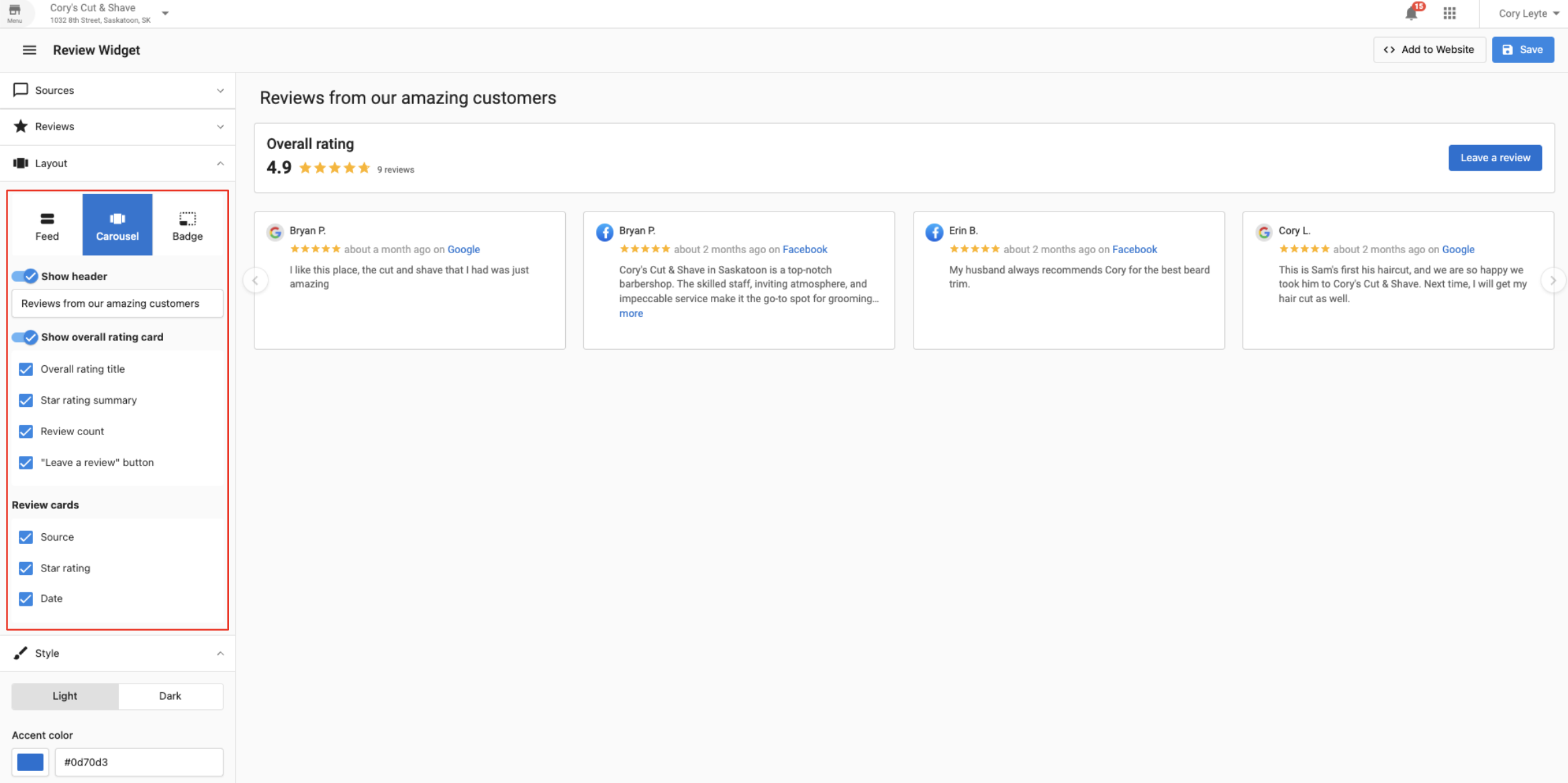
Step 6: Select Style to change the appearance of the Review Widget from light to dark or adjust the accent colour to match the website's styling.
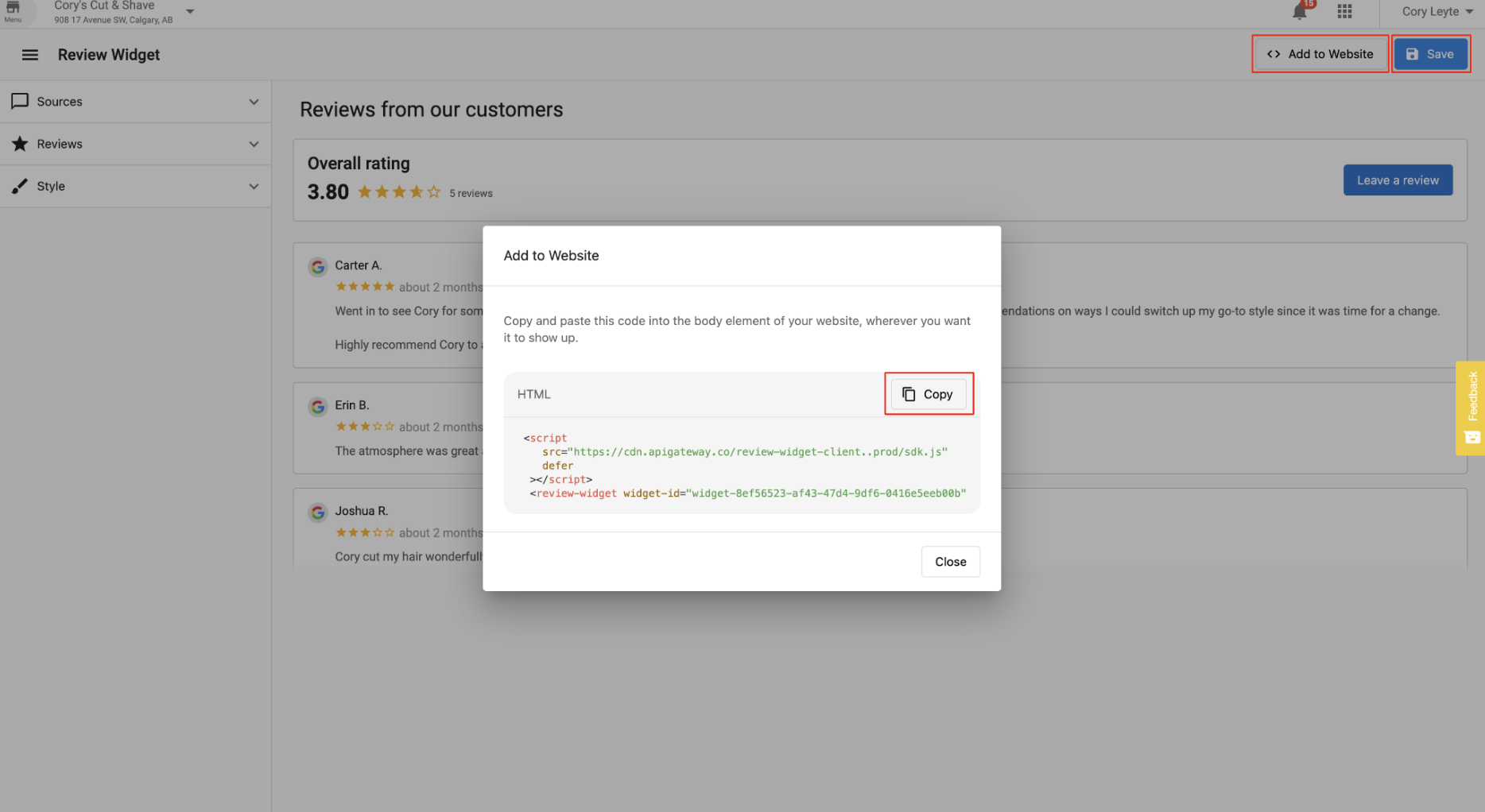
Step 7: Once you have configured the Review Widget, select Save and Add to Website to copy and paste the HTML code into the website's body element. If you change the sources, layout or styling after the HTML code has been installed on the website, you only have to press save to push those updates to the live widget.
Frequently asked questions
Can I remove specific reviews from the widget?
In the widget settings, you can filter by star rating (e.g., "only show 4 and 5 stars") to prevent negative reviews from displaying on your site.
Will the widget slow down my website?
The widget is designed to be lightweight and load asynchronously, meaning it should not significantly impact your page load speeds.
Does the widget update automatically when I get new reviews?
Yes. As long as the widget code is installed, it pulls in new reviews that meet your display criteria (e.g., 5-star Google reviews) automatically.