Connecting a WordPress Blog to Social AI
Social AI lets you connect your WordPress blog so you can schedule and publish blog content directly to your website from within the platform. The connection is made through the Blog Post Connector plugin, which you install on your WordPress site.
Before You Begin
- You must have administrator access to your WordPress site.
- The Blog Post Connector plugin can only be installed on WordPress sites.
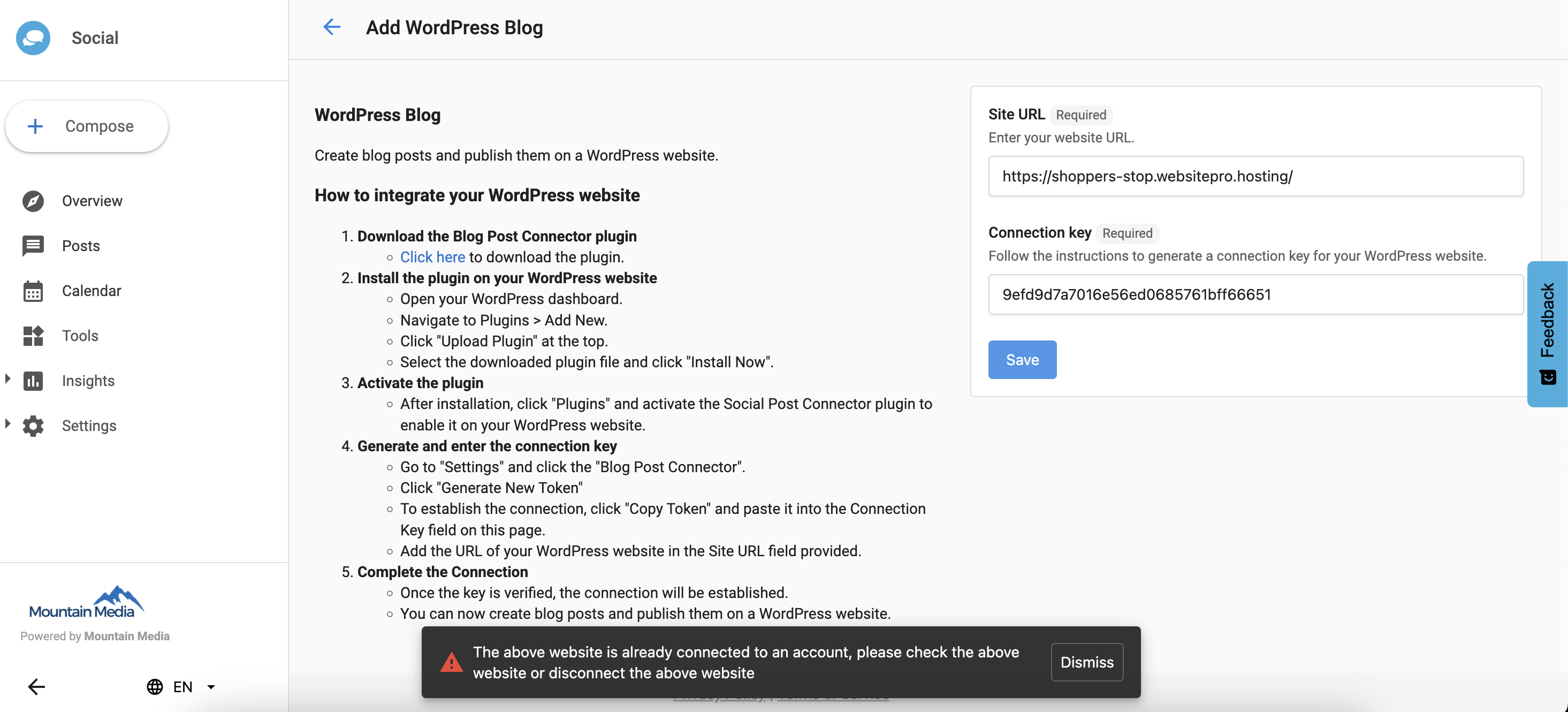
- Each WordPress website can only be connected to one Social AI account at a time.
How to Connect Your WordPress Blog
Step 1: Open the WordPress Blog connection
-
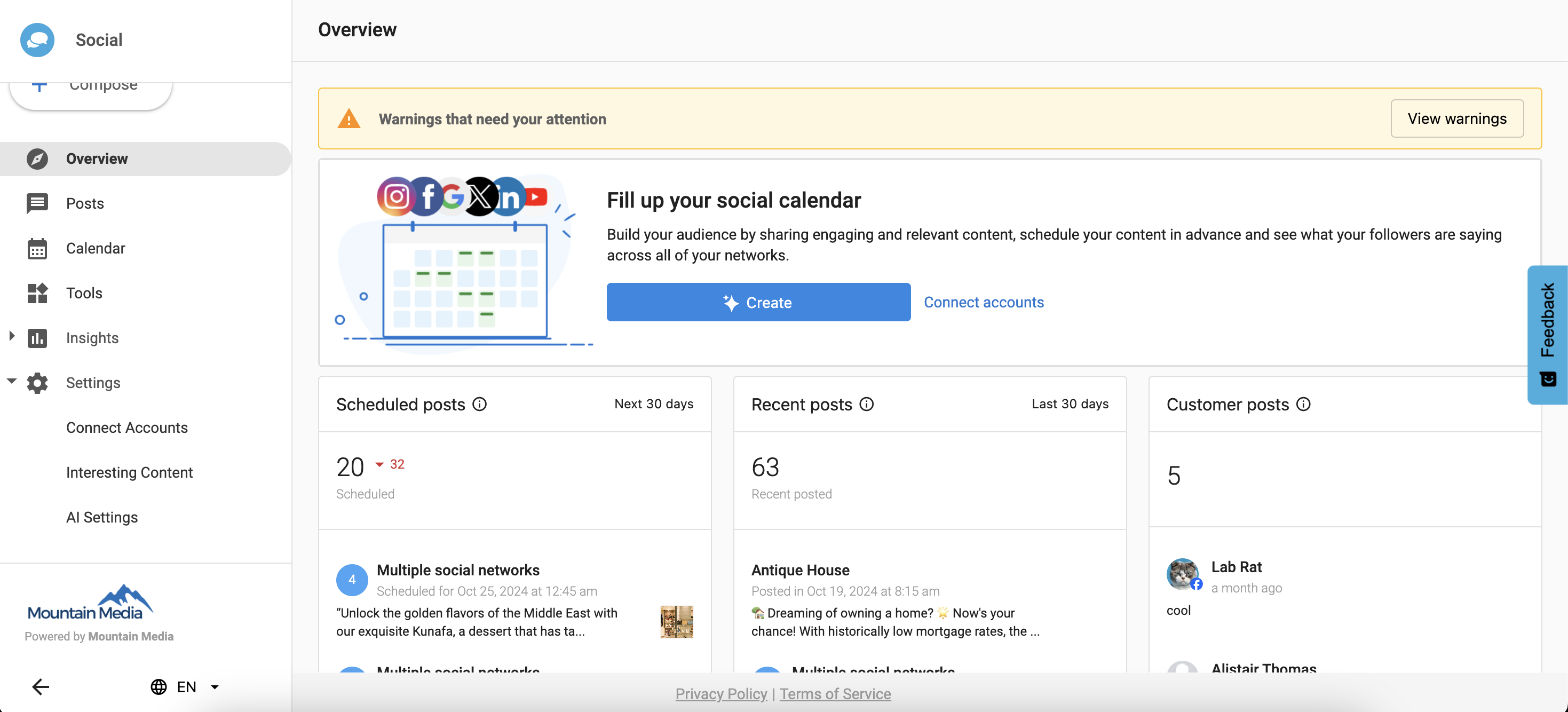
In Social AI, go to Settings > Connections.
-
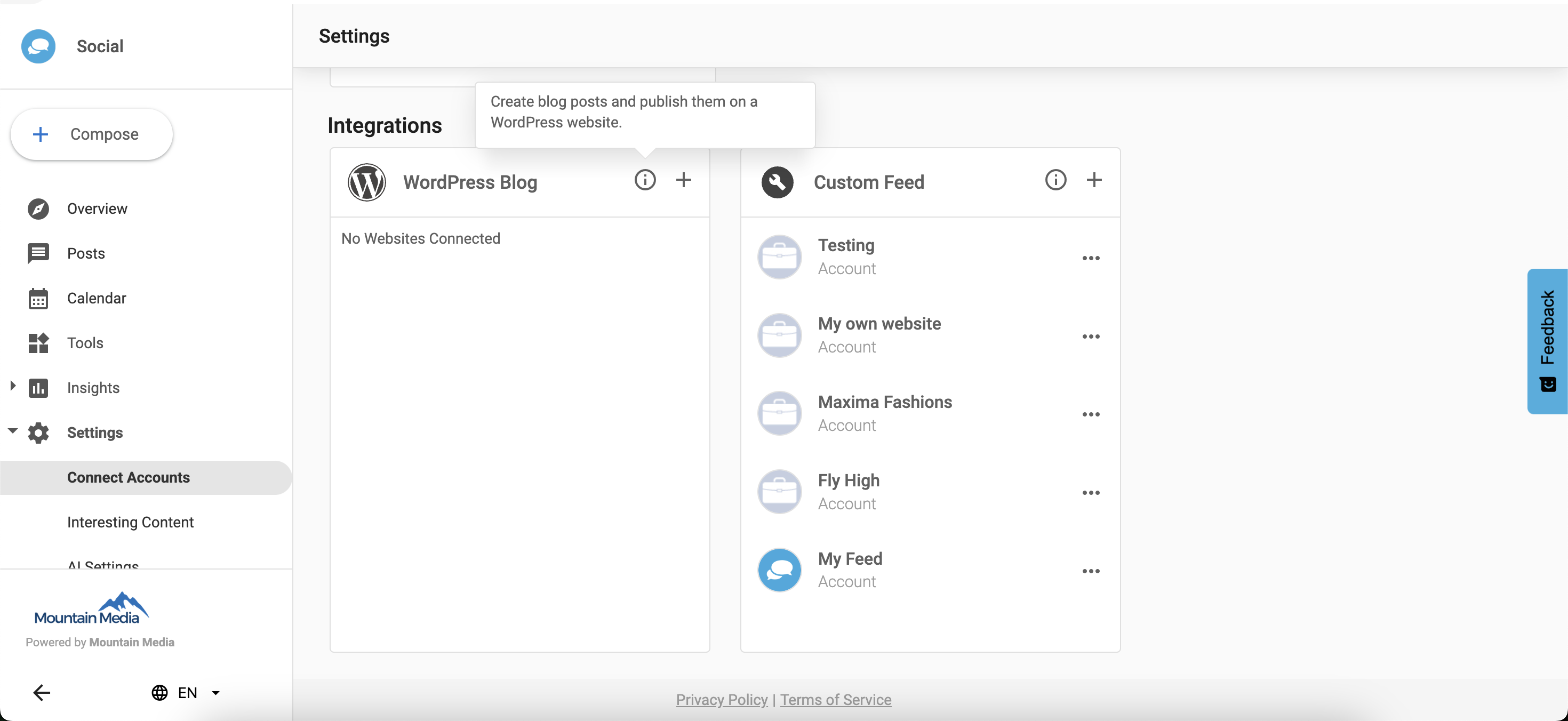
Navigate to the Integrations tab and select WordPress Blog.
-
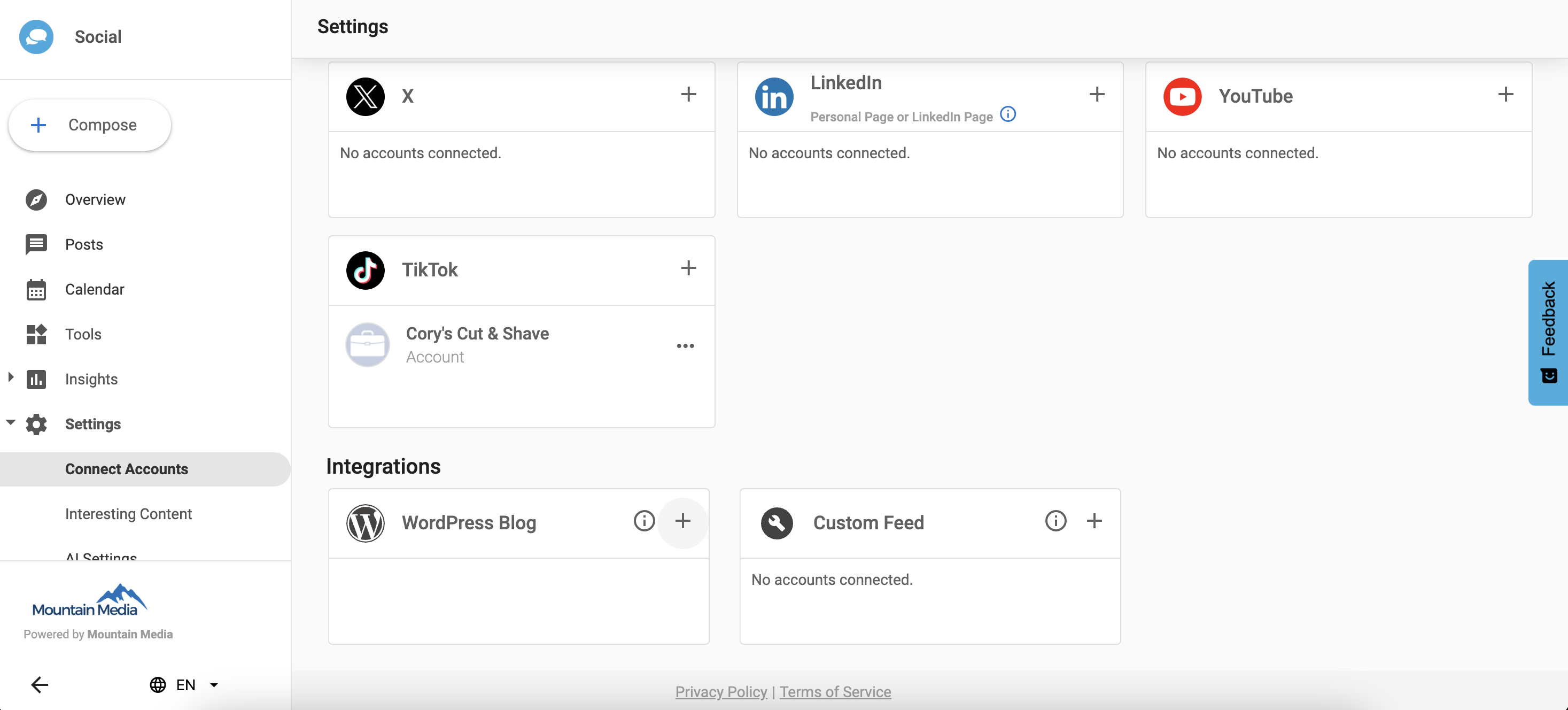
Click Add to begin setting up a new connection.
Step 2: Download and install the plugin
-
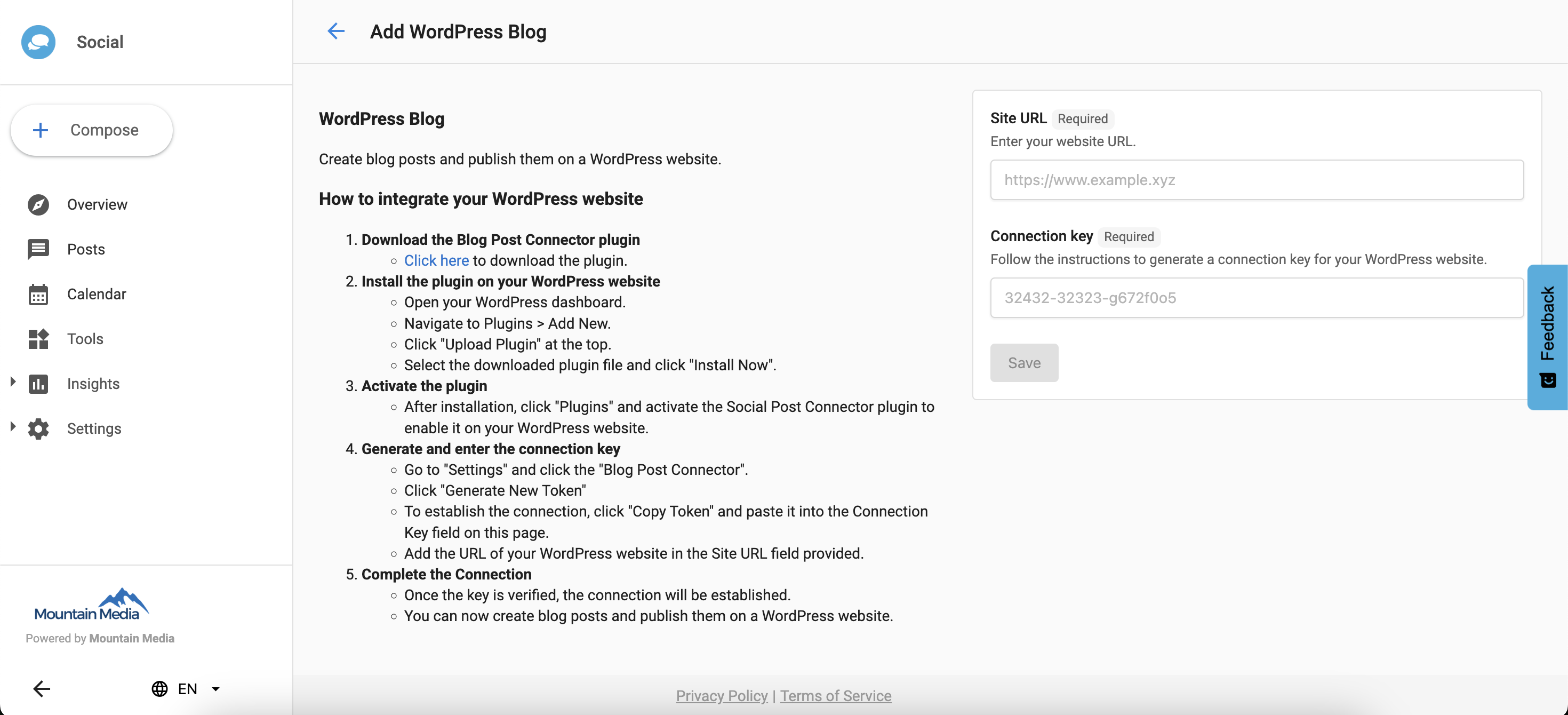
On the Add WordPress Blog page, download the Blog Post Connector plugin file.
-
Log in to your WordPress Admin Dashboard.
-
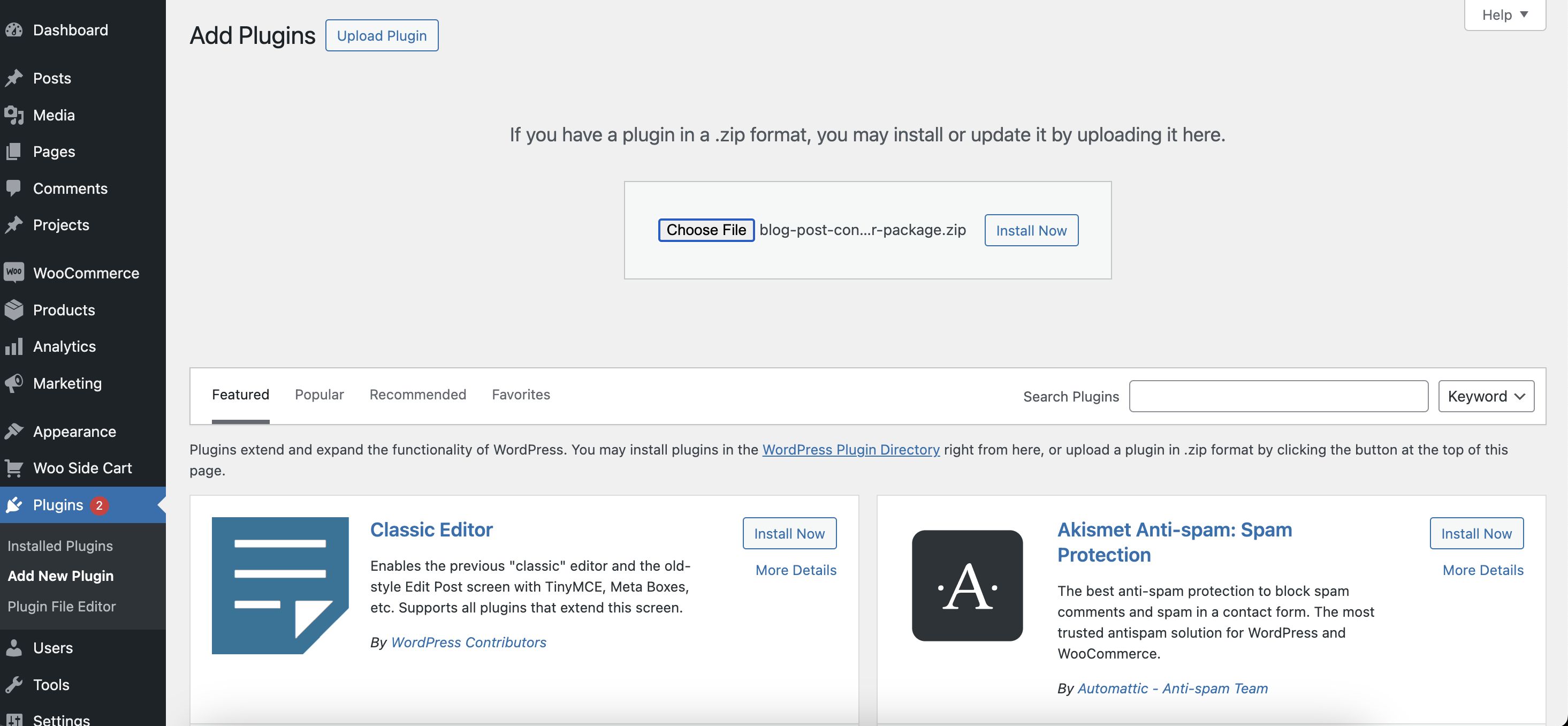
Go to Plugins > Add New Plugin.
-
Click Upload Plugin and select the downloaded plugin file.
-
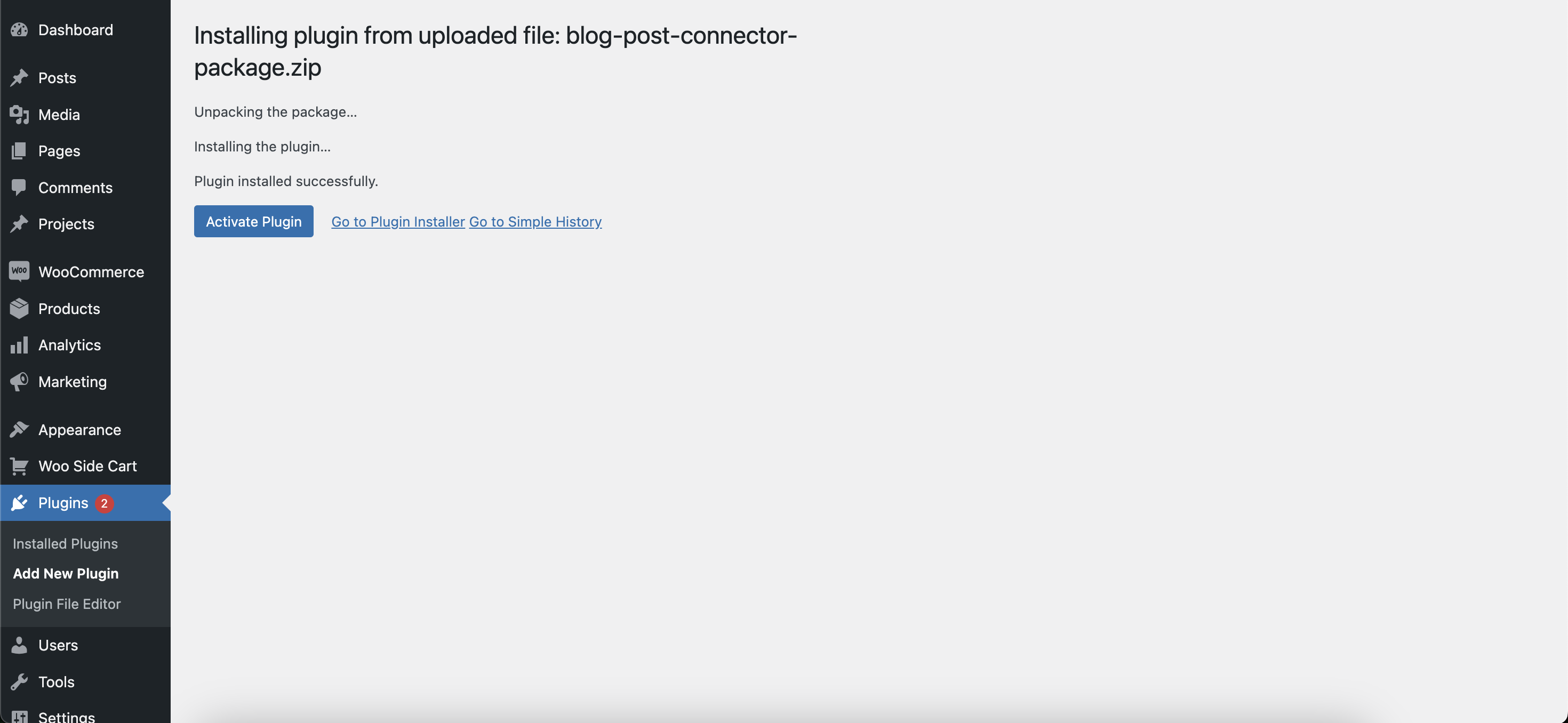
Click Install Now, then Activate the plugin.
Step 3: Get your access token
-
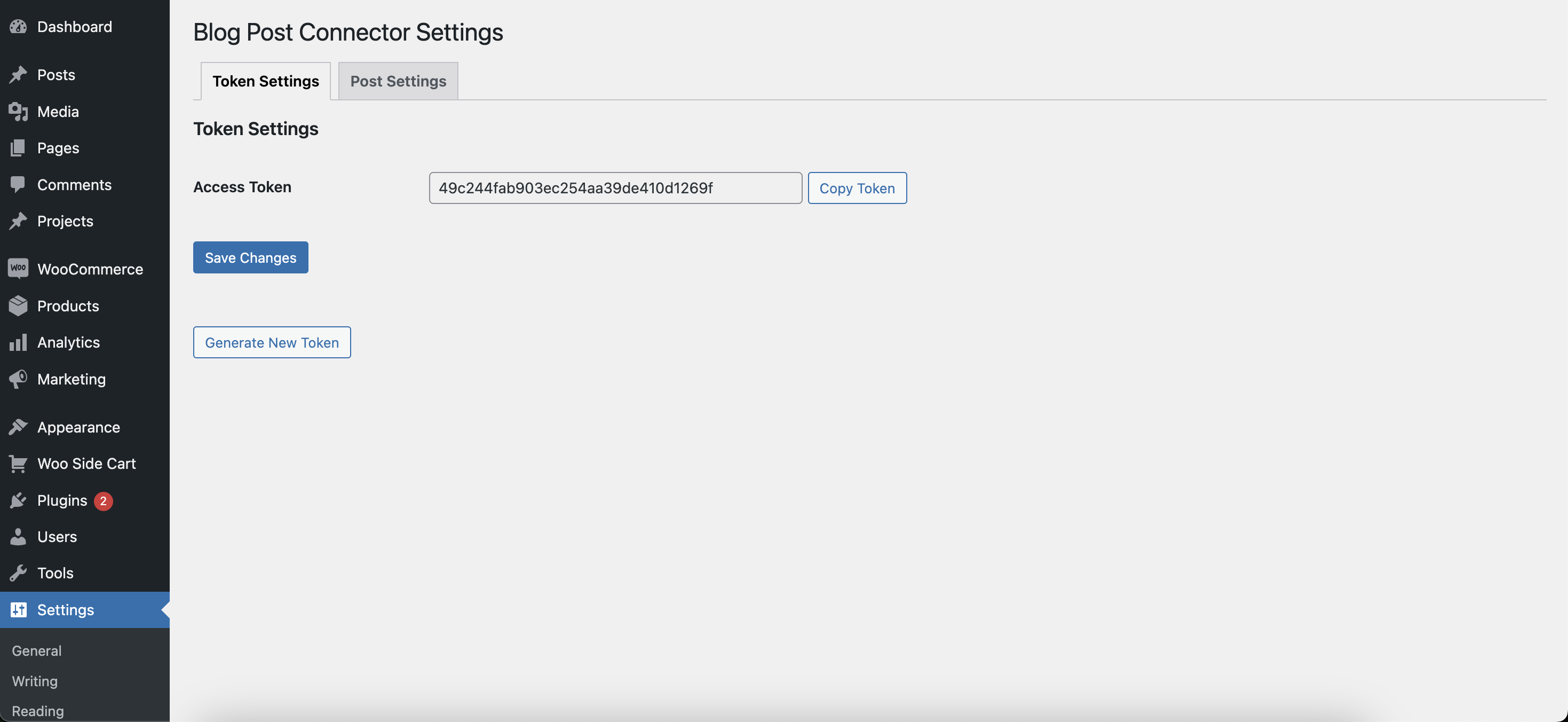
In your WordPress Admin Dashboard, go to Settings > Blog Post Connector.
-
Copy your Access Token. You can also generate a new token from this page if needed.
Step 4: Complete the connection in Social AI
-
Return to Social AI and go to Settings > Connections > WordPress Blog > Add New.
-
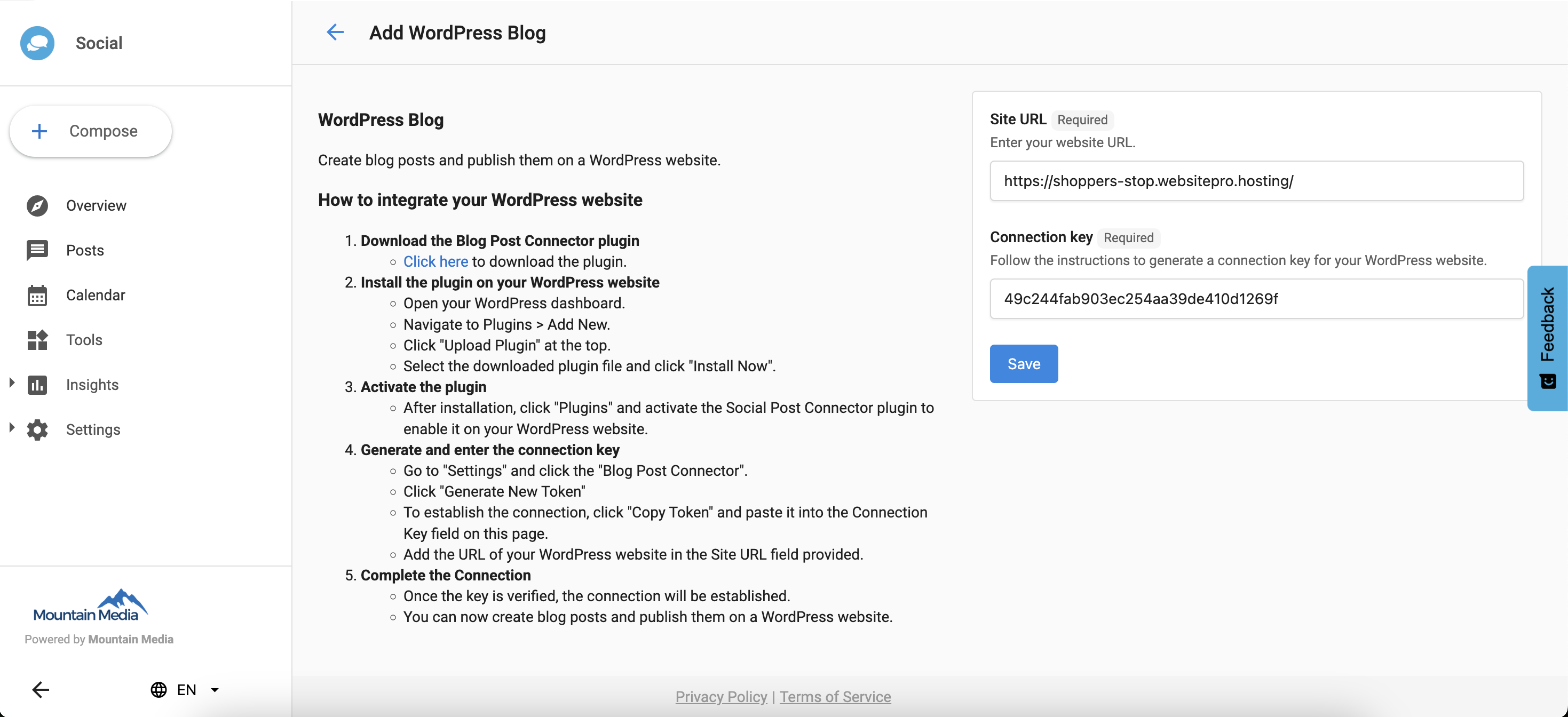
Paste the Access Token you copied from WordPress.
-
Enter your Website URL.
-
Click Save.
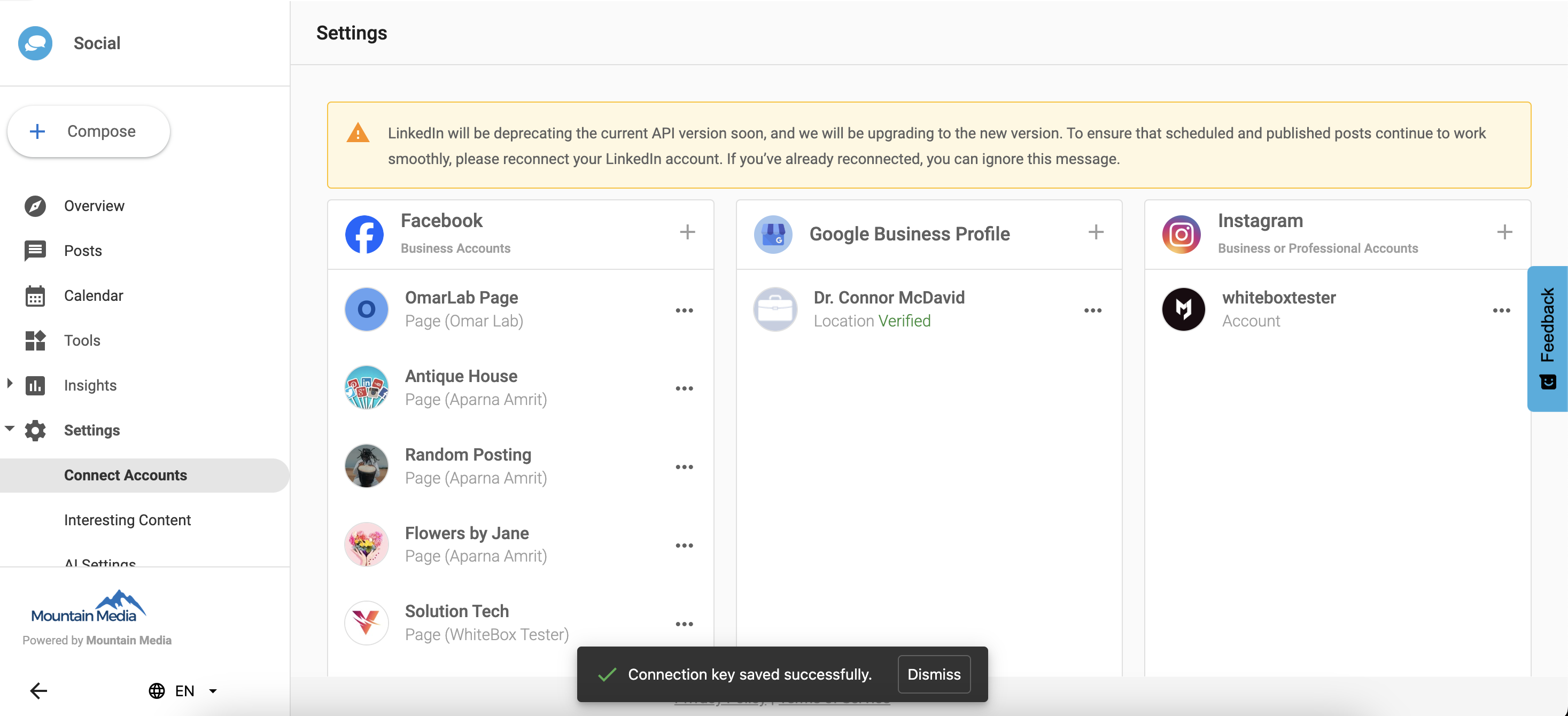
Your WordPress blog is connected to Social AI.
Things to Know
-
The Blog Post Connector plugin only works on WordPress sites.
-
A website can only be connected to one Social AI account. If the website is already connected to another account, you will not be able to connect it again until it is removed from the other account.
-
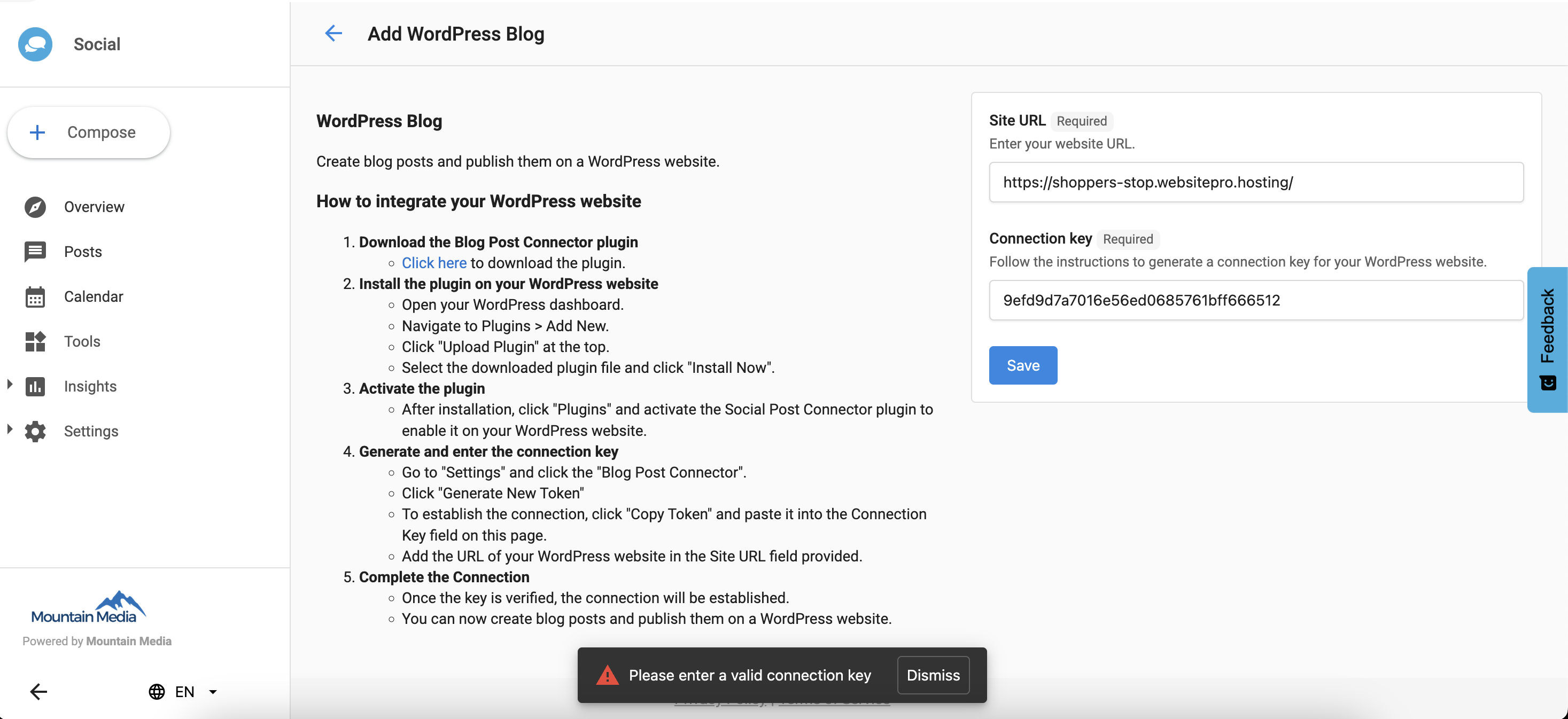
The Website URL and Access Token must match the WordPress site where you generated the token, or the connection will fail.
Frequently Asked Questions
What happens if I generate a new access token in WordPress?
Generating a new access token in WordPress will invalidate the previous token. If your blog is already connected to Social AI, you will need to update the connection with the new token to restore functionality.
Can I connect more than one WordPress blog?
You can add multiple WordPress blog connections from the Settings > Connections > WordPress Blog page by clicking Add for each site.