Backups
Backups protect your site. With a recent backup you can roll back from a bad plugin update, a broken theme change, or a content mistake in minutes. Backups run automatically every day; you can also create one on demand before making a significant change.
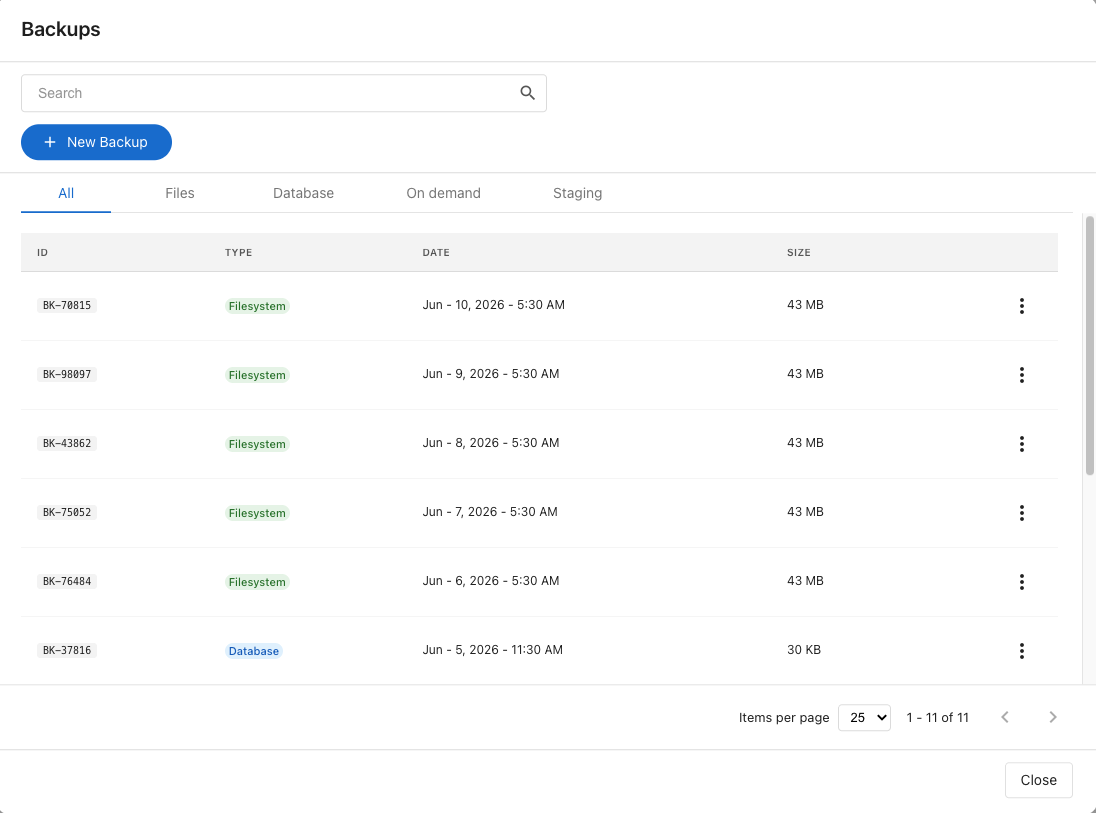
What you see
Backup countandLast:timestamp on the dashboard card.- Filter tabs in the panel:
All,Files,Database,On demand,Staging. - Each row shows the backup
ID,Type,Date, andSize.
Create an on-demand backup
Click + New Backup at the top of the panel. The backup runs in the background and appears in the On demand tab in a few minutes.
Run an on-demand backup before:
- Installing or updating a major plugin or theme.
- Updating WordPress core.
- Pushing changes from staging to production.
Restore from a backup
- Find the backup in the list.
- Click the actions menu (the three dots) and choose
Restore. - Confirm.
The restore takes several minutes. When it completes, your site is running from the chosen backup.
Restoring overwrites the current state of your site. Anything created or changed after the backup will be lost. If unsure, create a fresh on-demand backup first so you can roll forward again.
Download a backup
Click the actions menu on a backup's row and choose Download to save a copy to your computer. Useful before deleting an on-demand backup you might want later.
Delete a backup
Only on-demand backups can be deleted. Automatic backups follow a fixed retention schedule and can't be removed manually.
To delete: open the actions menu on an on-demand backup and choose Delete.
Backup retention
Backup retention depends on your plan:
- Standard: your most recent daily backup only.
- Pro: a 30-day rolling window, plus 2 on-demand downloadable backups.
- Premium (Multisite): a 30-day rolling window, plus 3 on-demand downloadable backups.
Each day, a new automatic backup is created and the oldest one outside your plan's window falls off the list.
Sites created before June 2026
If your site was created before June 2026, your older backups are being migrated to the current infrastructure. During this migration:
- Backups older than 60 days are brought over from the previous system in addition to the regular 30-day window.
- Each day that passes, one of those migrated backups ages out, so the older end of your backup history shrinks by one backup per day.
- Once the migration period ends, retention settles into the standard 30-day rolling window described above.
Download any backup you want to keep permanently. Once it ages out of retention, it can't be recovered.
FAQs
What's the difference between Files and Database backups?
Files back up your themes, plugins, uploads, and other site files. Database backs up your WordPress database: posts, settings, users. A full restore uses both from around the same time, which the restore flow handles for you.
The restore is taking longer than expected
Large sites can take a while to restore. The backups list shows the current status. Check back in a few minutes.