Plugins and Themes
The Plugins & Themes panel lets you manage every plugin on your site and your active theme: install, update, and activate plugins without going into WordPress admin.
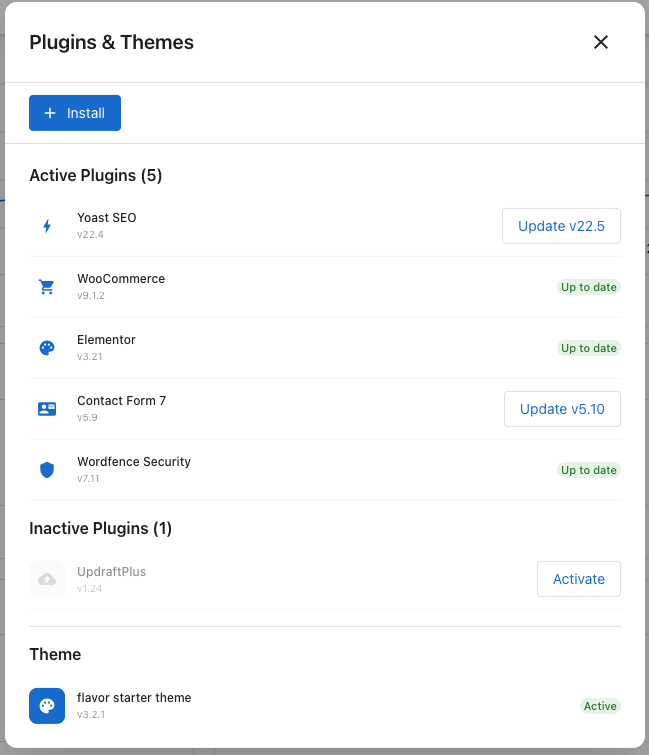
What you see
+ Install: Install a new plugin.Active Plugins: Plugins currently running on your site. Each row shows the version and eitherUp to dateor anUpdate v[version]button.Inactive Plugins: Installed but not running. Each row has anActivatebutton.Theme: The active theme, its version, and anActivebadge.
Update a plugin
Click Update v[new version] on the plugin's row. The update completes in a few seconds and the badge changes to Up to date.
Activate or deactivate a plugin
- To activate, click
Activateon an inactive plugin's row. - To deactivate, open the plugin's actions in WordPress Admin.
Install a new plugin
- Click
+ Installat the top of the panel. - Search or browse for the plugin you want.
- Click
Installon the plugin's card.
The plugin appears under Inactive Plugins. Click Activate when you're ready.
tip
Create a backup before installing or updating a plugin. Test major updates on staging first.
Keep plugins healthy
- Update regularly. Plugin updates often include security fixes.
- Remove what you don't use. Inactive plugins left unmaintained become a security risk.
- Stick to well-supported plugins. A plugin that hasn't been updated in years is more likely to break with a WordPress core update.