Admin Settings vs User Settings
Admin Settings vs User Settings
In Advertising Intelligence, two levels of settings control how the product functions:
- Admin Settings: Configured by account administrators, these settings apply across the entire account
- User Settings: Configured by individual users, these settings are specific to each user's experience
Admin Settings
Only users with the Admin role can access admin settings. These settings control account-wide configurations and determine which features are available to all users within your organization.
Accessing Admin Settings
To access Admin Settings:
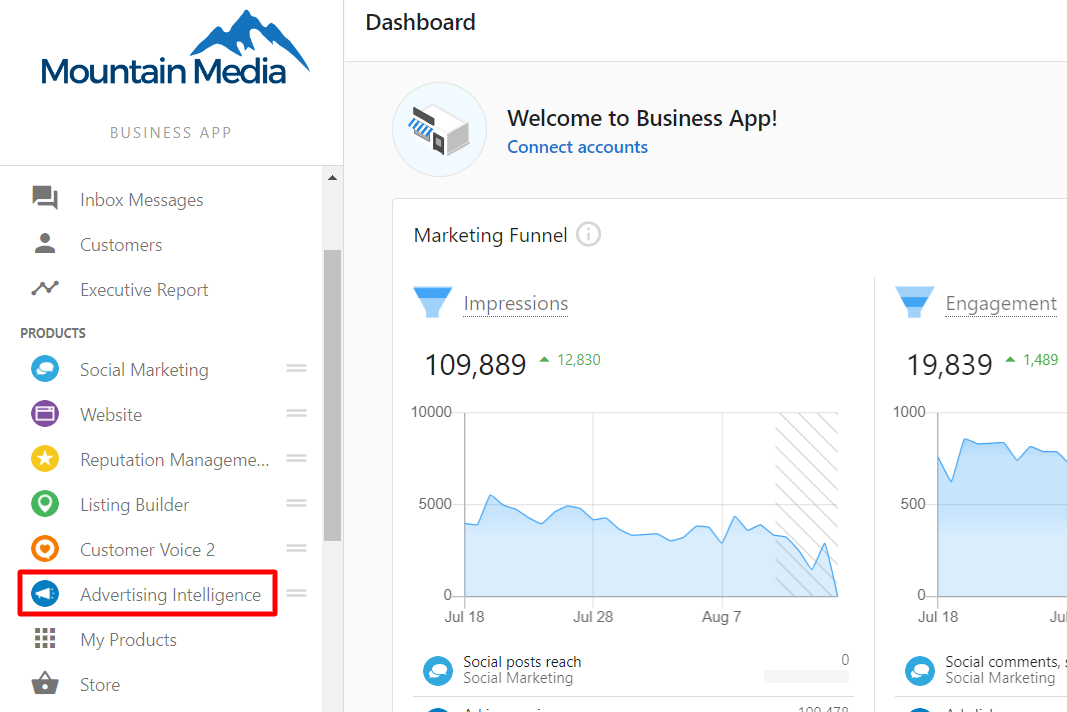
- Navigate to Advertising Intelligence
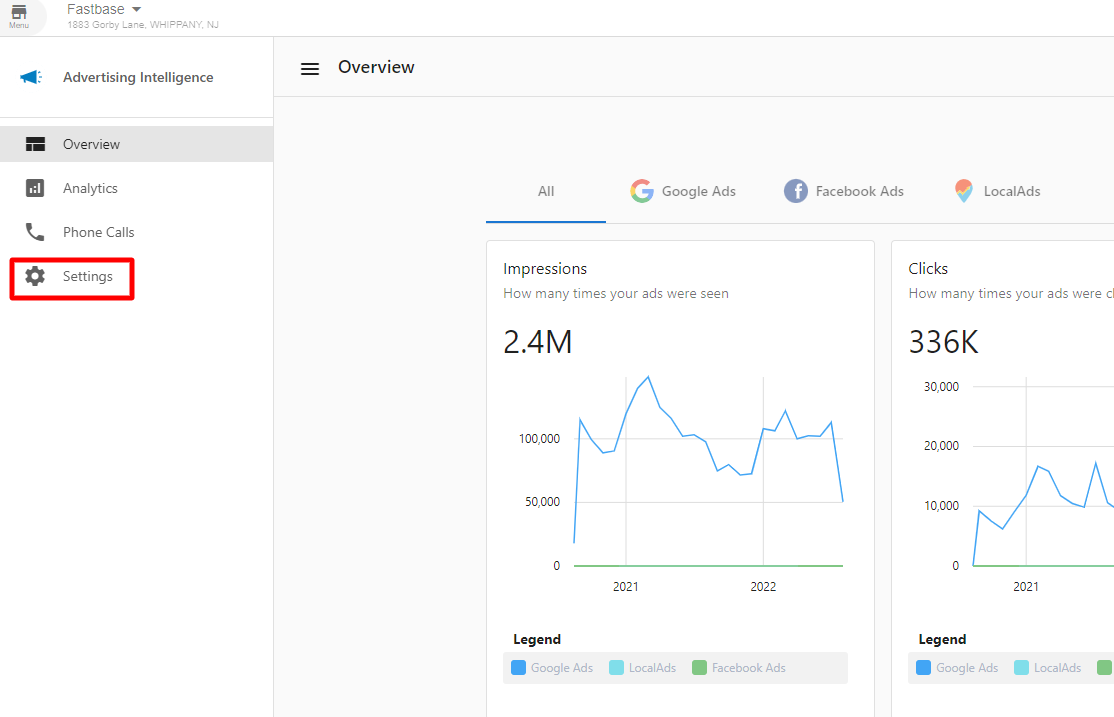
- Click on the Settings icon in the upper right corner
- Select Admin Settings from the dropdown menu
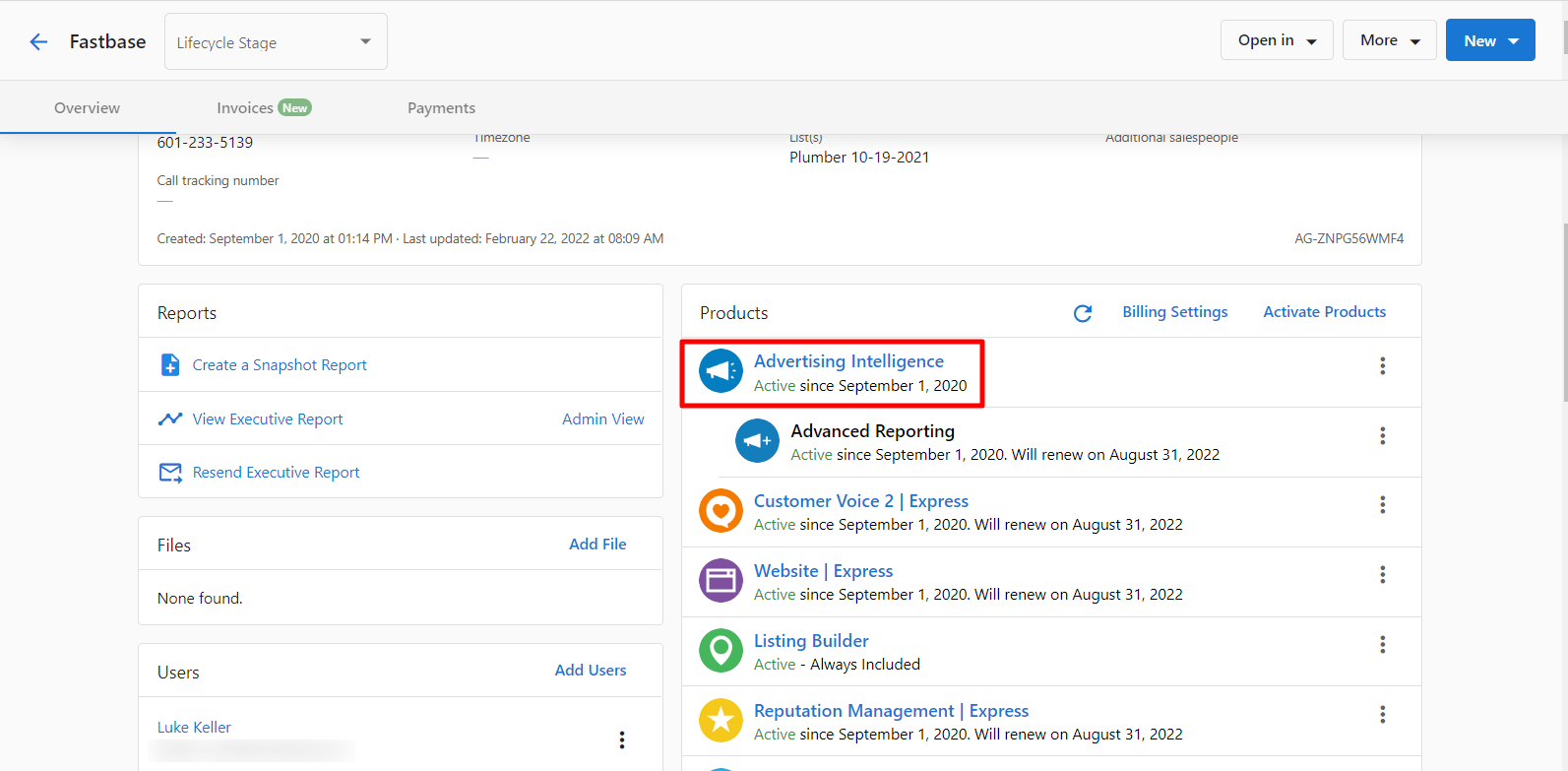
If you don't have admin privileges, you won't see the Admin Settings option.
Available Admin Settings
The Admin Settings page lets you configure:
- Account-wide defaults: Set default values that apply to all users
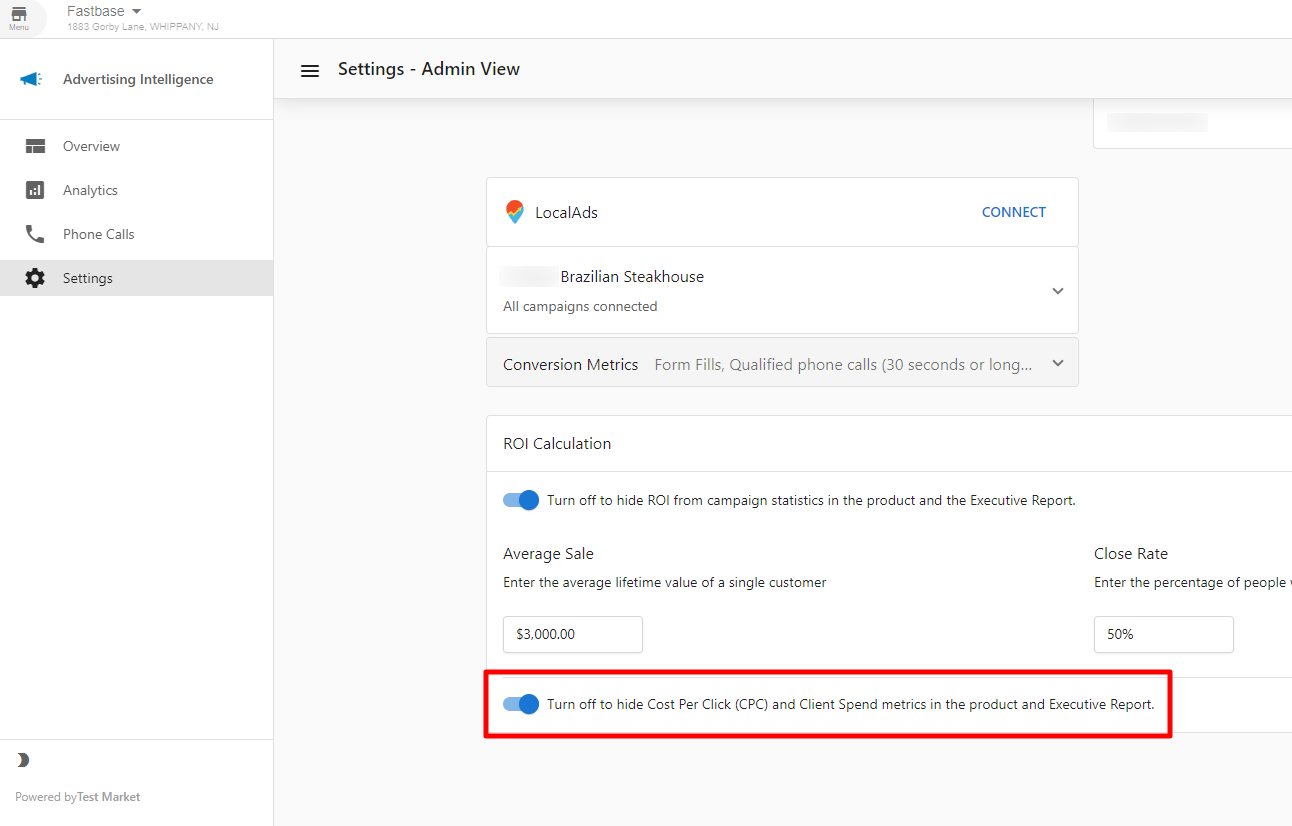
- Feature access: Enable or disable certain features for your organization
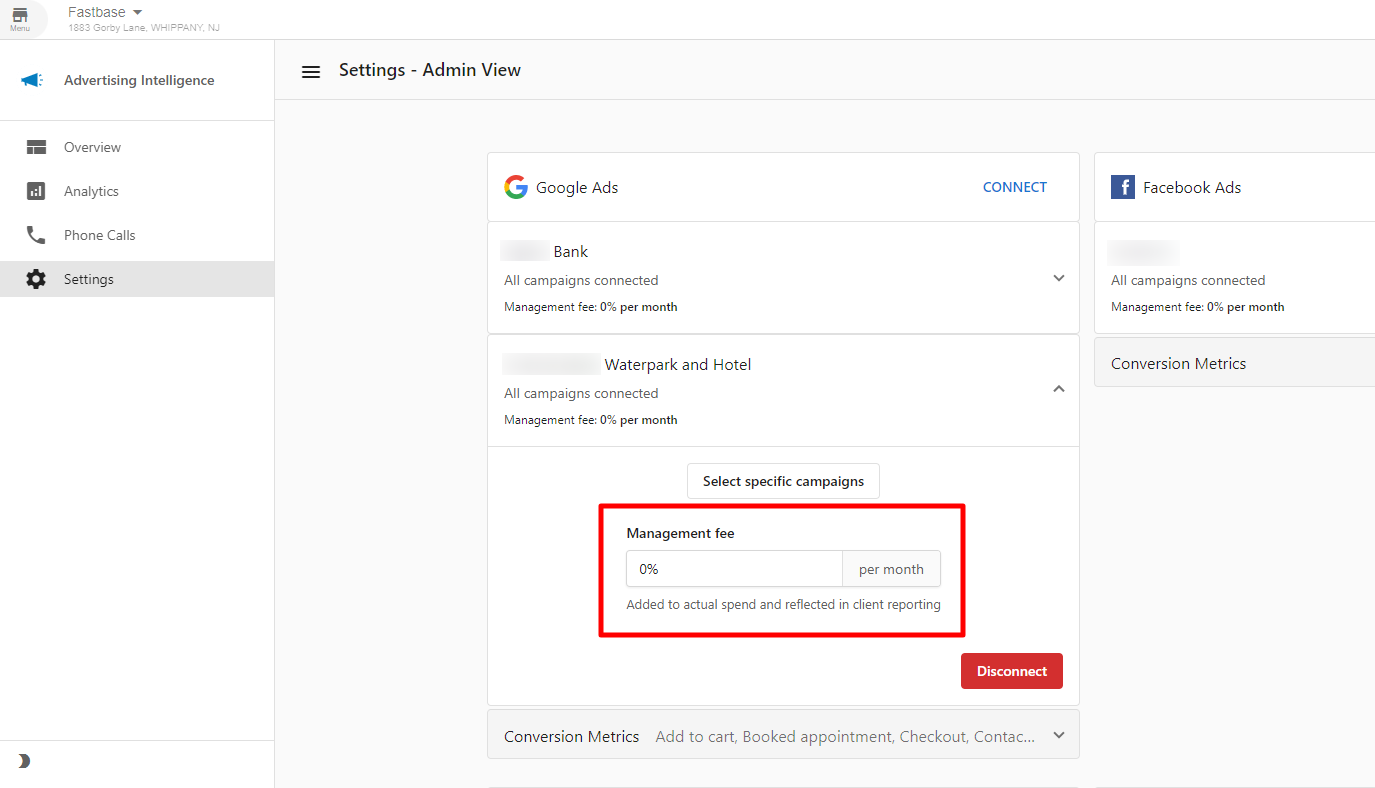
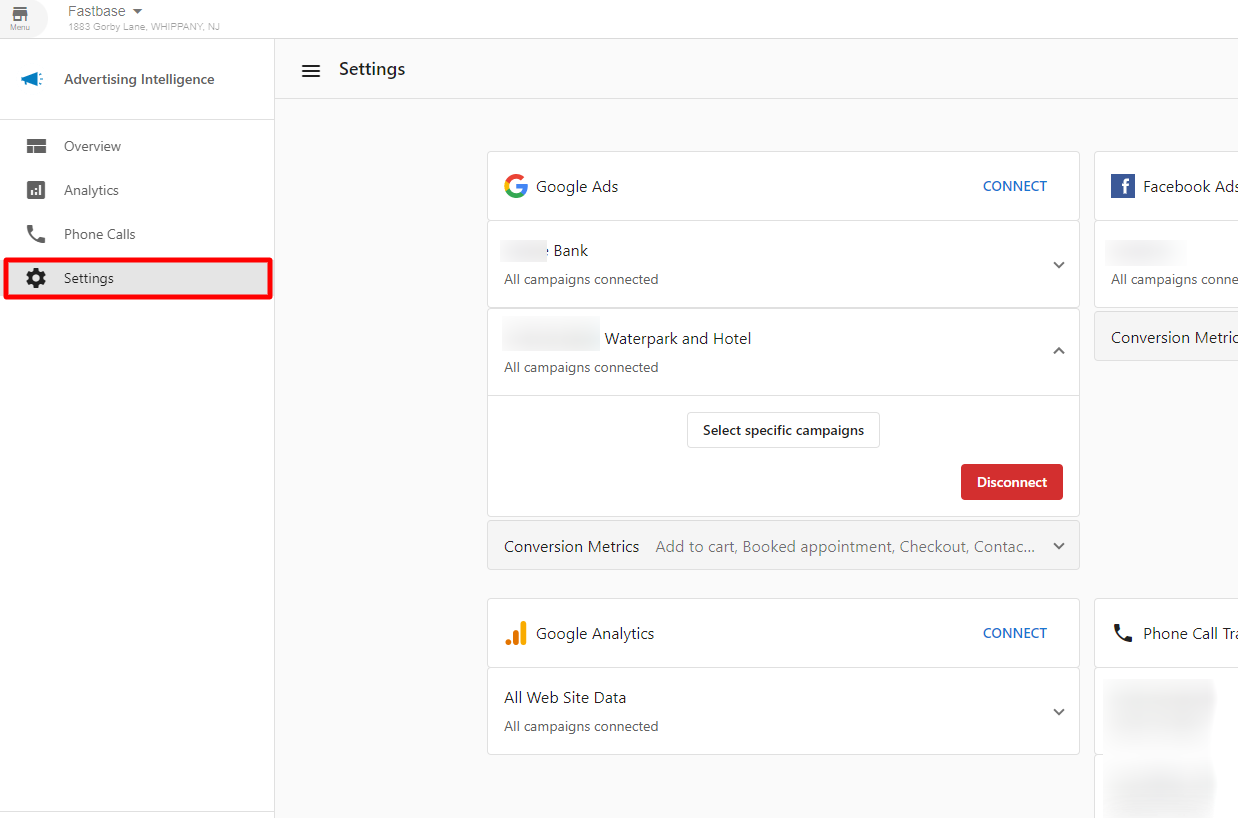
- Integration settings: Configure connection settings for advertising platforms
- Billing preferences: Review and manage billing information
Admin Dashboard
The admin dashboard provides a comprehensive view of account performance:
Admin Access Control
Admins control which users have access to specific features:
User Settings
User settings apply only to the individual user's experience within Advertising Intelligence. These settings let users customize their own experience without affecting other users.
Accessing User Settings
To access User Settings:
- Navigate to Advertising Intelligence
- Click on the Settings icon in the upper right corner
- Select User Settings from the dropdown menu
Available User Settings
The User Settings page lets individual users configure:
- Display preferences: Customize how information is displayed
- Notification settings: Set which notifications you receive and how
- Dashboard layout: Customize the layout of your dashboard
- Default views: Set your preferred default views for reports
User Dashboard Customization
Each user can customize their own dashboard layout:
Key Differences
| Feature | Admin Settings | User Settings |
|---|---|---|
| Access | Admin users only | All users |
| Scope | Entire account | Individual user |
| Impact | Affects all users | Affects only the current user |
| Override capability | Can override user settings | Cannot override admin settings |
Best Practices
- For Admins: Configure account-wide settings before users begin customizing their own settings
- For Users: Customize your user settings to optimize your individual workflow
- Change Management: When making account-wide changes, communicate with your team about the impacts