Connections
What Can I Manage in Connections?
The Connections section allows you to link third-party tools directly to your app. These integrations bring your most important business data into one place and allow services across your app to work together.
By connecting platforms like Google, Facebook, and others, you can:
- Sync location, lead, or campaign data
- Power reporting tools like the Executive Report and Marketing Funnel
- Enable automations and trigger workflows
- Improve communication and scheduling with customers
Connections are shared across most activated products.
Why Are Connections Important?
When your tools are connected, your app can use real data to show what's working. Integrations help you track marketing performance, and trigger smart actions—like sending review requests or appointment reminders.
Connecting accounts also reduces manual work by automatically syncing data between systems, improving the accuracy and efficiency of your daily operations.
What is Included?
The Browse tab in the Connections section displays available integrations. You can search for or scroll through a list of platforms to connect.
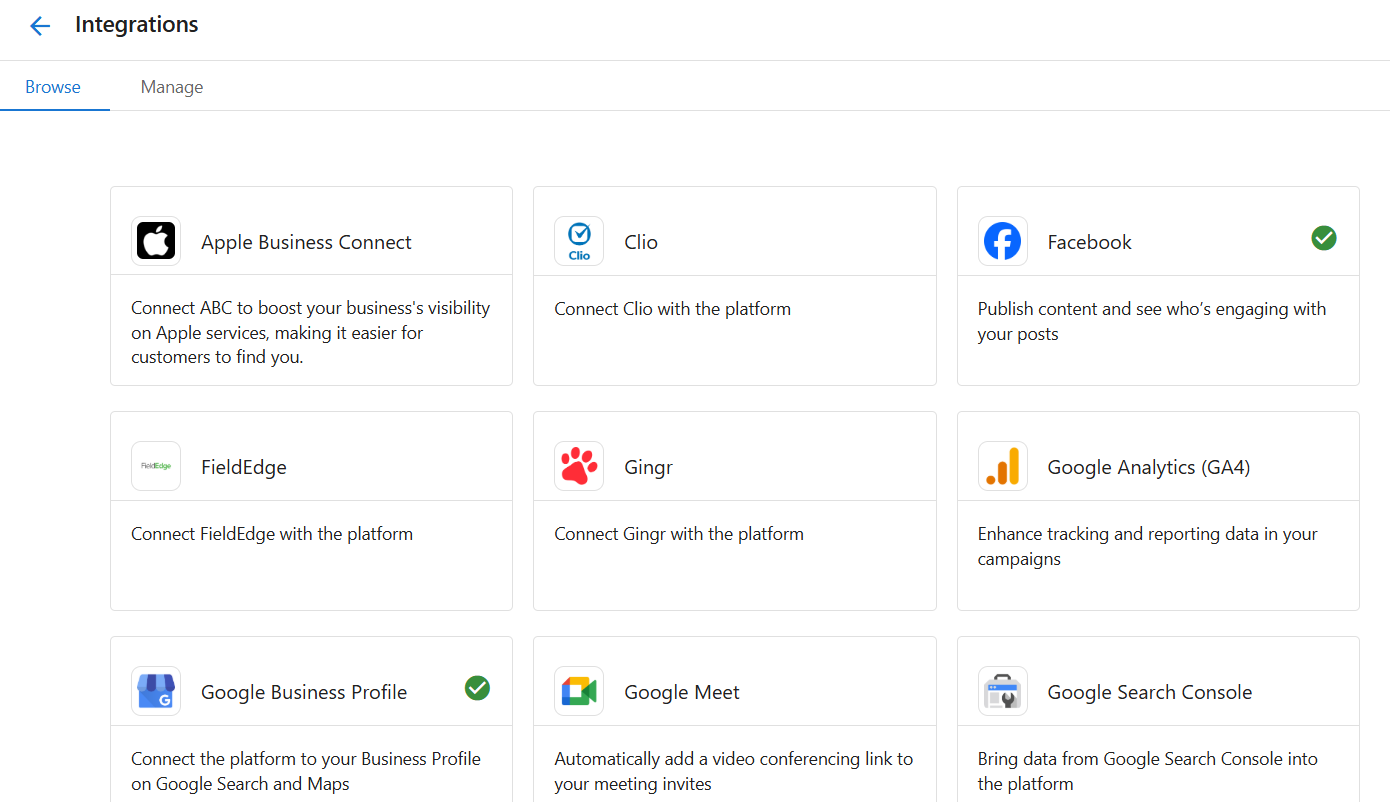
Common integrations include:
Google and Meta
- Google Business Profile – Syncs location details and visibility metrics
- Google Analytics – Tracks site activity and marketing performance
- Google Search Console – Adds search insights
- Facebook – For reporting and automation
Scheduling and Service Tools
- Housecall Pro – Syncs job scheduling and service activity
- Jobber – Connects field service workflows
- Gingr, PetExec, Pet Resort Pro, Paw Partner, PawLoyalty – Connect customer and service data for pet-related businesses
Finance and Productivity Tools
- QuickBooks Online / Personal – Syncs invoices, transactions, and billing data
- Zapier – Connects and automates workflows with thousands of apps
How to Browse and Add New Integrations
- Go to
Administrationin your side bar. - Select
Connections. - Click the
Browsetab. - Use the search bar or scroll through available integrations.
- Click the integration tile.
- Follow the steps to authorize your account.
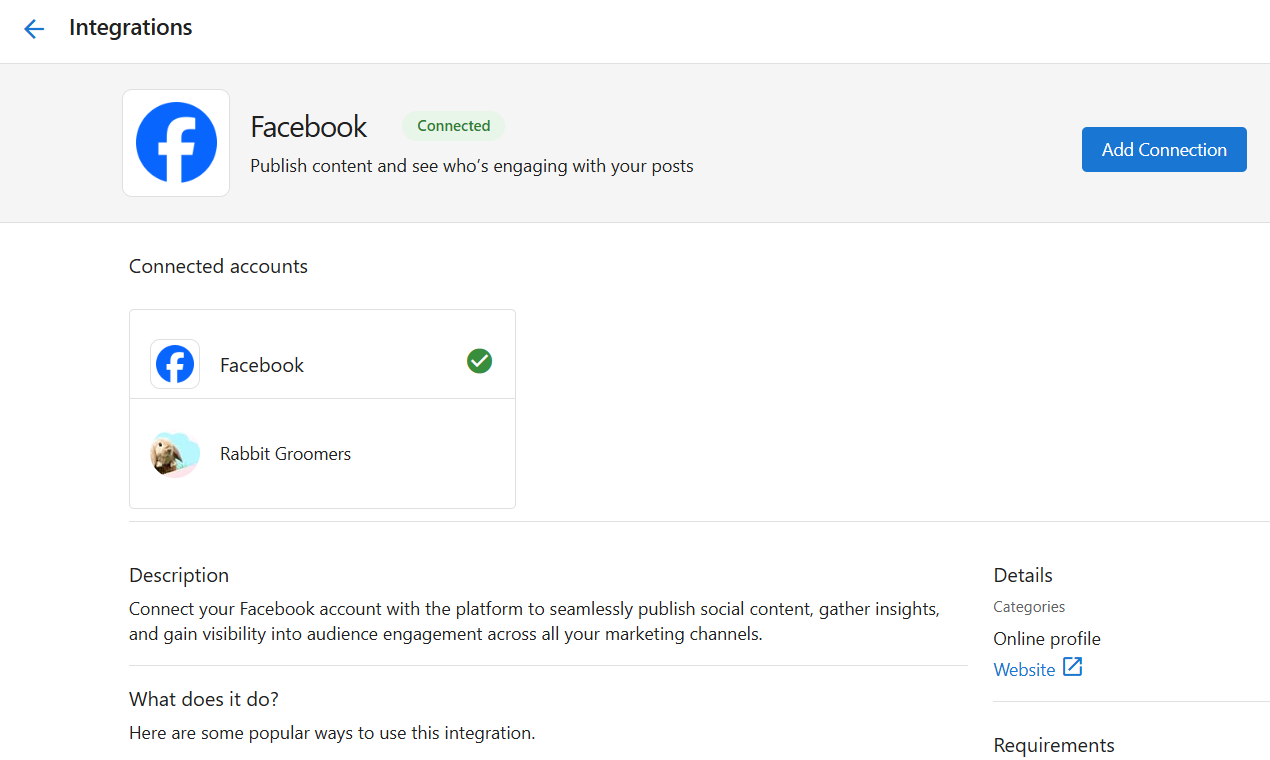
Each integration has its own required steps to connect. You can find these detailed set up steps outlined in each integration card once you click the Browse tab and click on a specific integration. Once connected, data will begin syncing automatically into your app (some integrations will take up to 48 hours to sync).
Types of Integrations
Your app supports three different methods of connecting external platforms. Each method serves a different use case depending on how the integration is built, who manages it, and how it’s authenticated. Understanding these types will help you navigate set up for the connection you are working with.
| Integration Type | Best For | Setup Method |
|---|---|---|
| Vendor-Managed | Prebuilt connections | Log in and connect |
| SSO-Based | Secure logins and synced data | Single sign-on authorization |
| API-Key Based | Custom or advanced external connections | Generate and use API credentials |
Within each specific app (after you press Connect) you will be prompted with special instructions on how to navigate and set up the connection.
How to Manage or Disconnect Integrations
- From the
Connectionssection, select theManagetab. - View the list of active integrations and their connection status.
- Click any integration to:
- See connected accounts
- Reconnect if authorization has expired
- Disconnect the platform
What Data Gets Synced
Each integration sends specific data to your app, depending on its purpose. For example:
- Lead forms from Facebook
- Website performance from Google Analytics
- Search visibility from Google Business Profile
- Customer and job data from Housecall Pro or Jobber
- Financial records from QuickBooks
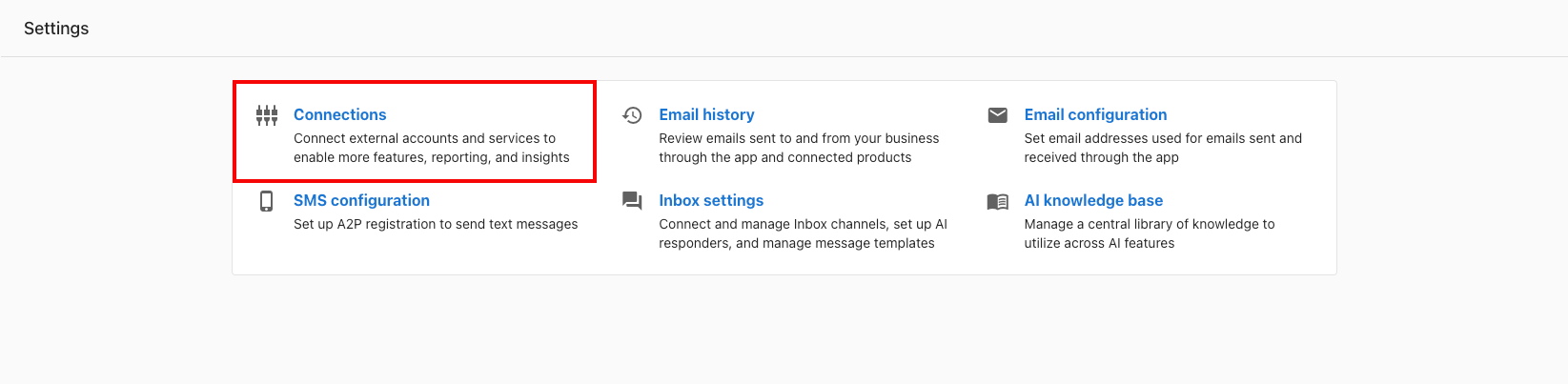
Quick Add Via Settings
You can also connect platforms directly from the Settings > Connections page.
Connecting your accounts early is one of the most important steps you can take to start seeing value in Business App. The metrics pulled in through Connections power analytics in the Executive Report and Marketing Funnel.
Frequently Asked Questions (FAQs)
How do I reconnect an integration that has expired?
Go to Administration > Connections > Manage, click the integration, and choose Reconnect. Follow the authorization steps to restore access.
Can I disconnect an integration without losing data?
Yes. Disconnecting stops future syncing but does not delete historical data already imported into your app.