Single Sign-On App Integrations
Single Sign-On (SSO) integrations give you direct access to third-party applications. You can connect your accounts with supported applications without requiring separate logins.
Access the integrations page
To connect an integration:
- Navigate to
Administration→Integrations
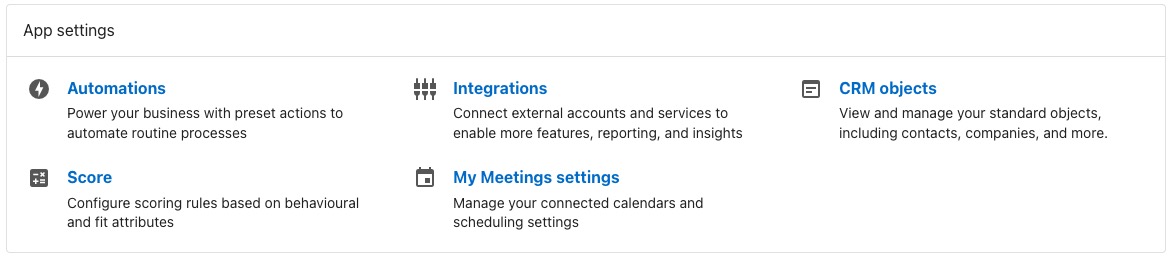
Set up a new connection
Find the application
Browse through the available applications on the Integrations page. Each application displays information about its features and benefits.
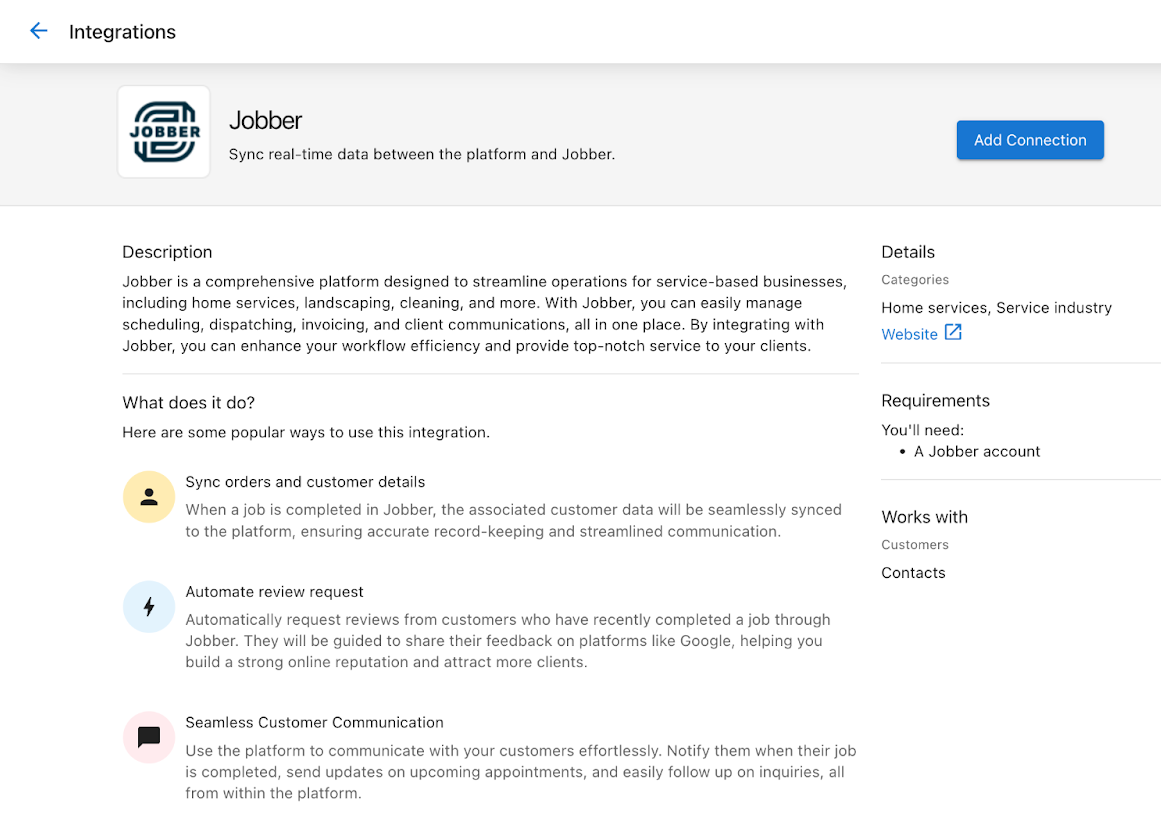
Click Add Connection
Click the Add Connection button to begin the connection process.
Complete the pre-connect form
Depending on the application, you may need to complete a pre-connect form with initial setup information.
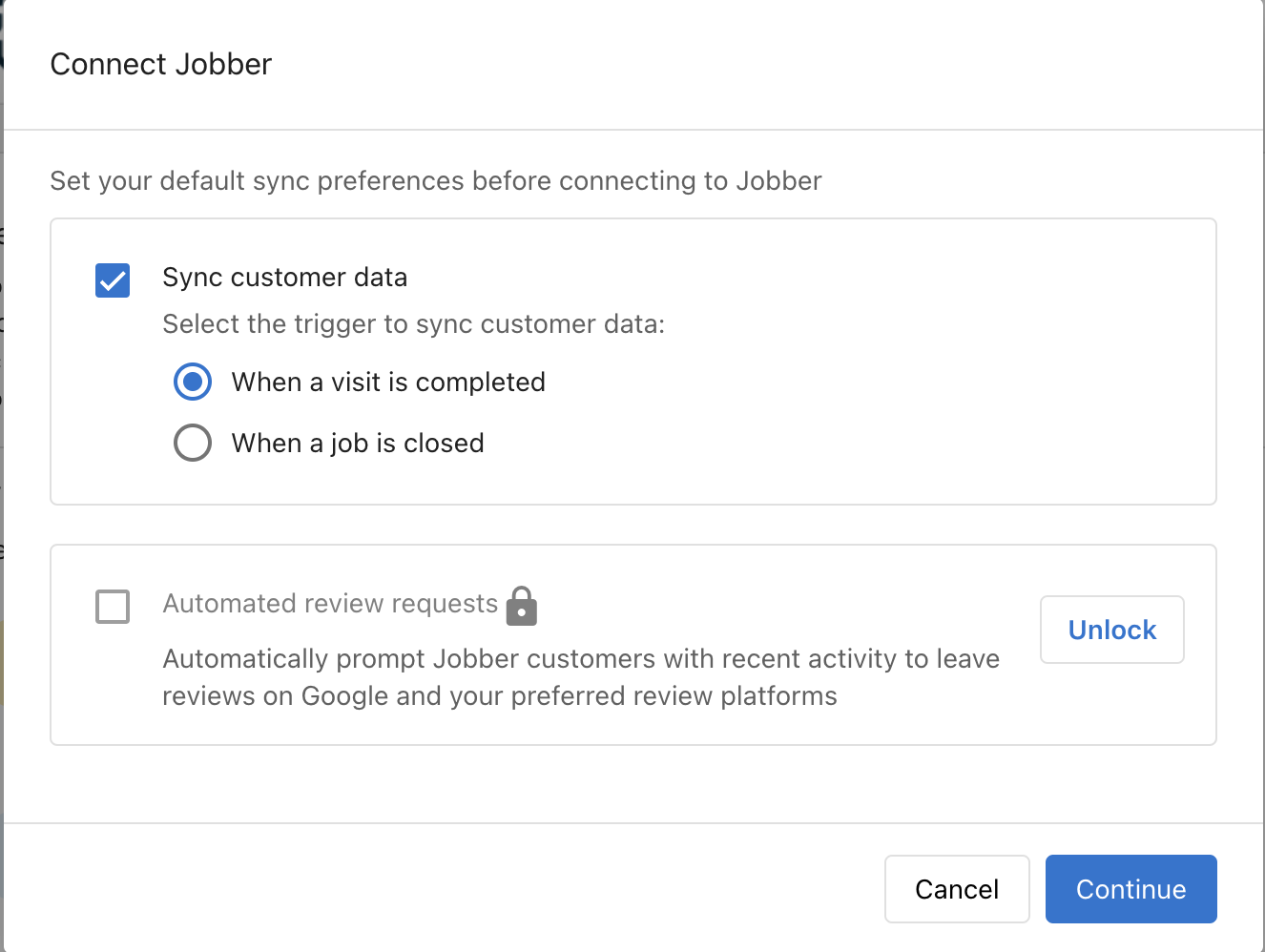
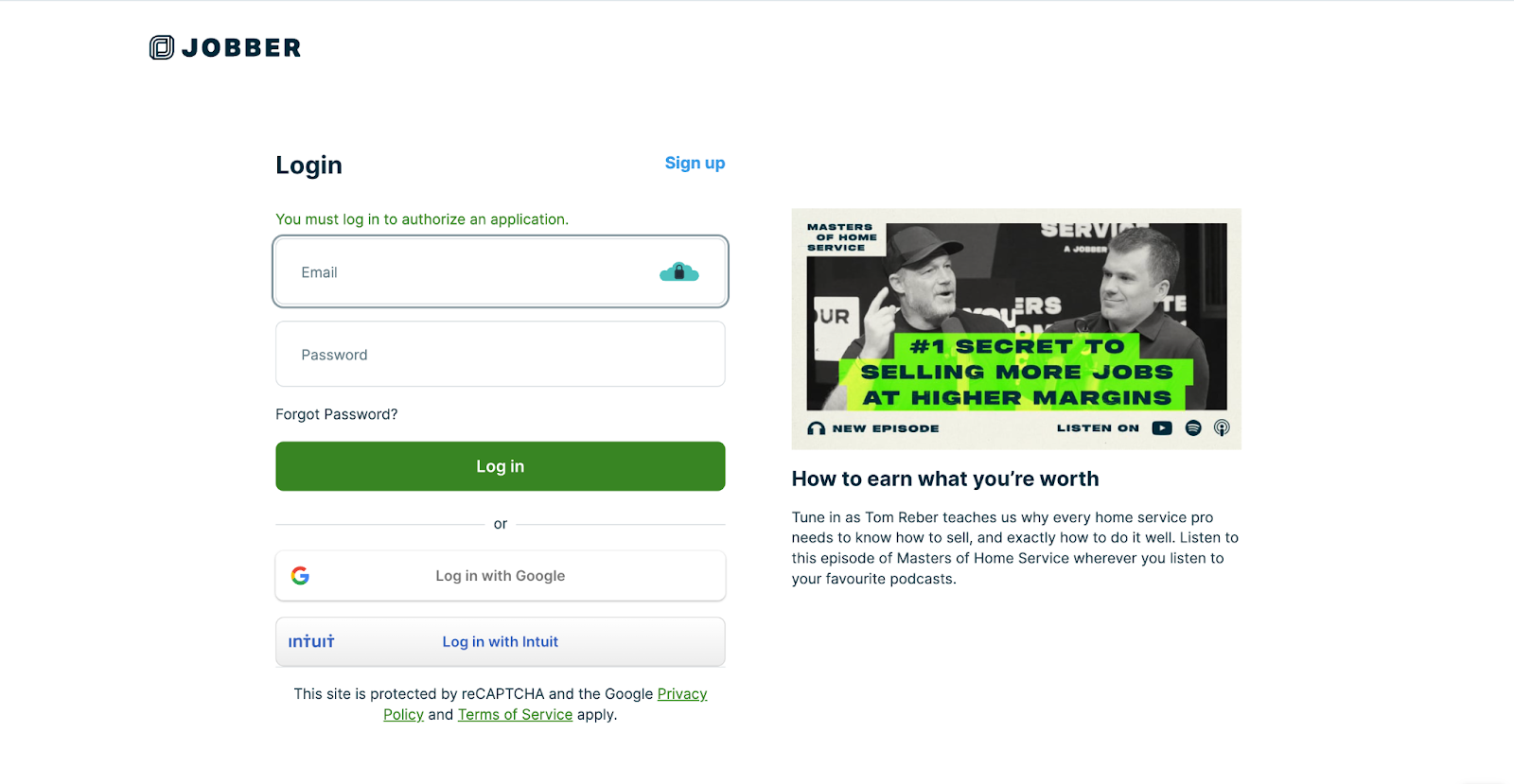
Follow the SSO process
Complete the Single Sign-On connection by following the prompts. This typically involves:
- Creating a new account with the third-party service
- Connecting to an existing account
- Providing authorization for data sharing
Manage connections
View connected applications
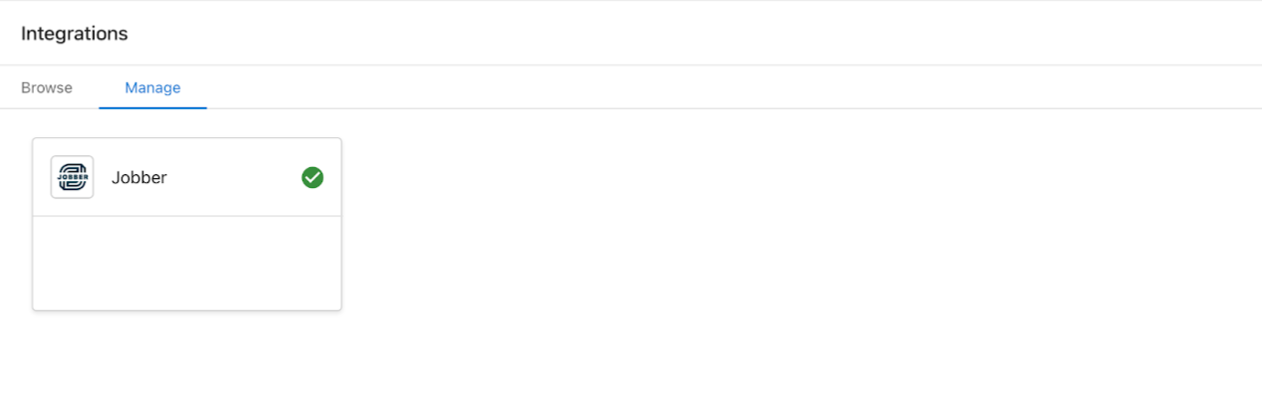
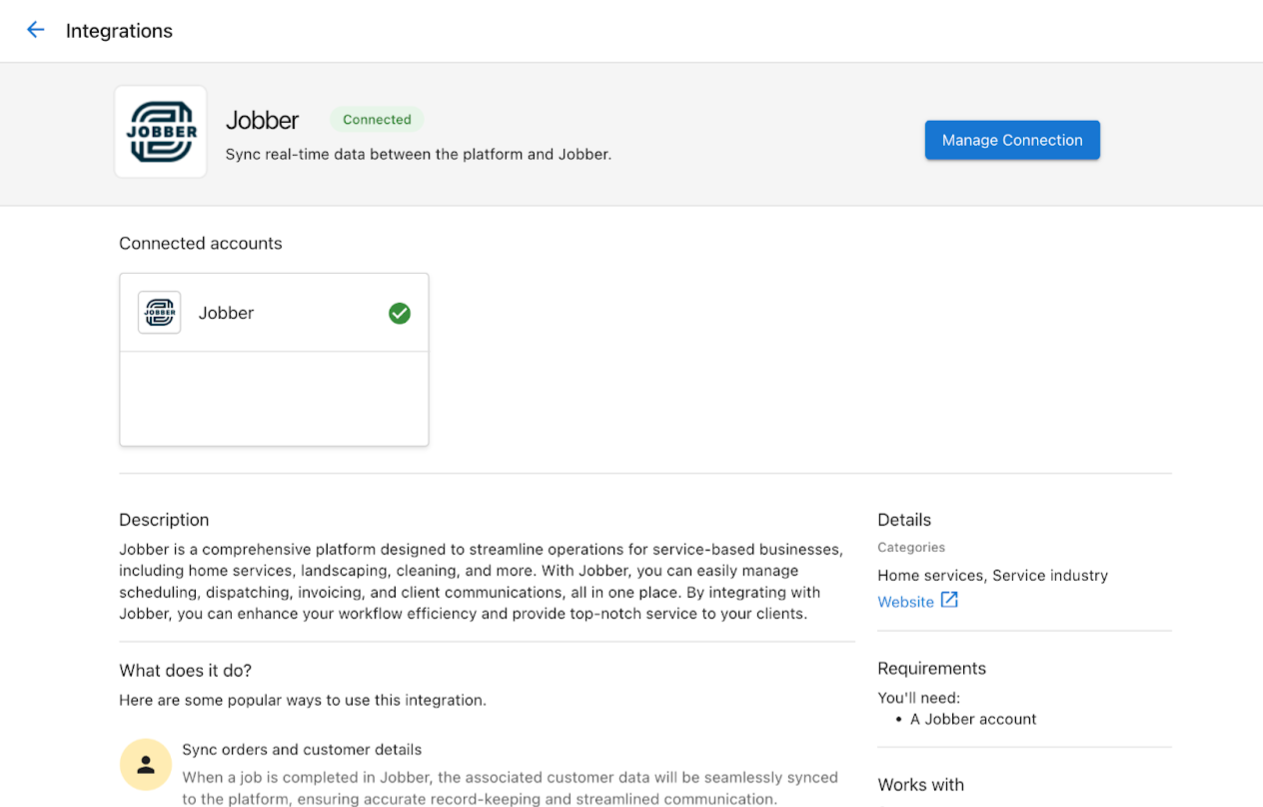
After setup, you can view and manage all connected applications through:
- The
Managetab on the Integrations page, which displays connection cards for each integrated application
- The application pages, which display a "Connected" tag
Connection settings
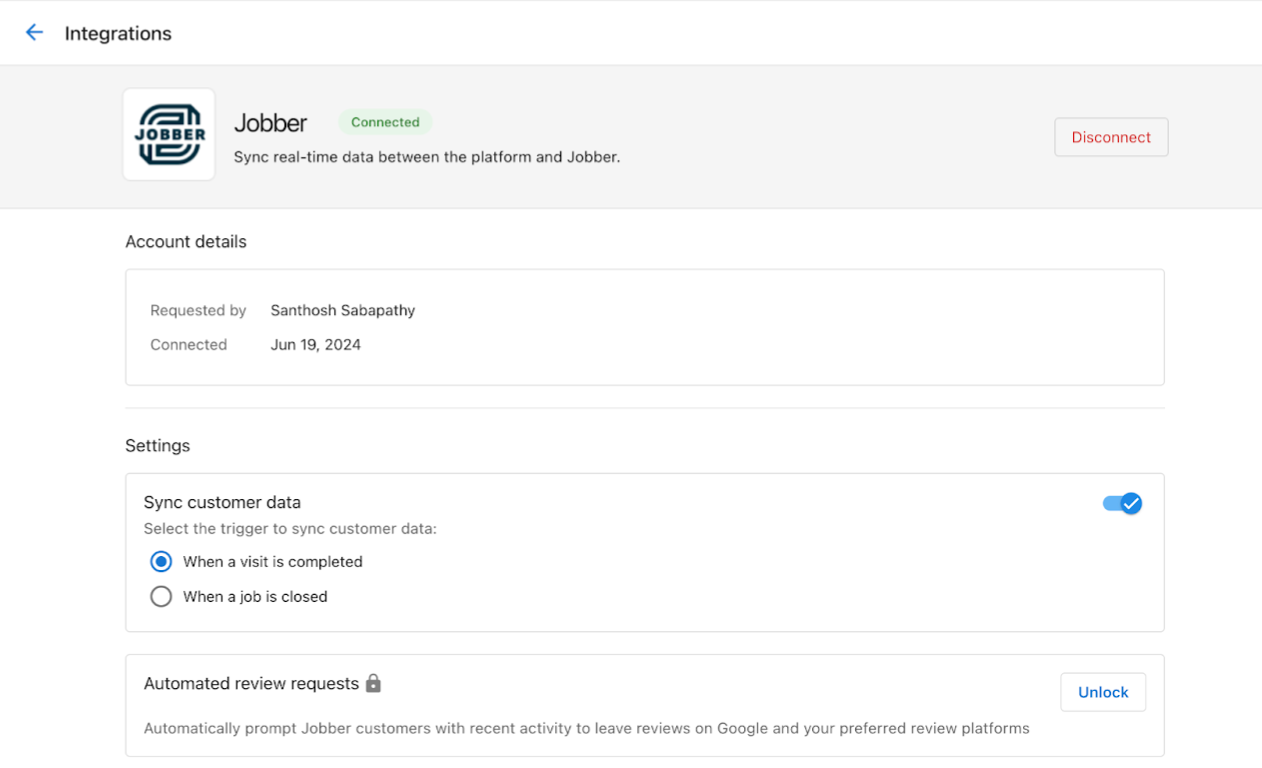
Click a connected application to access its configuration options. Depending on the application, you may see:
- Account details and connection status
- Data sync preferences (for applications that support syncing)
- Other application-specific settings
- A
Disconnectbutton to remove the connection
What SSO integrations do
- Access: Open third-party tools without a separate login
- Management: Manage all connected applications from one interface
- Data sharing: Share data automatically between connected applications
- Passwords: Use one login instead of a separate password for each platform
FAQ
How many applications can I connect?
There is no limit to the number of SSO integrations you can connect. Connect as many supported applications as your business needs.
What happens if an SSO connection expires?
Open the integration from Integrations → Manage and follow the reconnect prompts to reauthorize.
Can I disconnect an integration without losing data?
Yes. Disconnecting stops future syncing but does not delete historical data already imported.