Vibe a slide deck presentation
A slide deck is one of the fastest things you can build with Vibe. No connectors, no integrations, no external data sources required. Give Vibe a topic, a structure, and a visual direction, and it produces a polished, fully navigable presentation in minutes, making it a strong option for pitches, onboarding walkthroughs, or internal presentations.
Vibe builds a web-based presentation, not a downloadable file. Here's what that means in practice:
- The slide deck runs in a browser and is navigated with arrow keys or on-screen buttons.
- There is no export to PowerPoint (.pptx) or Google Slides.
- The deck can be shared as a live link or embedded, but it cannot be opened in another presentation app.
If you need to share a .pptx file that someone else can edit, or present from a saved local file, Vibe is not the right tool for that job.
The prompt
Build a clean, professional 10-slide presentation for a corporate technology pitch. Include a title slide, the problem we're solving, our solution, key features, a results section with stats, a short case study, and a closing call to action. Use a modern navy-and-white design with smooth transitions and arrow-key navigation.
Example output
Here's a sample of what Vibe produced from that prompt in a single generation:
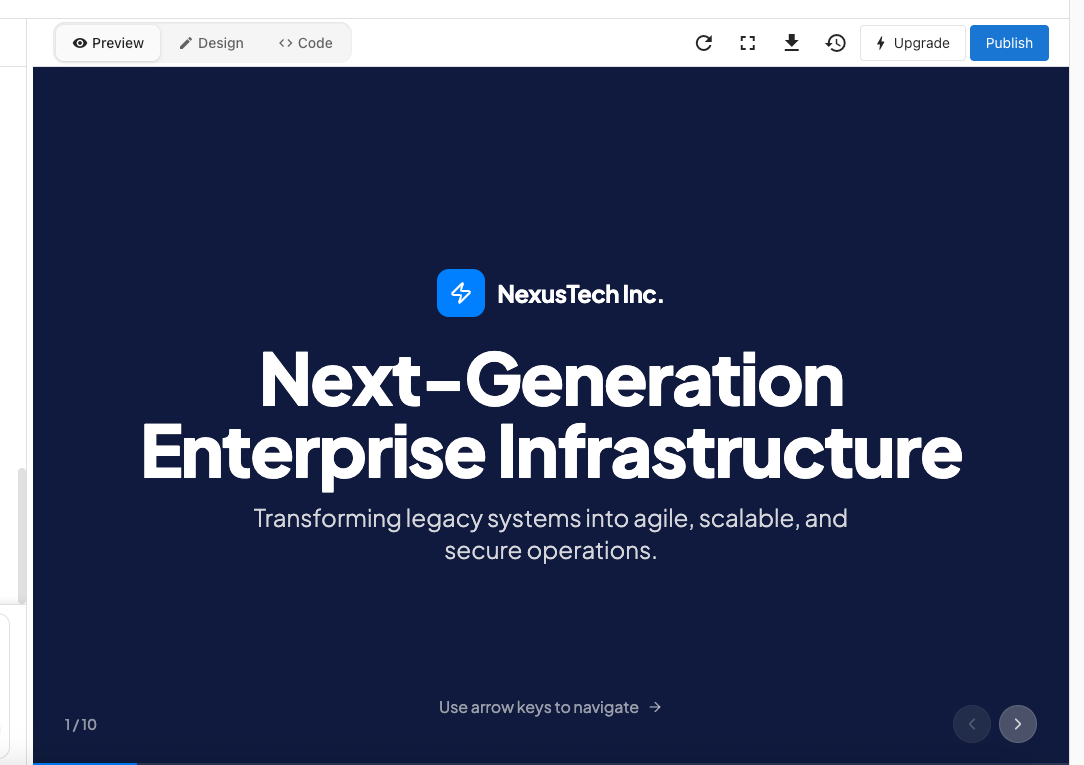
- Title slide
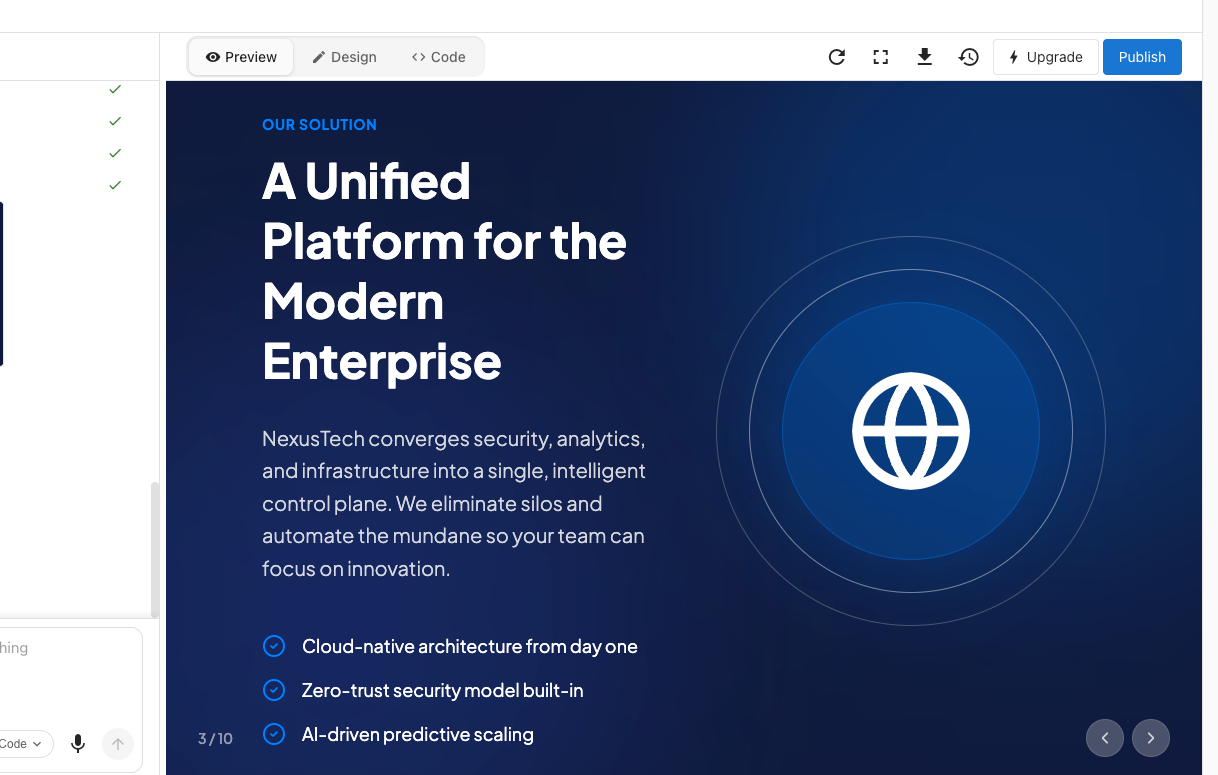
- Solution slide
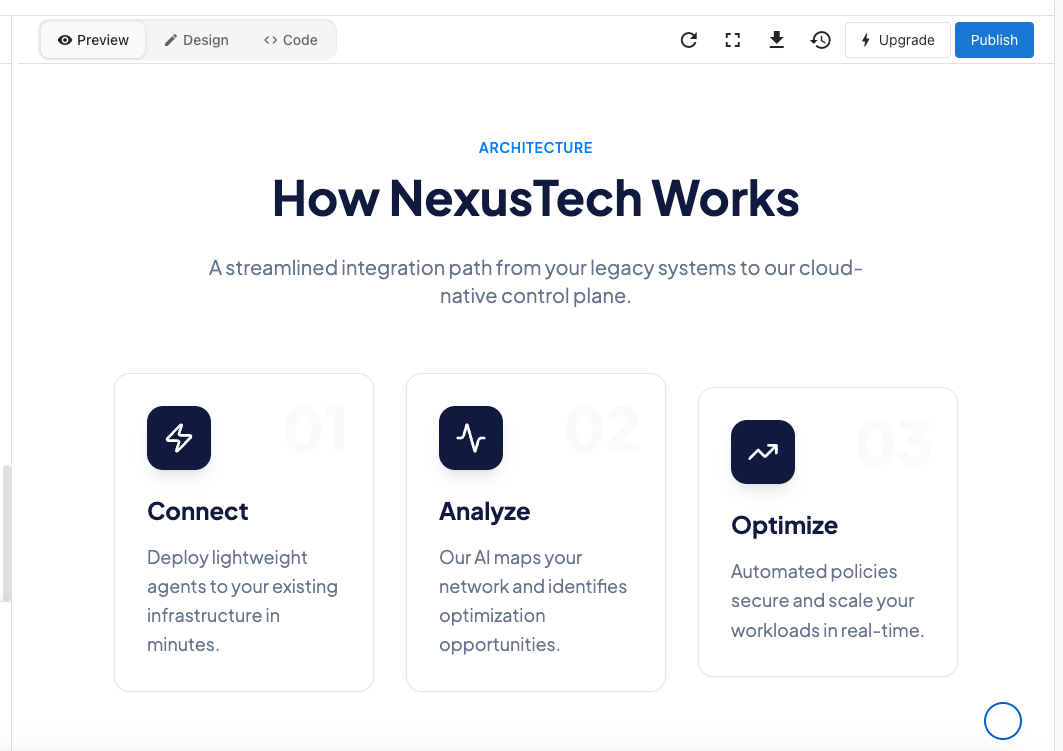
- Architecture slide
Why this prompt works
This prompt gives Vibe four things it needs to produce a strong first version:
- A clear format and scope. "10-slide presentation" tells Vibe exactly what it's building and how long it should be.
- A natural slide structure. Listing the slides as a sentence, rather than a numbered list, reads the way a brief would, and Vibe interprets it that way.
- Specific visual direction. "Modern navy-and-white design with smooth transitions" removes ambiguity about how the deck should look and feel.
- An explicit navigation method. Calling out arrow-key navigation ensures that feature is built in from the start, rather than added as an afterthought.
The result is a fully structured deck, not a blank template, that you can immediately review and refine.
Tips to customize
Once Vibe produces the first version, use follow-up prompts to tailor it. A few examples:
Add a testimonials slide:
Add a testimonials slide after the case study. Include three short quotes with a customer name and company below each one.
Swap the topic:
Rebuild this as a pitch for a local landscaping company instead of a technology company. Keep the same 10-slide structure and visual style.
Editing your deck with visual edits
For smaller visual changes, you can edit elements directly without writing a new prompt. Turn on the Visual edits button in the chat composer to enter the visual editor.
Editing a specific element: Click on any element on the slide — a heading, a block of text, a background — and the left panel updates to show options for that element:
- Text — Edit the copy directly in the text field
- Colors — Change the background color or text color using a hex value or the color picker
- Layout — Adjust how the element is positioned on the slide
- Spacing — Change the margins around the element
Navigating between slides while editing: Use the arrow buttons in the bottom-right corner of the preview, or your keyboard arrow keys, to move between slides. The counter in the bottom-left (for example, 1/10) shows which slide you're on.