Field layouts
What are field layouts?
A field layout controls how the fields on a CRM record are grouped and ordered. Each group becomes a labelled section on the record, and you decide which fields go in it and what order the sections appear in.
Your layout applies in three places: the form you fill in when creating a record, the form you use to edit one, and the profile panel on the record itself.
Every object starts with a standard layout. When you change it, your version takes over. You can go back to the standard layout at any time.
Why are field layouts important?
- Find information faster. Put the fields your team uses every day at the top, instead of scrolling past ones you rarely touch.
- Group related details. Keep things like service history, billing details, or vehicle information together in their own section.
- Reduce clutter. Hide fields you don't use so records stay readable, without losing the data stored in them.
- Match how your business works. Contacts, companies, opportunities, and each custom object get their own layout.
What's included with field layouts?
- Field groups: Named sections you create, name, and reorder
- Drag and drop editing: Move fields between groups, or reorder them inside a group
- Unassigned fields: A pool of fields not yet placed in a group, with a sort order you choose
- Hidden fields: A place to park fields you don't want on the record, with their data kept intact
- Reset to standard: One action to discard your changes and return to the standard layout
How to edit a field layout
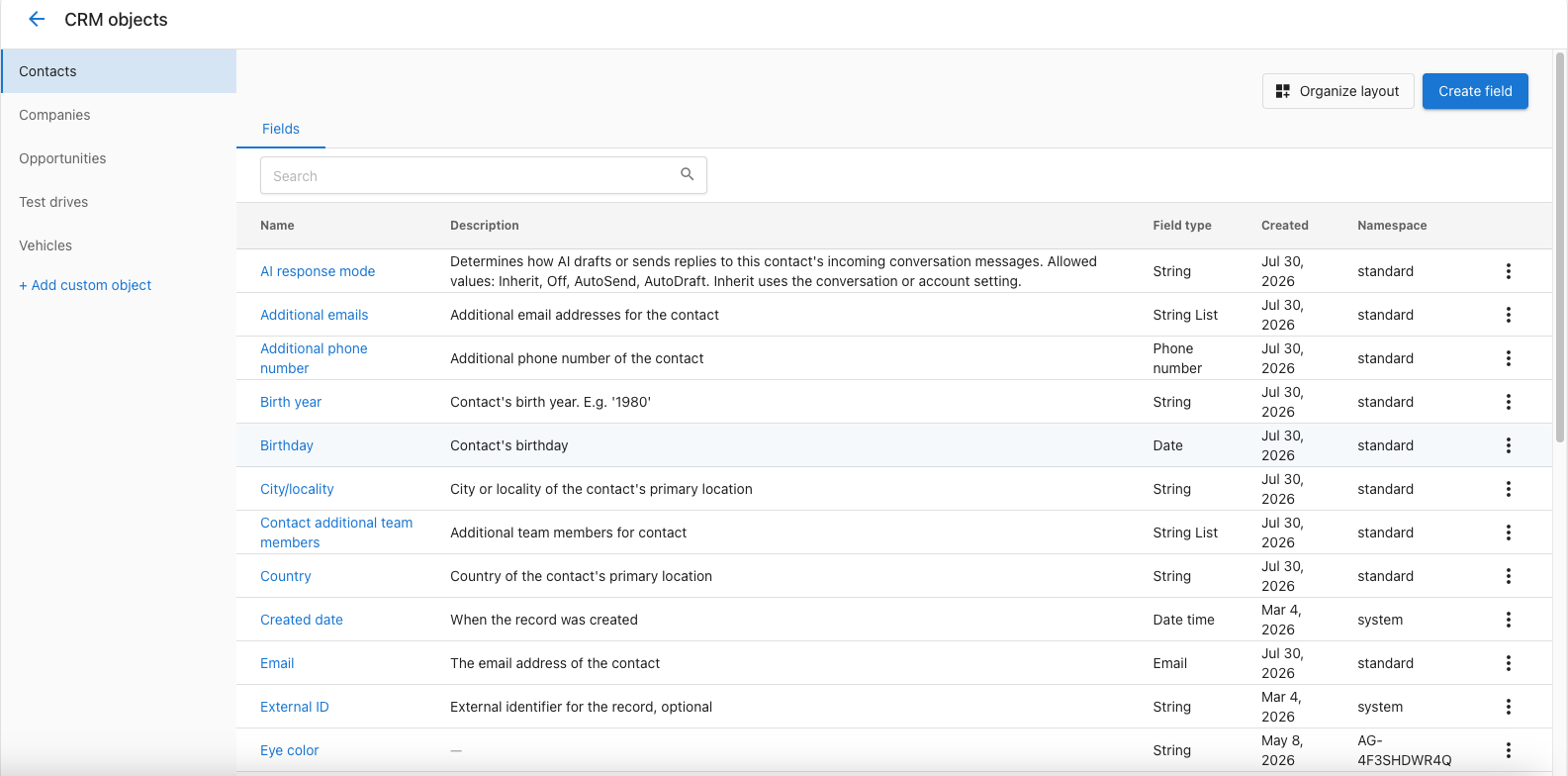
- In your app, go to
Administrationfrom the main menu. - Select
CRM Objects. - Choose the object you want to lay out from the list on the left:
Contacts,Companies,Opportunities, or one of your custom objects. - Click
Organize layout. - Arrange your fields using the three panels described below.
- Click
Doneto save.
The three panels
| Panel | What it holds |
|---|---|
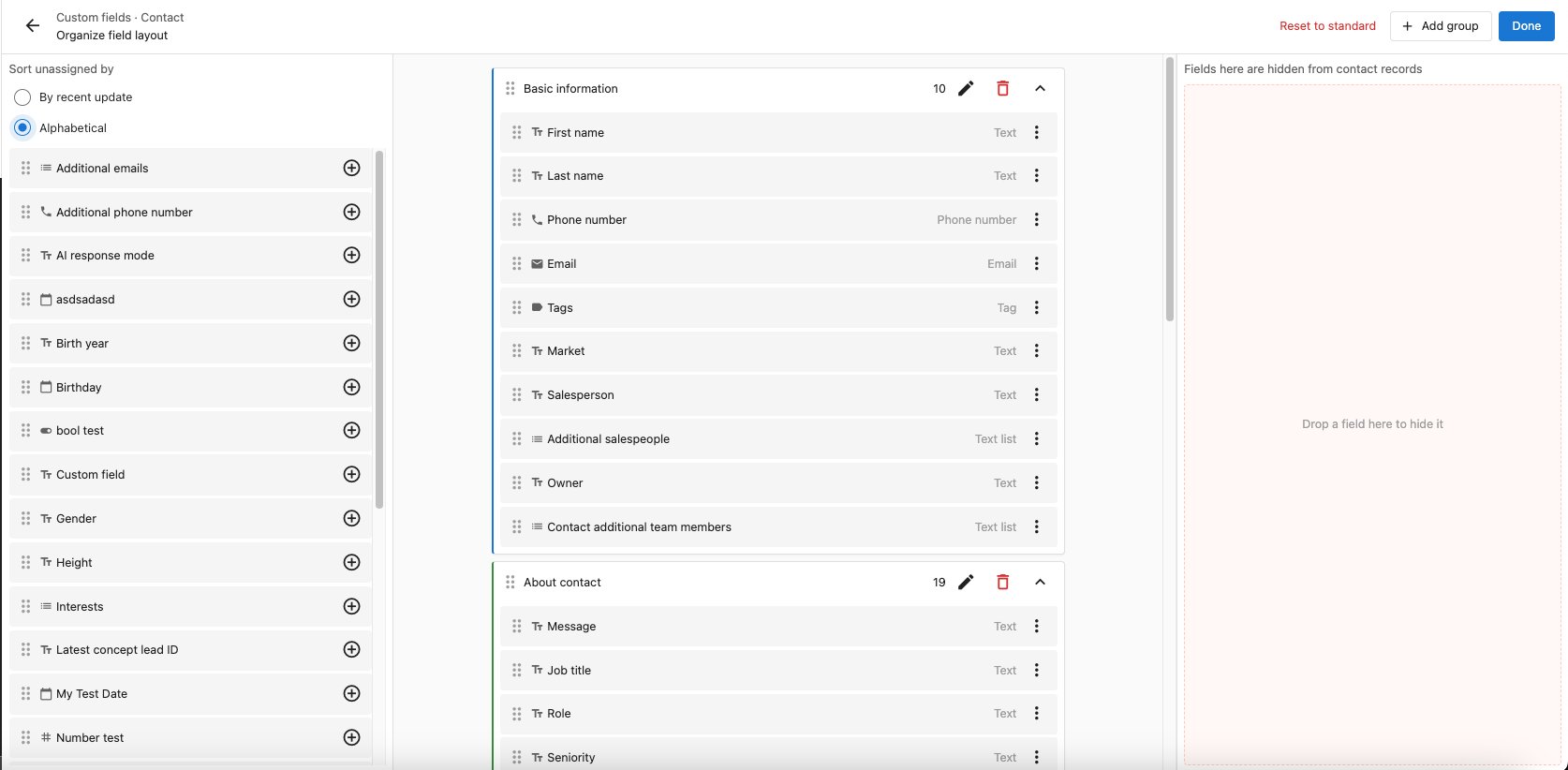
Unassigned | Fields not in any group. They still appear on the record, below every named group. |
Field groups | Your named sections, in the order they appear on the record. |
Hidden fields | Fields taken off the record. Their data is kept. |
Drag any field from one panel to another, or from one group to another. To move several fields at once, select them and choose Add to group or Hide field.
Working with groups
- Click
Add groupand give it a name. Every group needs a name, and no two groups can share one. - Rename a group with the pencil icon in its header. Press Enter to confirm, or Escape to cancel.
- Delete a group with the trash icon. The fields inside it go back to
Unassigned. - Click a group's name, or the chevron, to collapse and expand it. The number beside the name is how many fields it holds.
- Drag a group to move it up or down. The order here is the order on the record.
- Drag fields inside a group to reorder them.
- Use a field's
⋮menu to pickMove toanother group,Remove to Unassigned, orHide field. - In
Unassigned, the+button on a field is a shortcut. It lists every group, so you can drop the field straight into one or hide it.
Every group must contain at least one visible field. An empty group stops the layout from saving, so either add a field to it or delete it.
Sorting unassigned fields
Fields that aren't in a group and aren't hidden sit in Unassigned. They still show on the record, after all your named sections.
Use Sort unassigned by to choose their order:
By recent updateputs the most recently changed field definitions first. This is the default.Alphabeticalsorts by field name from A to Z.
A field you have just created starts out unassigned, so it appears on records straight away. Move it into a group whenever you want it in a specific section.
Hiding and restoring fields
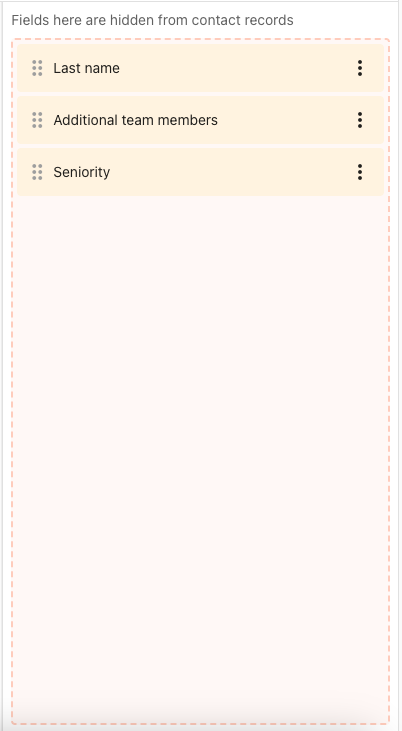
Drag a field into Hidden fields to take it off the record. Hiding is not deleting. The field and everything stored in it stay exactly as they are, and the field still works in imports and integrations.
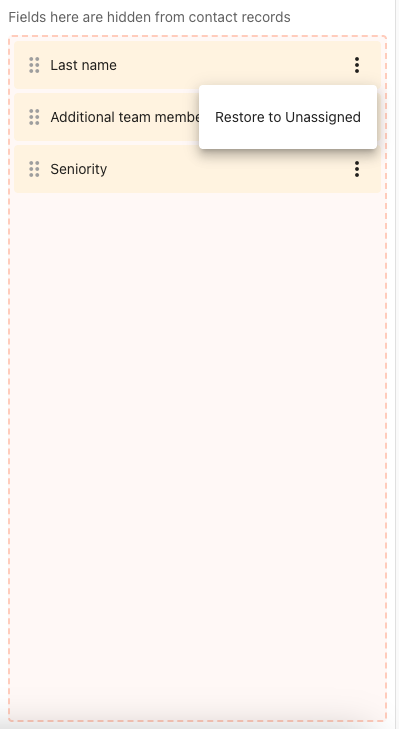
To bring a hidden field back, open its ⋮ menu and choose Restore to Unassigned, then drag it wherever you want it.
Fields you won't see in the editor
Read-only fields don't show in the editor, and neither do fields that aren't active for your CRM. Their place in the layout is kept for you, so there's nothing to do about them.
Because of this, a group left holding only read-only fields counts as empty and blocks saving.
Saving your layout
Click Done. You'll see Saving... followed by All changes saved.
Your changes are not stored until you click Done. If you leave the editor first, they're discarded.
If the save doesn't go through, the message tells you what to fix:
| Message | What to do |
|---|---|
| Remove all empty groups before saving | Add a field to the empty group, or delete it. |
| Group name is required | Name the group that was left blank. |
| Two or more groups have the same ID | Rename one of them so every group name is unique. |
| A field appears in more than one group | Take the field out of one of the groups. |
| You don't have permission to modify this layout | Your user doesn't have access to edit CRM fields. |
| Could not reach the server | Check your connection and click Done again. Your changes are still on screen. |
Resetting to the standard layout
Click Reset to standard and confirm. This clears your groups and field ordering for the object you're editing and puts it back to the standard layout.
Only the layout is affected. No fields are deleted, no data is lost, and hidden fields become visible again.
Deleted fields
If you delete a field that was sitting in a group, it simply stops appearing on records. You don't need to open the editor to tidy up after deleting a field.
Frequently asked questions
Does hiding a field delete the information in it?
No. Hiding only takes the field off the record view. The field and all of its stored values are kept, and you can restore it at any time from the Hidden fields panel.
Where do my groups actually appear?
On the form for creating a record, the form for editing one, and the profile panel on the record. They show as labelled sections in the order you set.
What happens to fields I don't put in a group?
They appear on the record after all your named sections, in whichever order you picked under Sort unassigned by.
Can contacts and companies have different layouts?
Yes. Contacts, companies, opportunities, and each custom object are laid out separately.
Why won't my layout save?
Usually because a group is empty or hasn't been named. Every group needs a unique name and at least one visible field. The error message names the exact problem.
Do I have to add every new field to the layout?
No. A new field lands in Unassigned and shows on records right away. Adding it to a group is optional.
Can I undo a change to the layout?
There's no single undo step. Drag the fields back where you want them and click Done, or use Reset to standard to clear the whole layout for that object.
Can I hide a system field?
Yes, as long as the field appears in the editor. System fields can be grouped, reordered, and hidden just like custom ones, even though the field itself can't be edited or deleted. Read-only fields are the exception, because they aren't listed in the editor.