Team Leader Campaign Drill-Down
If you are designated as a Team Leader of a Team, you can click directly into any campaign owned by one of your direct reports from the Campaigns by User Report to see that campaign's full email touch content and recipient list. This gives you visibility into a direct report's messaging and engagement without needing them to share it with you manually.
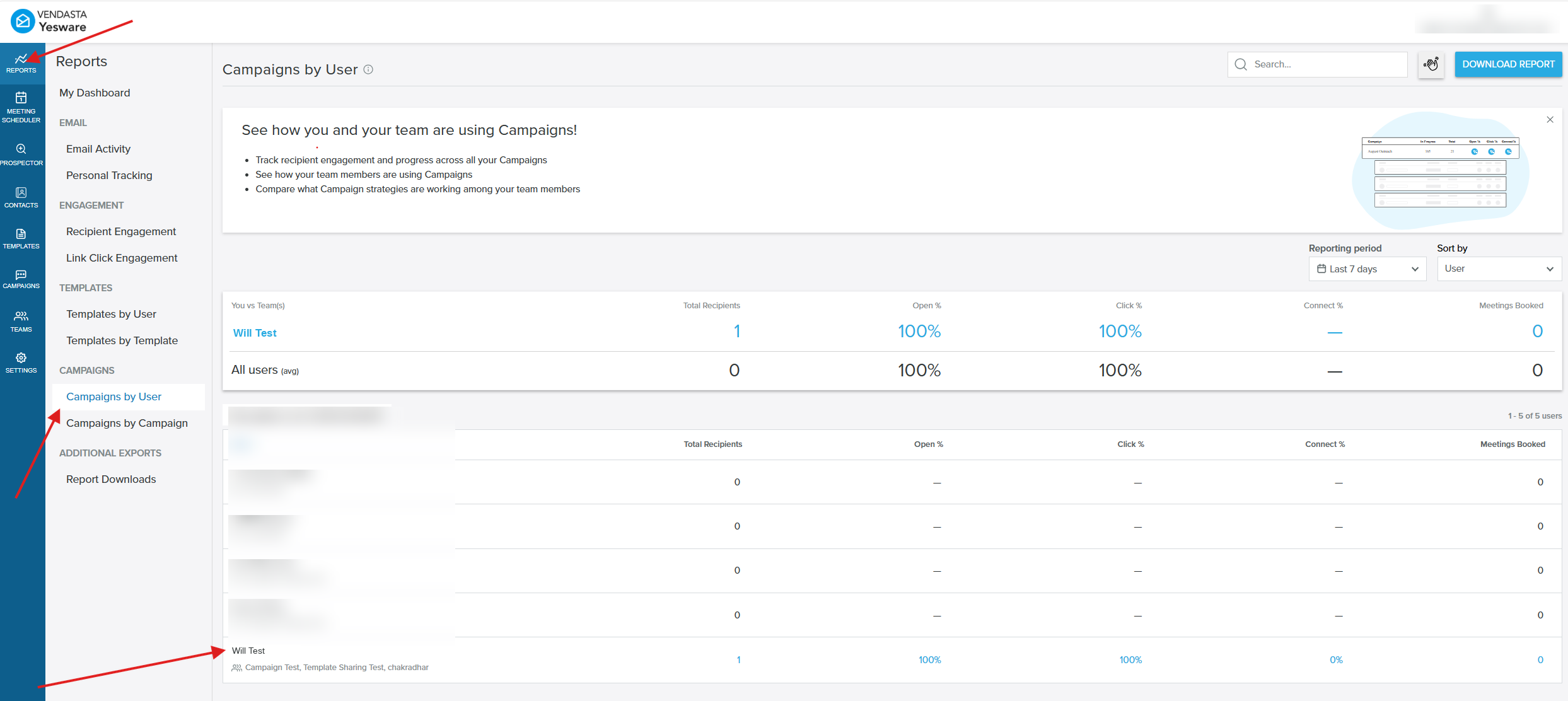
Who can see this
The click-through into a campaign is only available to Team Leaders, and only for campaigns owned by their direct reports. If you are reviewing your own campaigns, or viewing a peer's or a skip-level team member's campaigns, this option is not available.
This feature relies on the existing Teams feature, which is only available on the Premium and Enterprise plans.
Your access depends on how your Team is set up. See Teams for how Team Leader roles and direct reports are assigned.
How to view a campaign's details
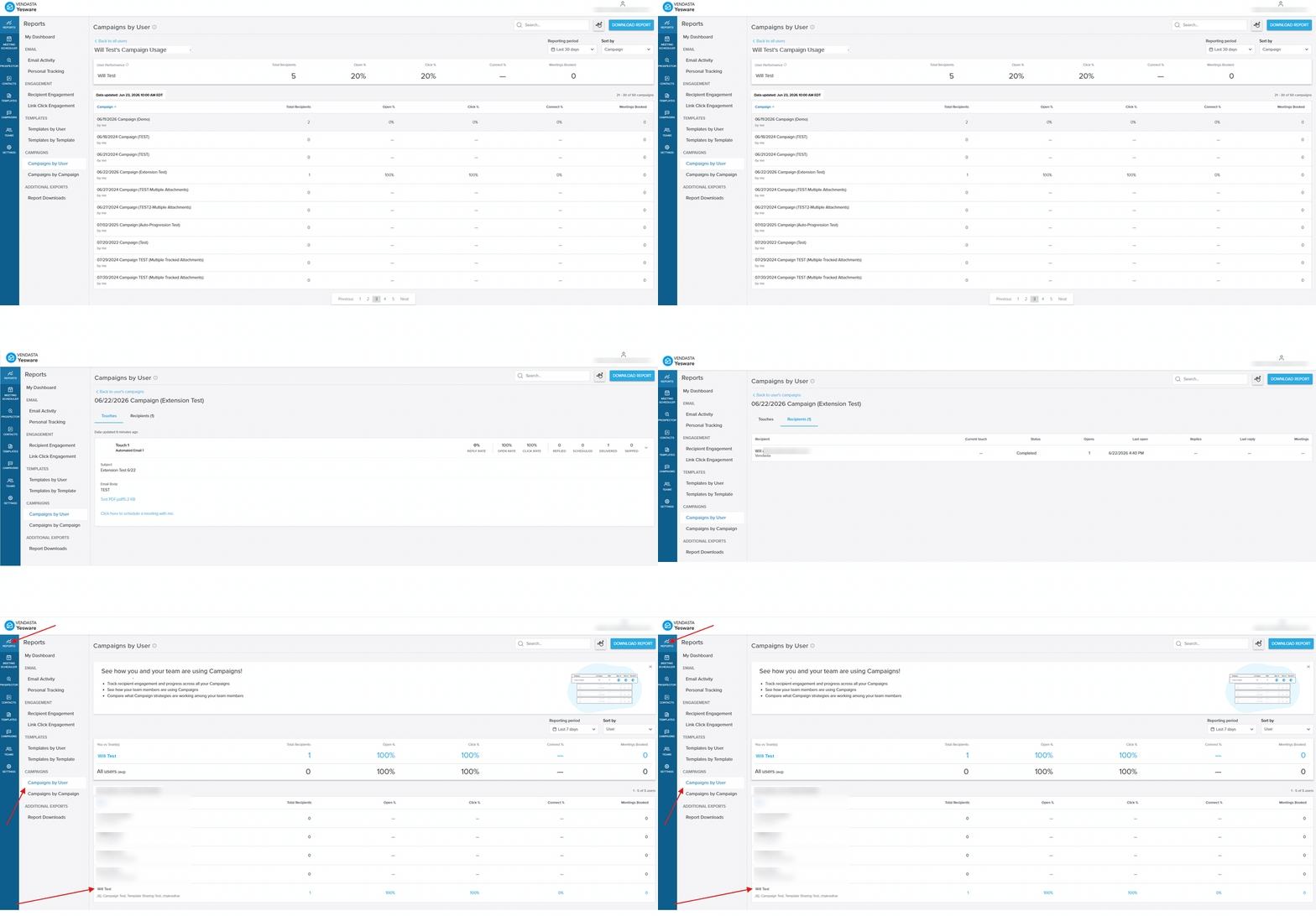
- Go to the Yesware AppSite and select Reports in the left navigation panel.
- Under the Campaigns section, click Campaigns by User.
- Select a direct report from the user list to open their campaign summary.
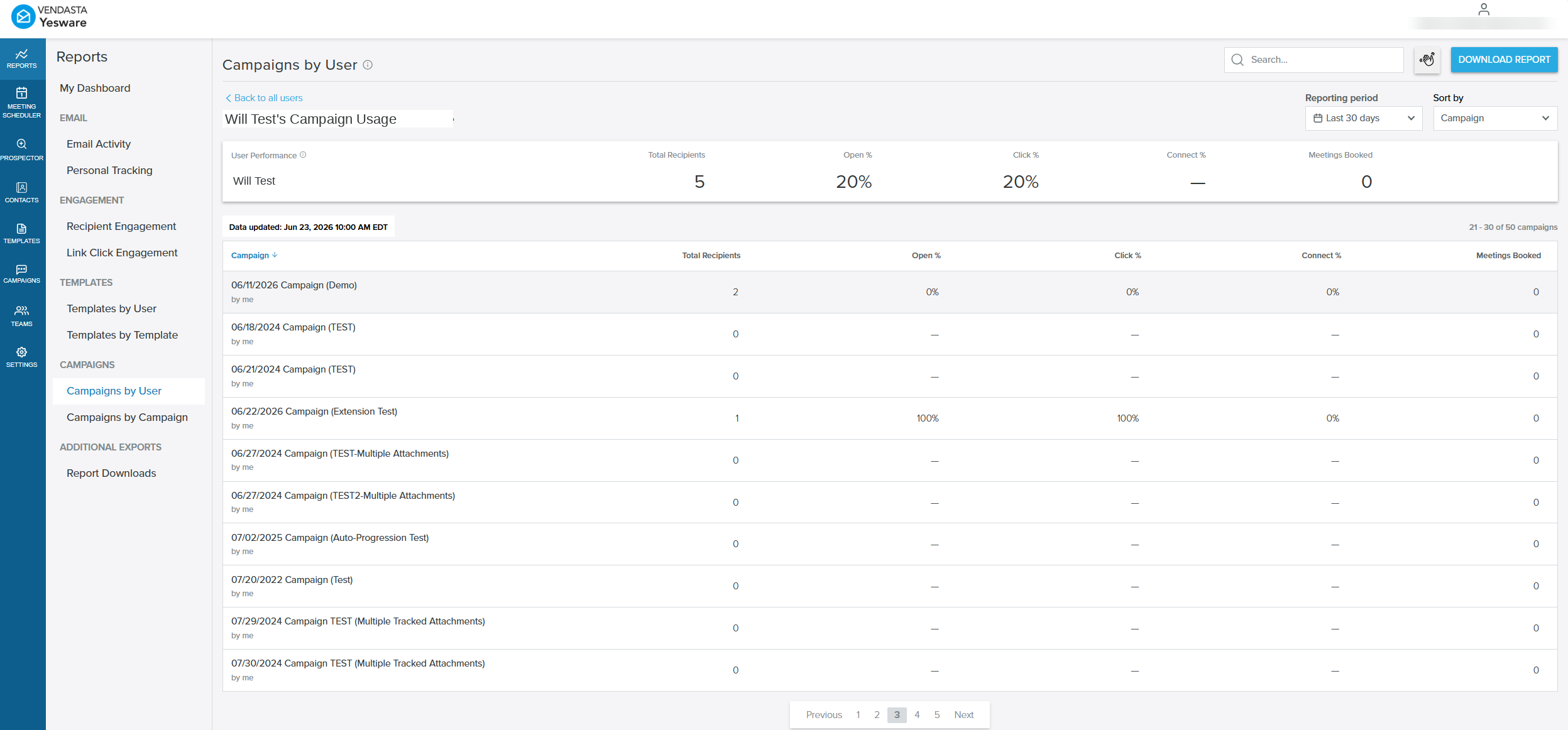
- Click a campaign name to drill into it. This option is only visible to Team Leaders.
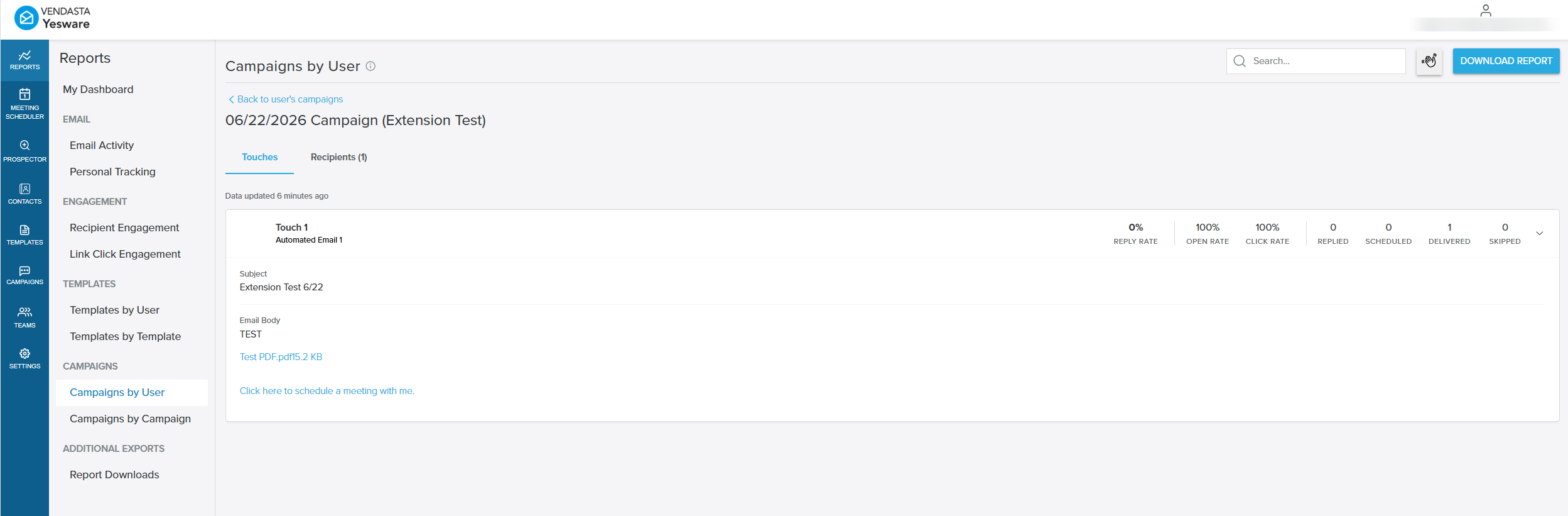
- Review the Touches tab for each email touch's content, timing between touches, and per-touch engagement metrics (reply rate, open rate, click rate, delivered, skipped).
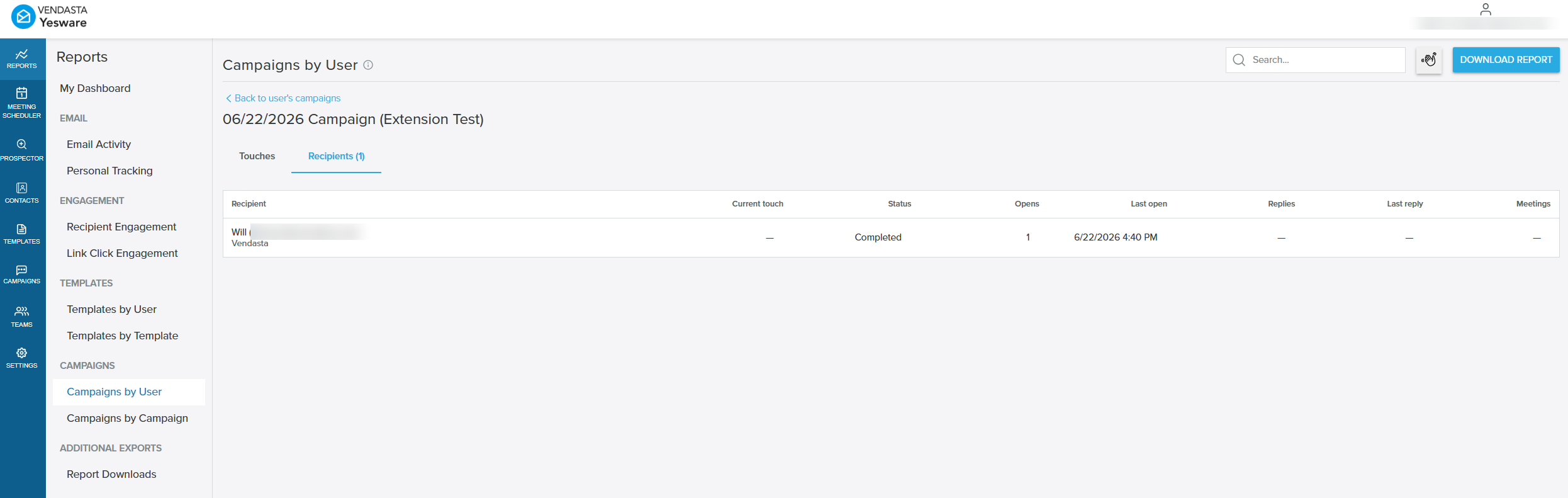
- Switch to the Recipients tab to see everyone enrolled in the campaign, along with their current touch, campaign status, opens, last open date, replies, last reply date, and meetings booked.
Watch a full walkthrough of selecting a direct report, drilling into a campaign, and reviewing the Touches and Recipients tabs:
Frequently asked questions
Who can use the campaign drill-down feature?
This feature relies on the existing Teams feature, which is only available on the Premium and Enterprise plans. Only users designated as a Team Leader with direct reports can click into a direct report's campaign. Peers and users without direct reports do not see the click-through option in the Campaigns by User report.
Can I see campaigns for direct reports I do not directly manage?
No. Access is scoped to your direct reports only. Skip-level or broader team members' campaigns are not accessible through this view.
I manage someone, but I can't see their campaigns. What's wrong?
Your Team may not be set up correctly. Verify and update the Team and manager assignments in Teams.
Can a direct report tell when I've viewed their campaign?
No. There is no notification sent to the direct report when you review their campaign.
Can I edit or delete a direct report's campaign from this view?
No. Access through this view is read-only. You can view a campaign's touches and recipients, but you cannot modify the campaign.